Assignment Rule
An Assignment Rule is a server-side rule that automatically assigns a task to the most appropriate user or user group based on predefined conditions. It runs after a record is inserted or updated, evaluates field values, and intelligently determines who should handle the task.
Steps to Create an Assignment Rule
To create an Assignment Rule, follow the steps below:
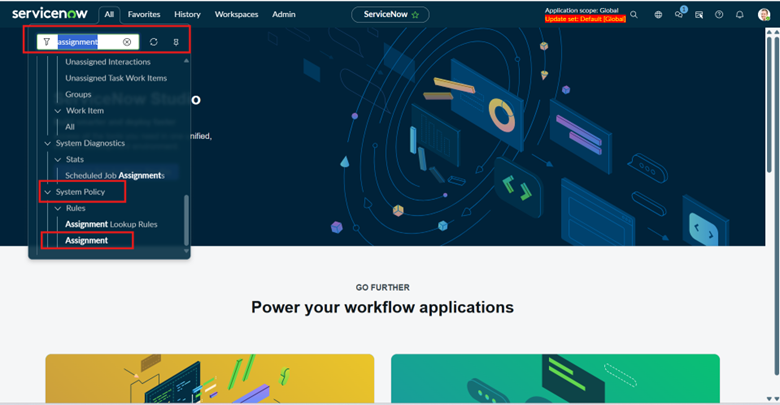
- Open the Navigation Panel in ServiceNow.
- Navigate to System Policy → Assignment.
- Click on Assignment to proceed.
Once selected, the Assignment Rule form will be displayed, where you can define conditions and configure how tasks are automatically assigned to the appropriate user or user group.
This structured approach helps streamline task distribution and ensures efficient workload management.
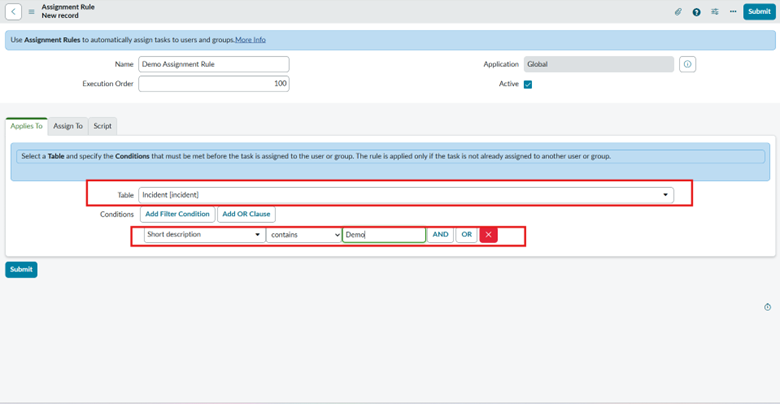
- Enter the Assignment Rule Name and specify the conditions that determine which user or user group for the task should be assigned to.
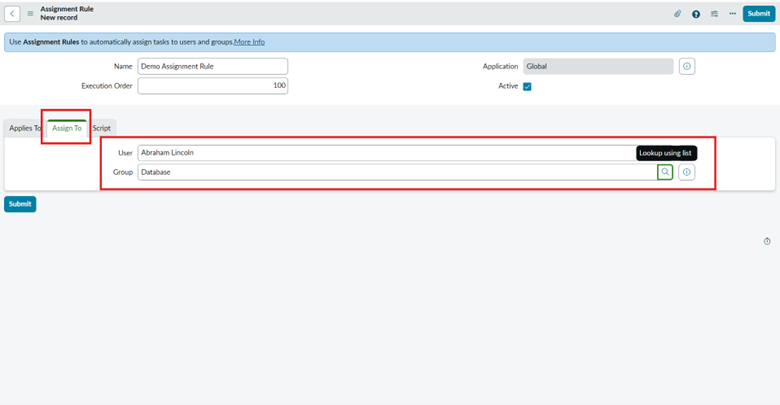
- Navigate to the Assign To tab and choose the appropriate User or User Group responsible for handling the task.
- Alternatively, you can define the assignment conditions in the Script tab instead of the Assign To tab, allowing for more flexible and advanced logic.
- Once the configuration is complete, click Submit to save the Assignment Rule.
- Create an Incident record and set the Short Description field to include the word “Demo” to trigger the Assignment Rule.
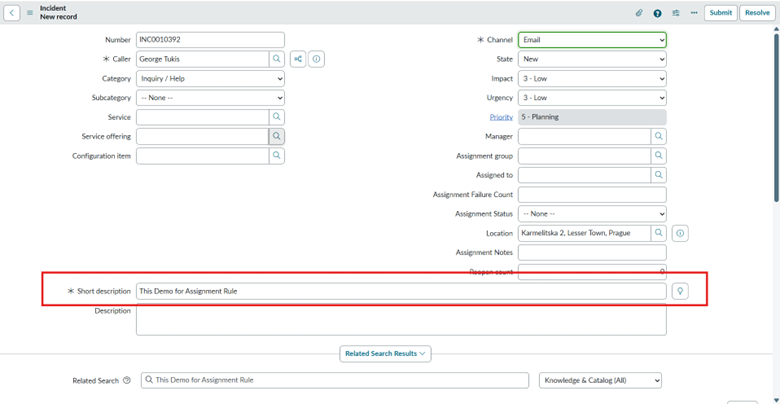
Click Save, and once the record is created, open the newly saved record.
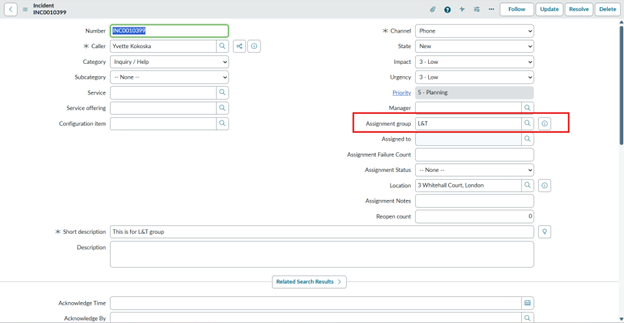
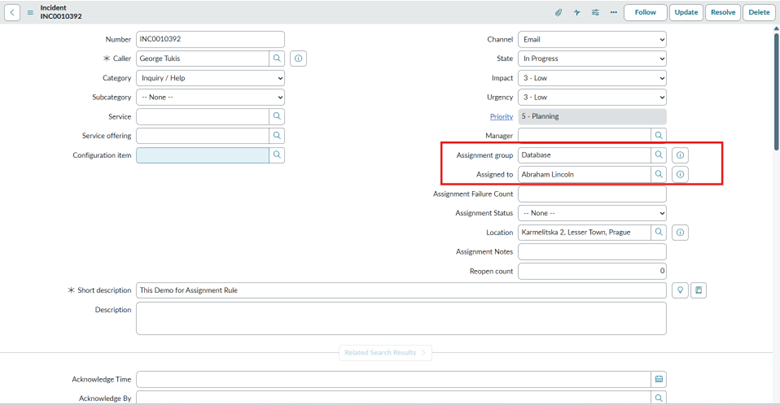
The incident is automatically assigned to Abrahim Lincon, confirming that the Assignment Rule is working correctly. Refer to the snapshot below.
Difference between Data Lookup Rule and Assignment Rule:
· Data Lookup Rule: | · Assignment Rule: |
· Works on the client side | · Works on the server side |
· Executes before insert/update | · Executes after insert/update |
· Used to populate multiple fields based on a combination of field values | · Used to assign a task to a User or User Group |
· Values are fetched from a separate lookup table | · No separate table is required |
· Mainly used for auto-filling data (like category, priority, SLA, etc.) | · Mainly used for auto assignment of records |
· Improves data consistency and accuracy | · Improves workload distribution and efficiency |
· Cannot assign users/groups | · Specifically designed for user/group assignment |
Problem Statement
Scenario: Incident Assignment Based on Short Description
Step 1: Create Groups and Assign Roles
• Create a group named LTI Group and assign the ITIL role.
• Create another group named L&T Group and assign the ITIL role.
Step 2: Create Users and Add Them to LTI Group
Create the following users and add all of them to the LTI Group:
• LTI1
• LTI2
• LTI3
• LTI4
Step 3: Configure Incident Assignment Logic
Incidents should be assigned based on the value entered in the Short Description field, as shown below:
Short Description Assigned To (User)
Finance LTI4
Leave LTI3
Training LTI1
Training and ServiceNow LTI2
Default Assignment Condition
• If the Short Description does not match any of the above values:
o The incident should be assigned to the L&T Group
o The Assigned To field should remain blank
Solution
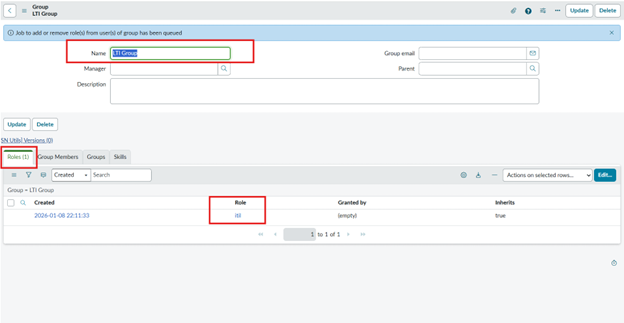
- Create the LTI Group and assign it the ITIL role to enable incident management access.
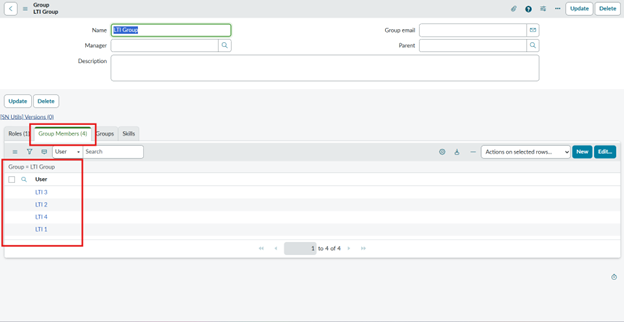
- After creating the group, add existing users or create new users and associate them with the group.
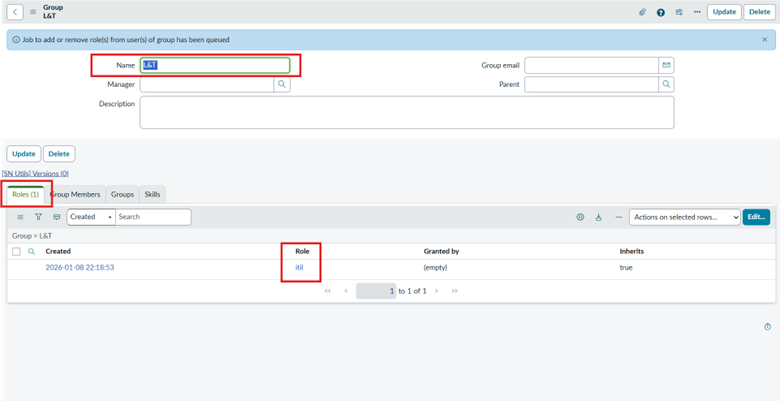
- Similarly, create the L&T Group and assign it to the ITIL role for incident handling.
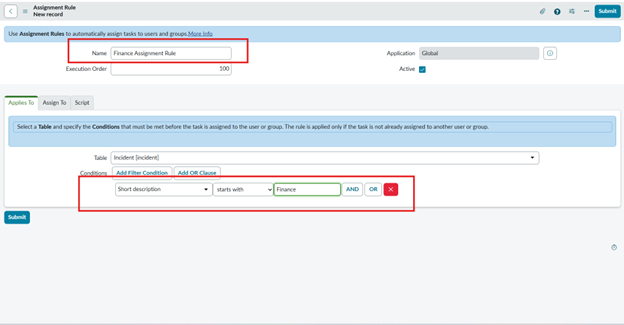
Create an Assignment Rule with the following configuration:
- Condition: Short Description contains “Finance”
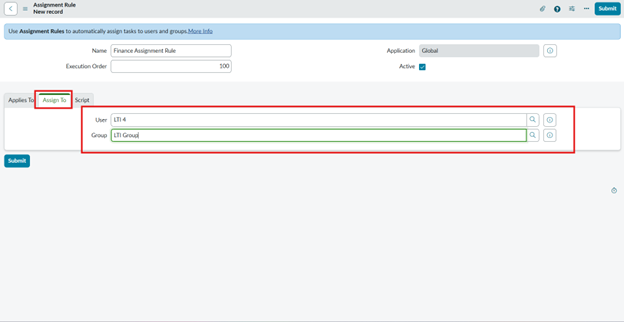
- Assignment: Automatically route the task to the LTI Group and LTI 4 user
This ensures seamless task allocation and efficient handling of finance-related requests.
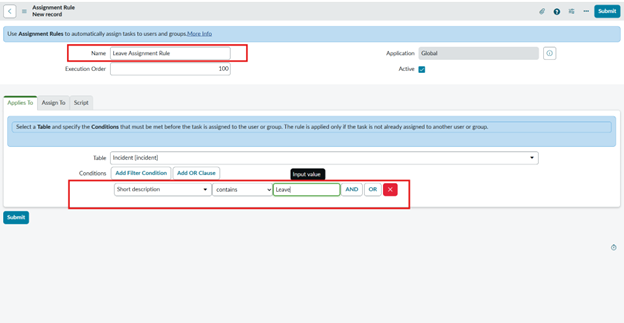
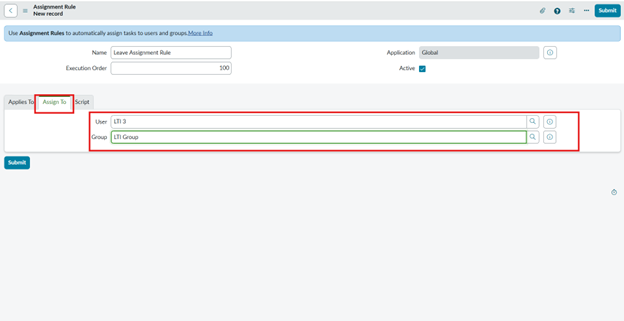
Create an Assignment Rule with the following setup:
- Condition: Short Description contains “Leave”
- Assignment: Automatically assign the task to the LTI Group and LTI 3 user
For a concise, professional one-liner:
Assignment Rule: If Short Description contains “Leave,” assign to LTI Group and LTI 3 users.
Create an Assignment Rule with the following setup:
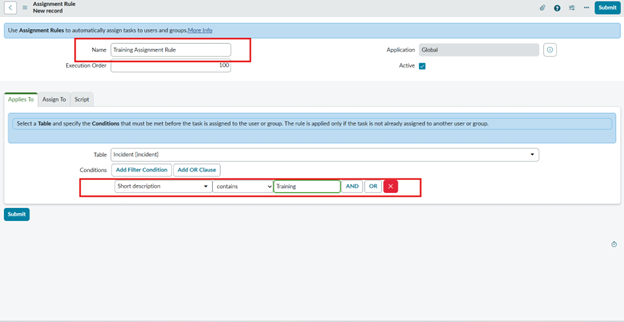
- Condition: Short Description contains “Training”
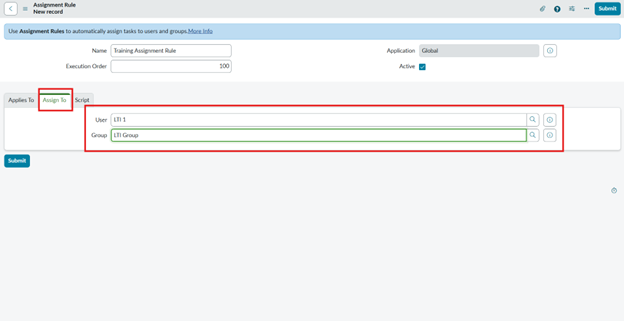
- Assignment: Automatically assign the task to the LTI Group and LTI 1 user
Concise one-liner version:
Assignment Rule: If Short Description contains “Training,” assigns to LTI Group and LTI 1 user.
Create an Assignment Rule with the following setup:
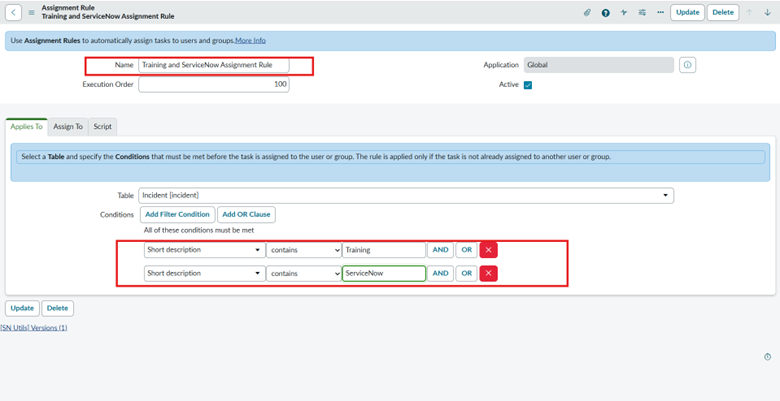
- Condition: Short Description contains both “Training” and “ServiceNow”
- Assignment: Automatically assign the task to the LTI Group and LTI 2 user
Assignment Rule: If Short Description contains “Training” and “ServiceNow,” assigns to LTI Group and LTI 2 user.
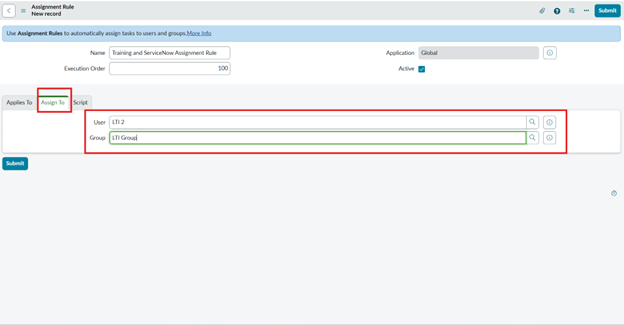
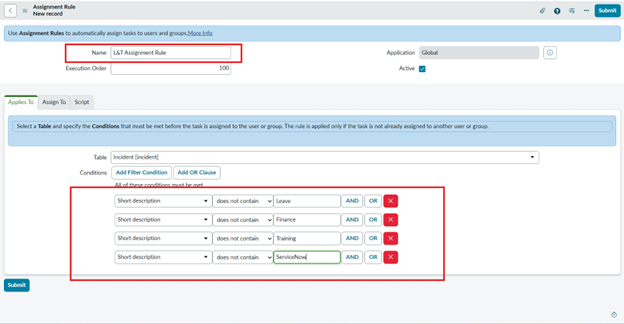
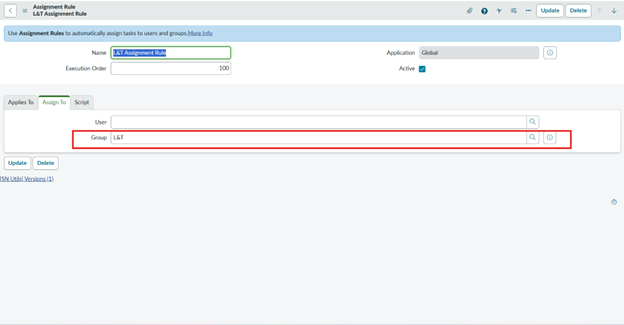
Create an Assignment Rule with the following setup:
- Condition: Short Description does not contain “Training,” “ServiceNow,” “Finance,” or “Leave”
- Assignment: Automatically assign the task to the L&T Group
Concise one-liner version:
Assignment Rule: If Short Description does not contain Training, ServiceNow, Finance, or Leave, assign to L&T Group.
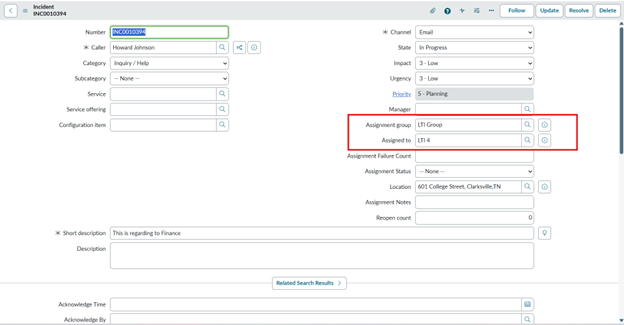
- Create an incident with a Short Description containing “Finance”; it will automatically be assigned to the LTI Group and LTI 4 user.
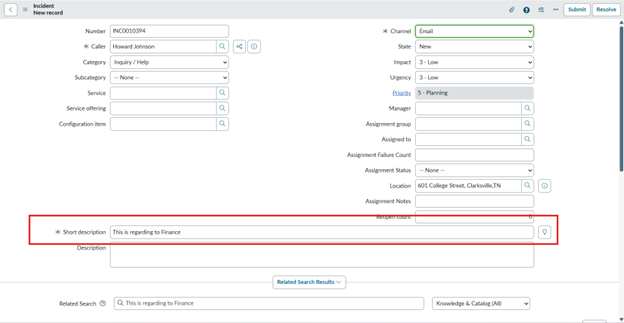
- Once the incident is saved, it’s successfully logged and ready for action.
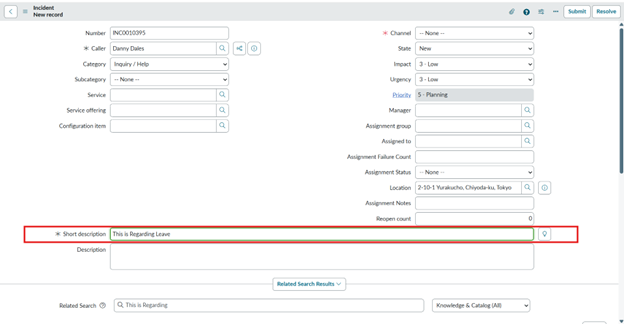
- Create an incident with a Short Description containing ‘Leave’. It will automatically be assigned to the LTI Group and LTI 3 user.
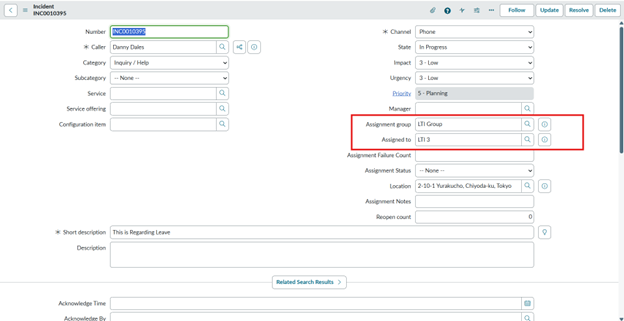
- Once the incident is saved, it’s officially recorded and queued for action by the assigned group and users.
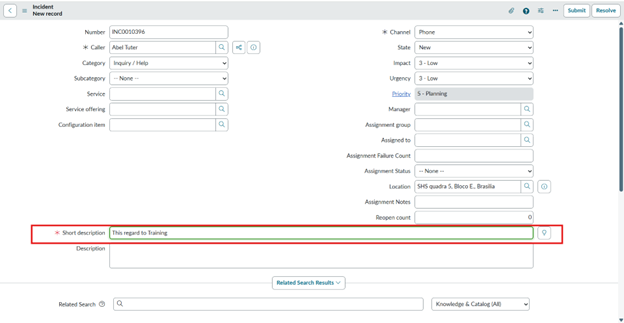
- Once an incident with ‘Training’ in the Short Description is created, it’s automatically routed to the LTI Group and LTI 1 user for action
- After saving the incident, you get a confirmation that it has been successfully created and assigned
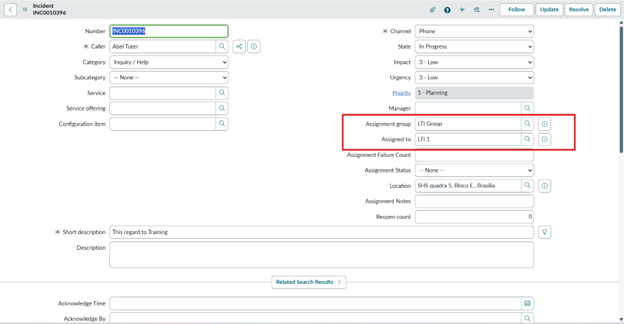
- Once an incident with ‘Training’ and ‘ServiceNow’ in the Short Description is created, it’s automatically routed to the LTI Group and LTI 2 user for action
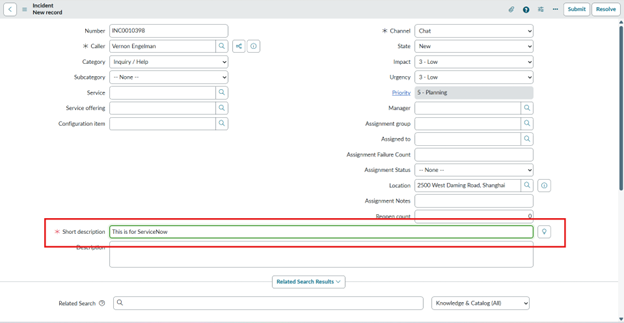
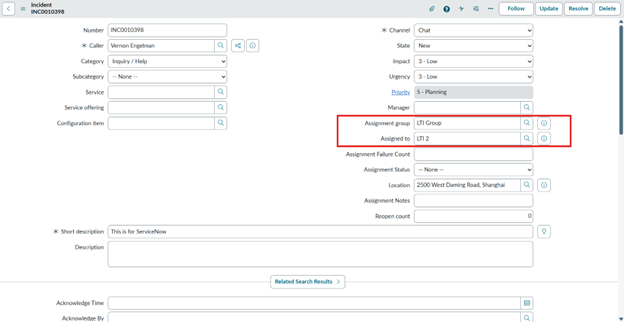
- If an incident’s Short Description does not contain Finance, Leave, Training, or ServiceNow, it’s automatically routed to the L&T Group, and the ‘Assigned To’ field remains blank for manual assignment.
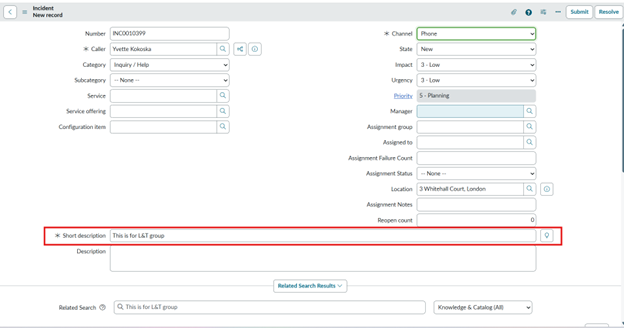
- For incidents whose Short Description does not contain Finance, Leave, Training, or ServiceNow, only the Assignment Group (L&T Group) will be populated, while the ‘Assigned To’ field will remain empty due to the assignment rule.