
A Scheduled Job is a script that runs automatically at a defined time or interval to perform a specific task in ServiceNow.
Why Do We Need Scheduled Jobs?
Scheduled Jobs are used when:
No user action is required
A task must run daily, weekly, monthly, or at a specific time
Data needs to be processed in the background
Key Components of a Scheduled Job
When you create a Scheduled Job, you configure:
– Name
Meaningful name describing the job
– Run
When the job should run:
Daily
Weekly
Monthly
Once
Periodically (every X minutes/hours)
– Script
The logic that will execute automatically
Scheduled Job Example
Scenario:
Automatically close incidents that are in Resolved state for more than 7 days.
var gr = new GlideRecord(‘incident’);
gr.addQuery(‘state’, ‘6’); // Resolved
gr.addEncodedQuery(‘sys_updated_on<=javascript:gs.daysAgoStart(7)’);
gr.query();
while (gr.next()) {
gr.state = ‘7’; // Closed
gr.update();
}
Steps to Create Scheduled Job :
Step 1: Navigate to Scheduled Jobs
System Definition → Scheduled Jobs → New
Step 2: Fill Basic Details
- Name: Daily Open Incident Reminder
- Run: Daily
- Time: 07:00:00
- Active: true
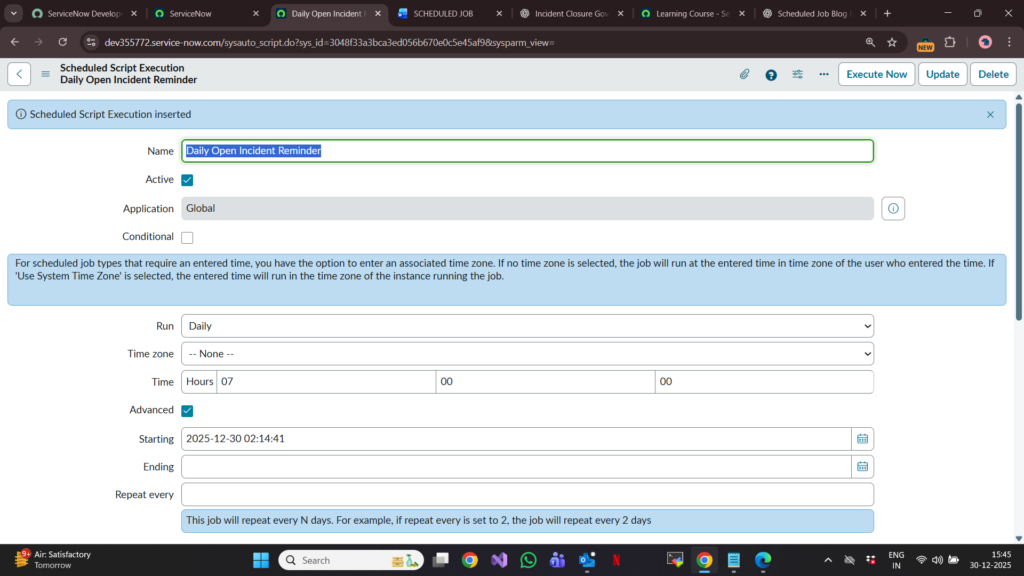
Step 3: Script (Example Code)
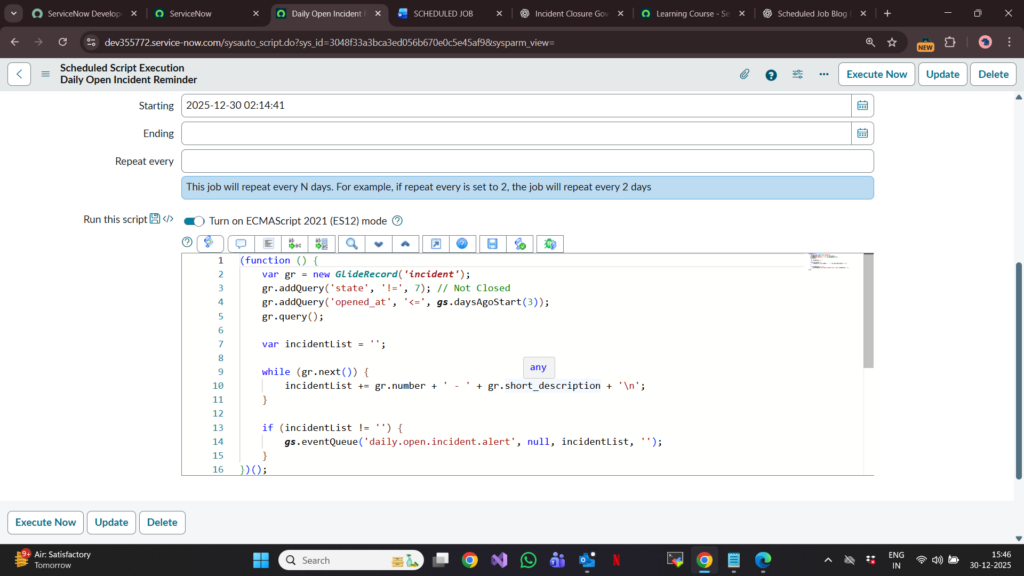
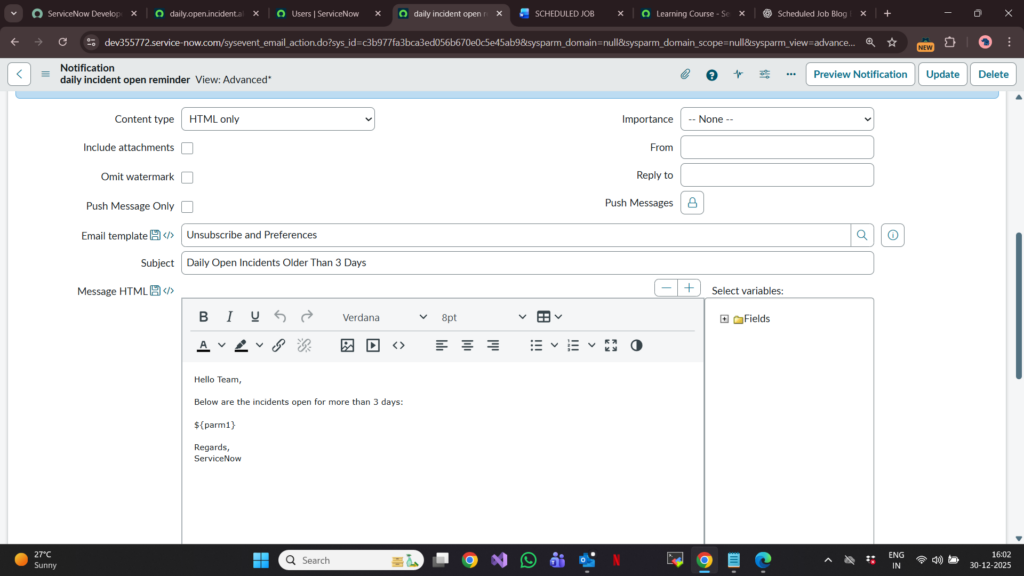
Step 4: Email Notification
Create an Email Notification:
- Table: Incident
- Event name:daily.open.incident.alert
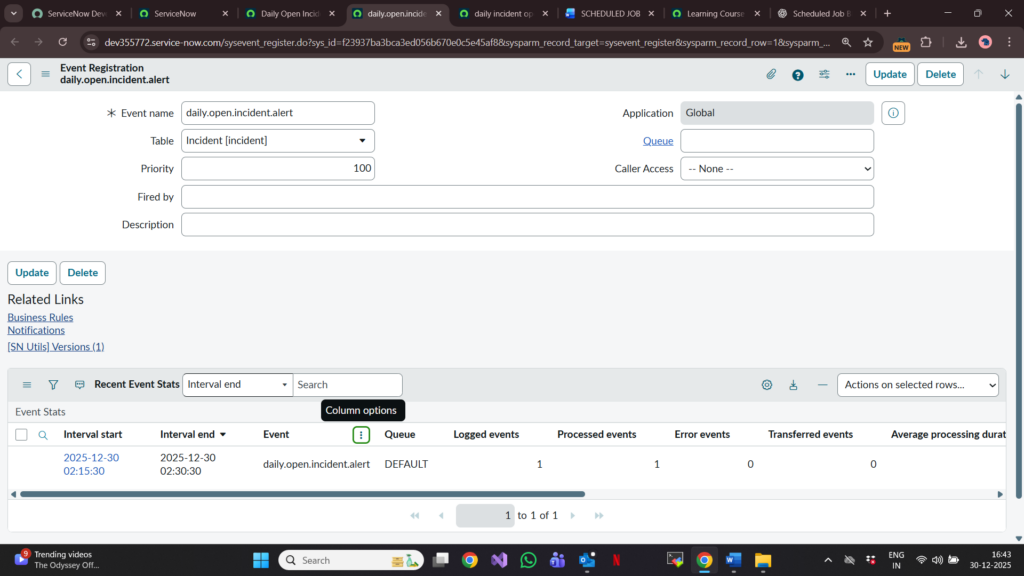
- To: IT Manager
- Subject: Daily Open Incidents Older Than 3 Days
- Body:
Hello Team,
Below are the incidents open for more than 3 days:
${parm1}
Regards,
ServiceNow

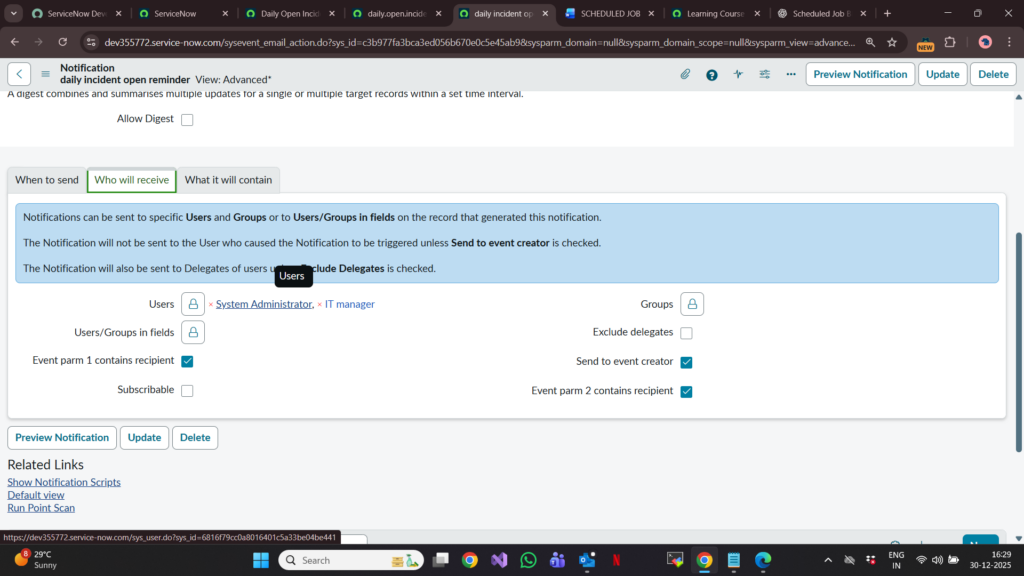
Output
Every morning at 7:00 AM:
- Scheduled Job runs
- Checks for old open incidents
- Sends one consolidated email to the IT Manager