Control and Control Objective
1.Introduction
In Governance, Risk, and Compliance (GRC), a control is a specific process, action, or technical measure implemented to reduce risk and ensure compliance with organizational policies and regulatory requirements. Controls provide evidence that business activities are being performed securely and effectively. A control objective, on the other hand, defines the high-level goal or desired outcome that these controls are designed to achieve. It sets the direction for what needs to be accomplished—for example, protecting sensitive data, ensuring accurate financial reporting, or maintaining proper access management. Together, control objectives outline the “what,” while controls define the “how,” enabling organizations to manage risks consistently and maintain strong governance.
2.What is Control objective
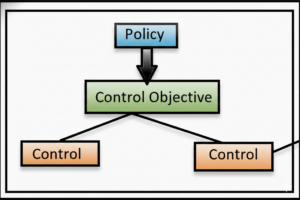
- A control objective is an objective, direction, or standard that acts as guidance for company interactions and operations.
- Control objectives can be categorized, classified, and related to policies.
- Control objectives are breakdown of policy
- A policy holds multiple control objectives, and control objectives hold multiple policies. It’s many to many relationships.
- From control objectives it will create control
3.What is Control?
- Control is specific implementation of a control objective
- Controls are automatically generated when you associate a policy with an entity type, or an entity type with a control objective.
- A control is created for each entity listed in the entity type for the control objective. Control can also be manually created
4.Role required for control and control objective
- Compliance User /Compliance analyst(User)
- Control Owner
- Compliance Manager(sn_compliance.manager)
- Attestation Creator(sn_compliance.attestation_creator)
- Compliance Reader(sn_compliance.reader)
5.Difference between control and control objective
Feature | Control Objective | Control |
Definition | A high-level, desired outcome or goal that guides compliance efforts. | A specific, actionable task or activity performed to meet a control objective. |
Hierarchy | At a higher level; a policy can have multiple control objectives, and a control objective can be implemented across multiple entities. | A lower-level, concrete instance of a control objective. |
Purpose | To define what needs to be achieved, often based on a policy or regulation. | To perform the actual action to achieve the objective for a specific entity. |
Example | “Ensure all remote employees have the necessary equipment.” | A specific control created for each remote employee, detailing what equipment they need. |
6.Fields of Control Objective
Field Name | Type | Explanation |
objective_id | String | Unique identifier for the control objective |
objective_name | String | Name of the control objective |
objective_description | Text | Detailed purpose and scope of the control objective |
related_entity | Reference/ String | Entity or business unit linked to this objective |
risk_statement | Text | Risk that this objective mitigates |
classification_score | Number | Score representing risk classification |
residual_risk | Choice | Remaining risk after control implementation (Low, Medium, High, Critical) |
regulatory_mapping | Text | Link to regulations, standards, or frameworks this objective supports |
control_dependency | Text | Other objectives or controls that depend on this objective |
owner | Reference/ String | Person responsible for the objective |
start_date | Date | Effective start date of the objective |
end_date | Date | End or retirement date of the objective |
attestation_required | Boolean | Indicates if periodic attestation is required |
attestation_frequency | Choice | Frequency of attestation (Quarterly, Annually, etc.) |
last_attestation_date | Date | Date of the most recent attestation |
7.Fields of Control
Field Name | Type | Explanation |
control_id | String | Unique identifier for the control |
control_name | String | Name of the control |
control_description | Text | Purpose and details of the control |
control_type | Choice | Preventive, Detective, Directive, Automated, Manual |
control_owner | Reference/String | Responsible person for execution and monitoring |
related_objective | Reference/String | Linked control objective(s) |
control_frequency | Choice | Execution frequency of control (Daily, Weekly, Monthly, Quarterly, Annual) |
section | Choice | Business area (IT, Finance, Legal, Operational) |
assessment_method | Choice | Self-assessment, Audit, Automated |
assessment_date | Date | Date control was assessed |
assessment_result | Choice | Effective, Needs Improvement, Ineffective |
remediation_plan | Text | Plan to address gaps |
remediation_due_date | Date | Due date for remediation activities |
remediation_status | Choice | Not Started, In Progress, Completed |
closure_date | Date | Date control issue is resolved |
closure_comments | Text | Notes at closure |
risk_rating | Choice | Risk level associated with control (Low, Medium, High, Critical) |
last_audit_date | Date | Last date the control was audited |
attestation_required | Boolean | Indicates if control attestation is required |
attestation_status | Choice | Not Started, In Progress, Completed |
8.How controls created
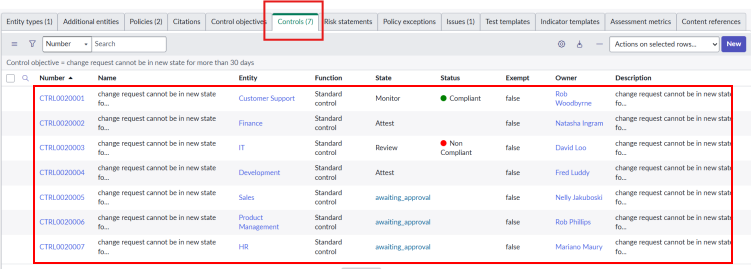
- When policy and Entity are connected it automatically generates control, if “Create controls automatically ” checkbox is checked in control objective.
- The count of Controls are dependent on the count of Entities.
- Control owning group Owner will same as entity.
9.Process to create Control Objective from policy
Here under policy, we can create control objective, In review state
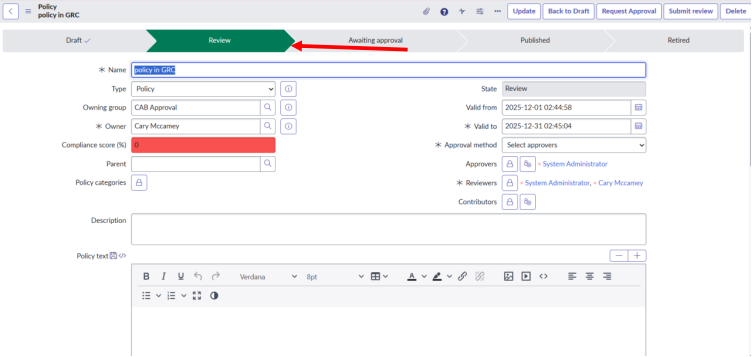
In the related list of Policy, we can add control objectives by clicking on new or Edit UI action
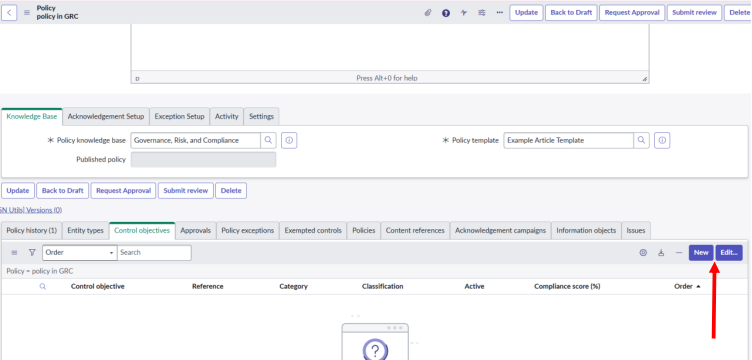
Create control objective
In control objective Attestation, Entity Types should be added
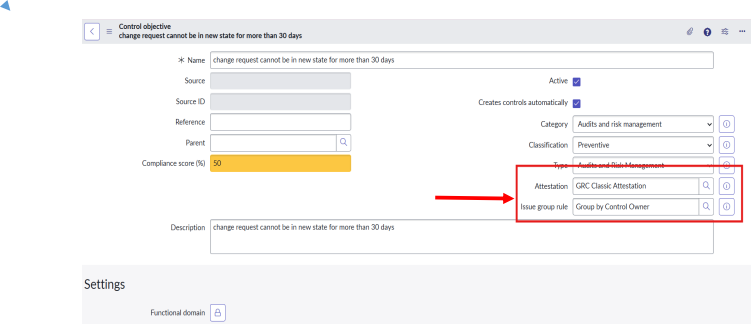

After creating entity types 7 controls will be created. Control count will be depending on the entities.
10.States of control
Draft: In this state, all compliance users can modify the control. Only available when
creating a one-off control. One off control is possible but not recommended.
Attest: When the control is created from a control, objective controls are in this state.
Note: When a control is set back to draft, the attestation is canceled.
Review: Controls are automatically moved to review from the attestation phase.
Monitor: In this state, all compliance managers can move the control from review to monitor.
Retired: Compliance managers or administrators can move control from Monitor to Retired.
11.Process flow of control
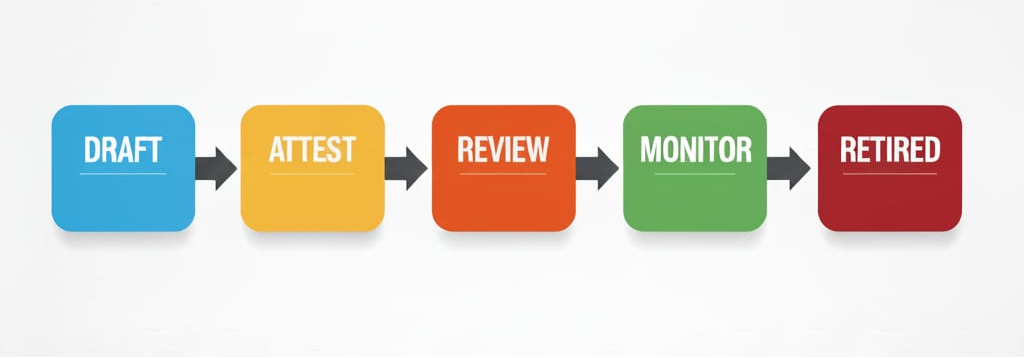
11.1 Draft state
When a control is first created, it starts in the Draft stage. In this stage, the control can be edited as many times as needed until all details are properly defined and documented. Control in Draft is only considered “identified” and is not yet implemented or active.
Usually, the Control Owner (the person responsible for the control) adds the required information. If they do not have all the details, the control can be reassigned to someone else who can complete it. Once all information is filled in, the control becomes ready to move to the next stage.
The required fields at this stage are:
- Name
- Entity
- Attestation Respondents(not needed to create the control initially, but required before moving to the next stage)
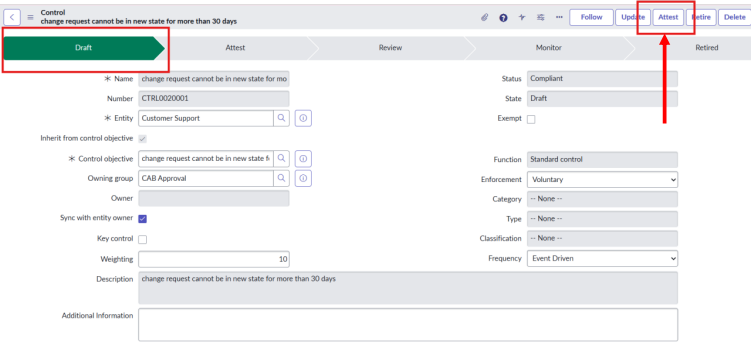
11.2 Attest state
After clicking attest UI action move to attest state
Once the control is fully defined, the first attestation (also called a test or assessment) can be carried out to check if the control is implemented correctly. While the control is still in the Draft stage, you select an attestation that contains a list of questions the assigned respondent must answer.
Different types of controls may need different attestation questionnaires. These can be created using the Attestation Designer or the Smart Assessment Engine. For example, a business control like performing employee background checks will need different questions compared to a technical control like enforcing password expiry.
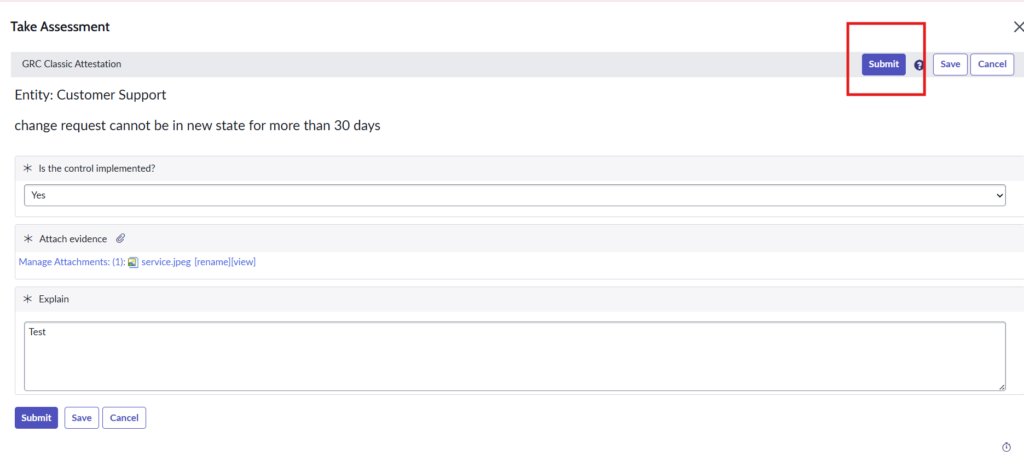
ServiceNow also provides a sample attestation called “GRC Classic Attestation” or “GRC Attestation.” This is a simple self-assessment that includes three basic questions:
- Is this control implemented?
- Attach evidence
- Provide an explanation
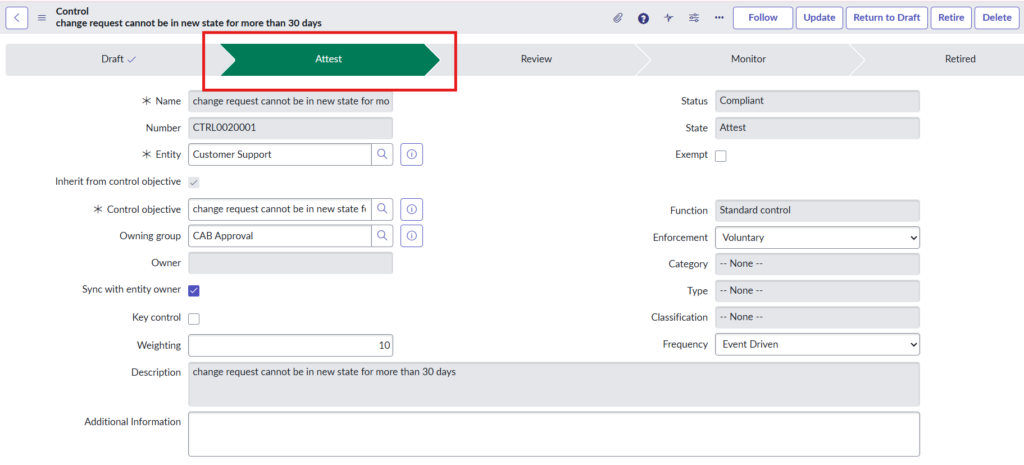
In the related list attestation will be generated for attestation respondents

Impersonate the attestation respondents, here Rob Woodbyrne
11.2.1 Compliant status
Open ESC portal –under the GRC task
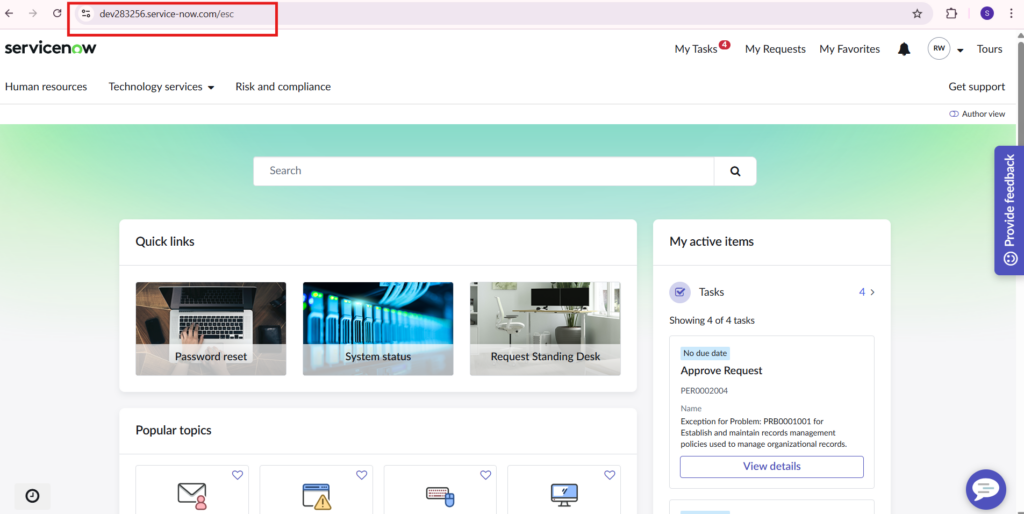
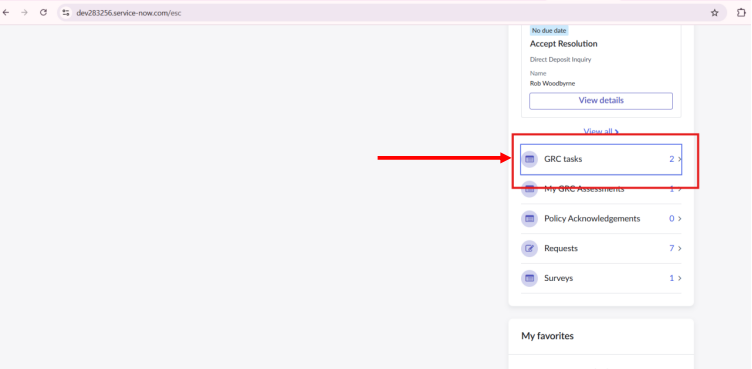
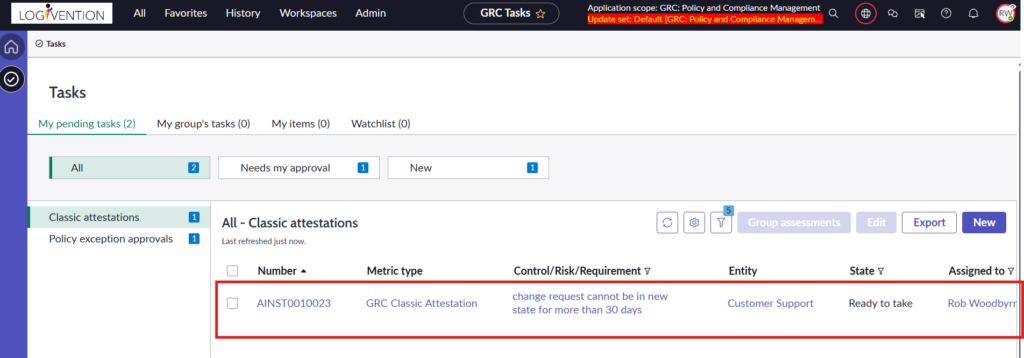
Open that attestation and complete it by clicking Task Assessment
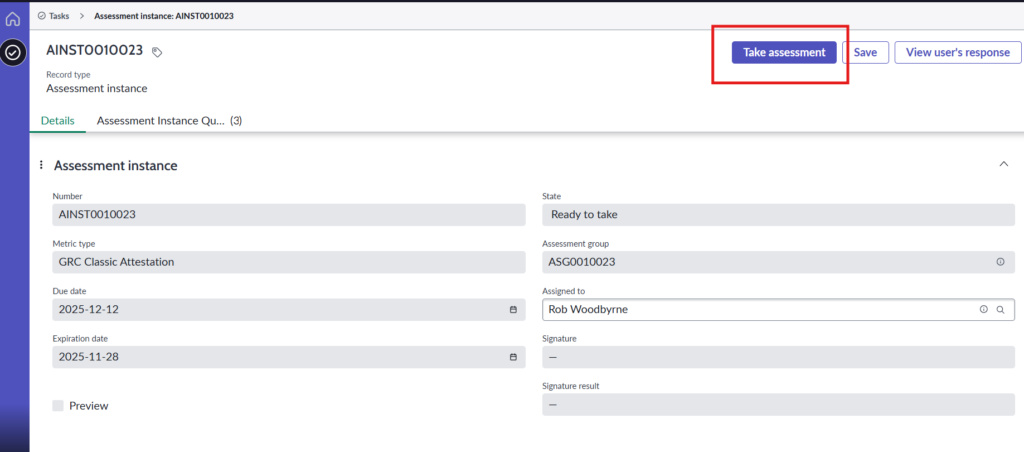
Complete the test and submit it
11.3. Review state
Once a control has been attested, it moves to the next stage of the workflow.
In this stage, the reviewers can perform a final review before moving the control to the ‘Monitor’ state.
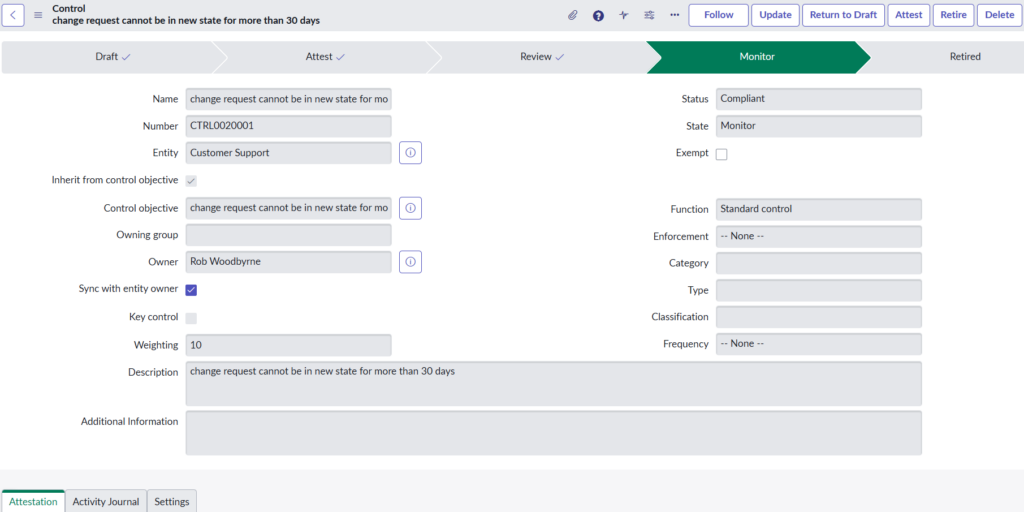
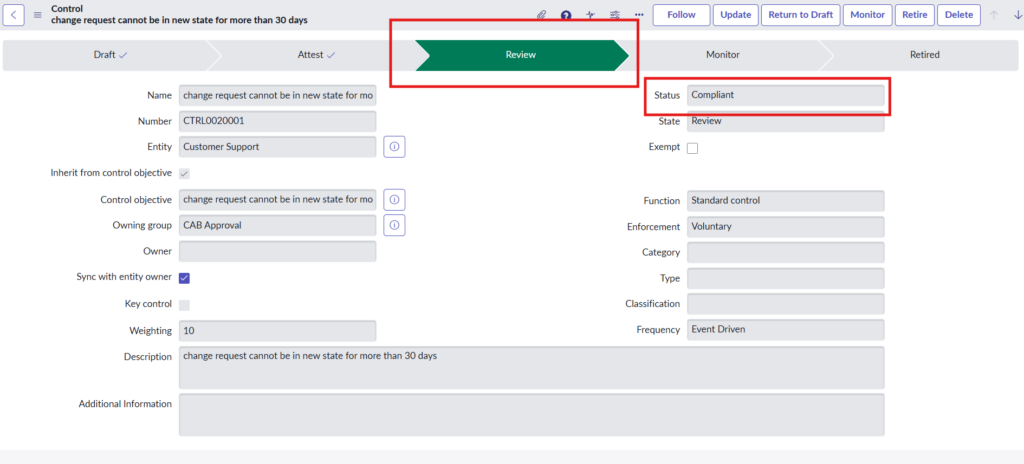
After completing assessment, the control will go to review state and status will be changed to Compliant
11.2 .2. status non-compliant
Same as like the above if the assessment test is failed then that control will go to non-Compliant state
Here we check another control for non-complaint
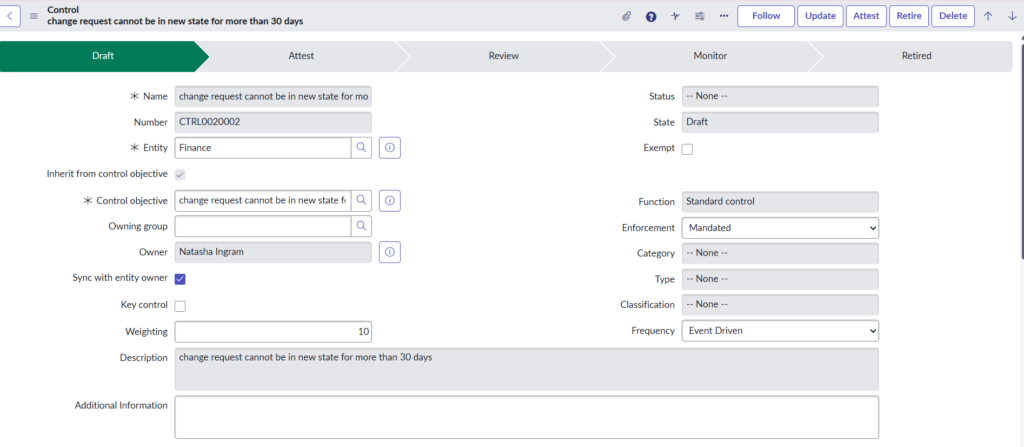
In the related list, attestation respondent is present

Impersonate the Daniel Zill and complete the assessment in ESC portal
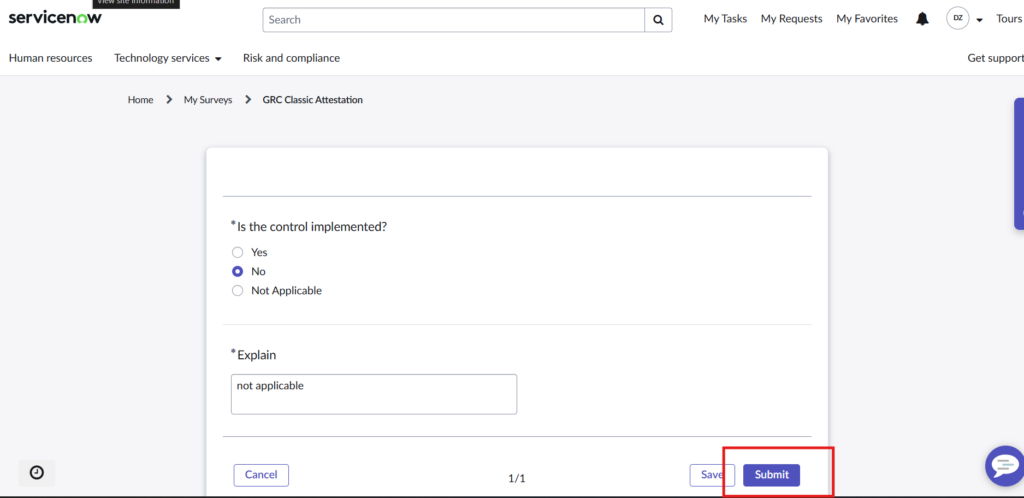
After completing the assessment Control will go to review state and status will be non-compliant
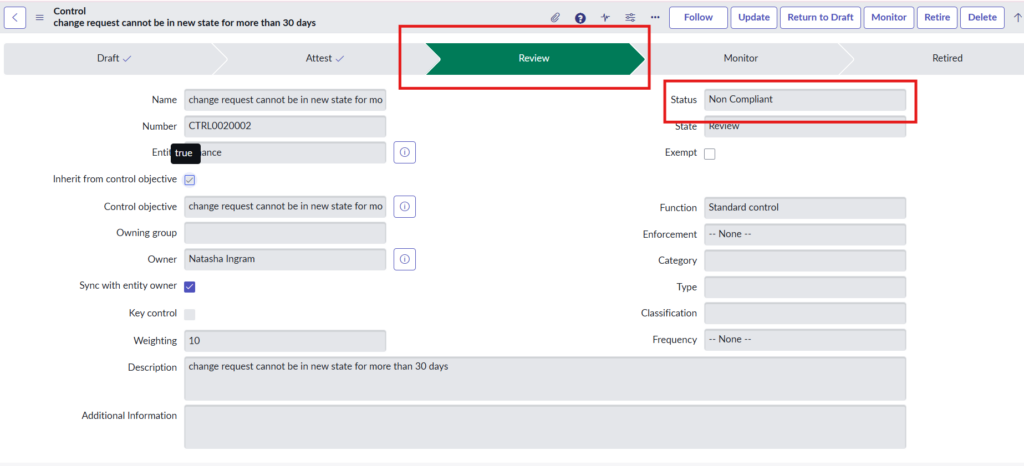
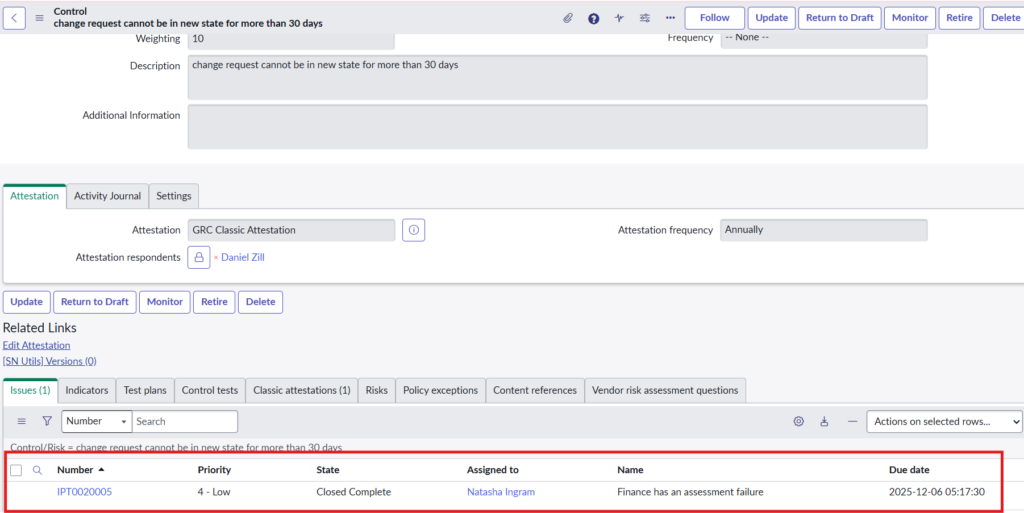
Issue will be created when control is NON – COMPLIENT.

Process flow of issue
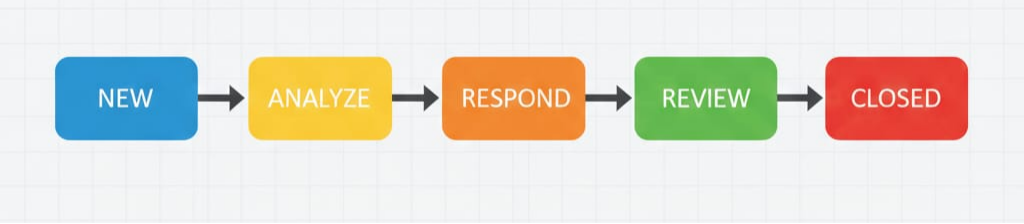
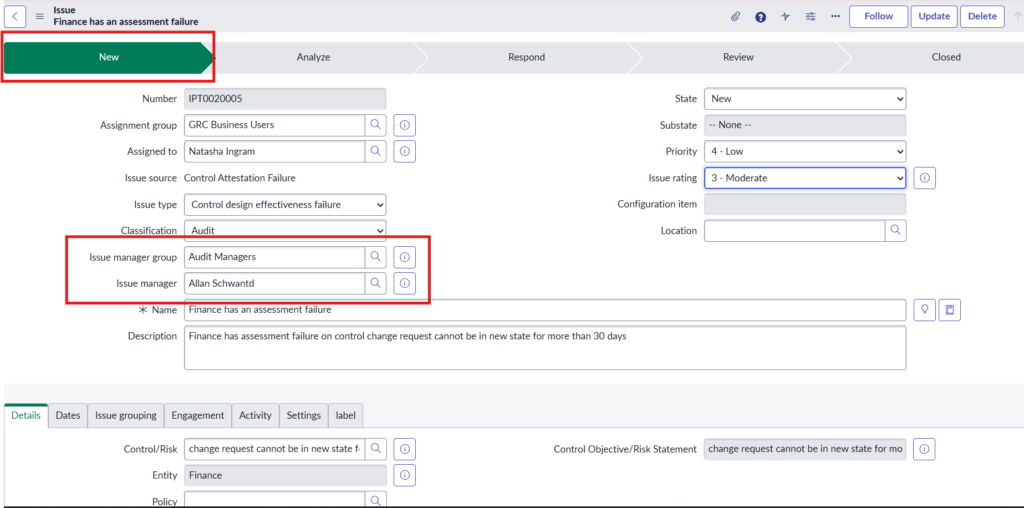
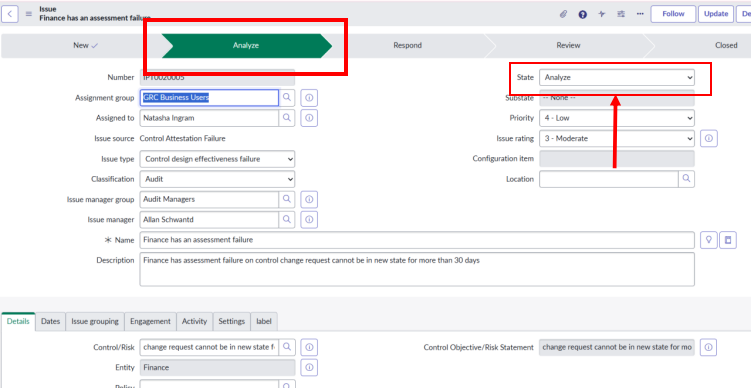
When the issue is created it will be in new state
Issue manager and issue manager group is required
When the state changes to analyze issue will be go to analyze state
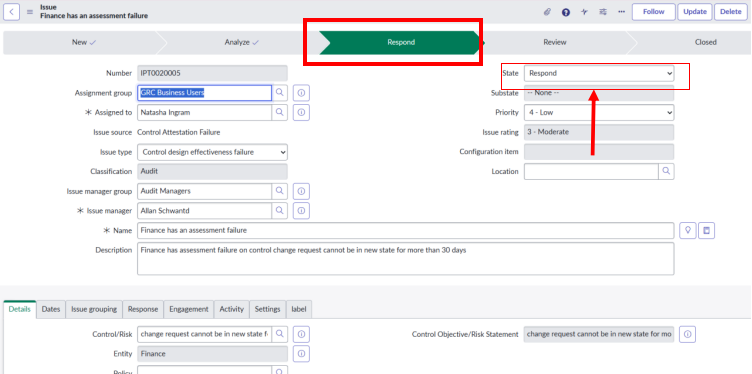
When state changes to respond issue will go in respond state
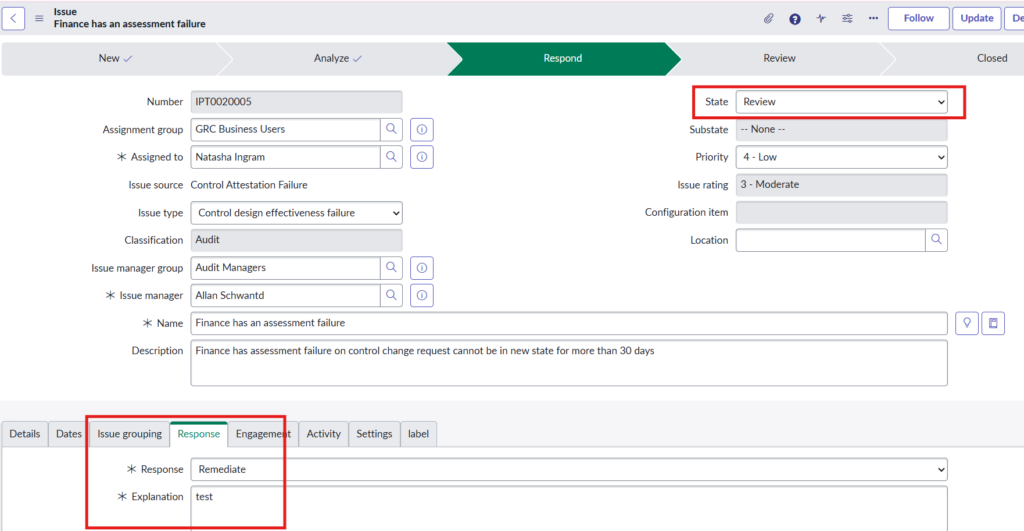
When state changes to review
Response and explanation should be mandatory
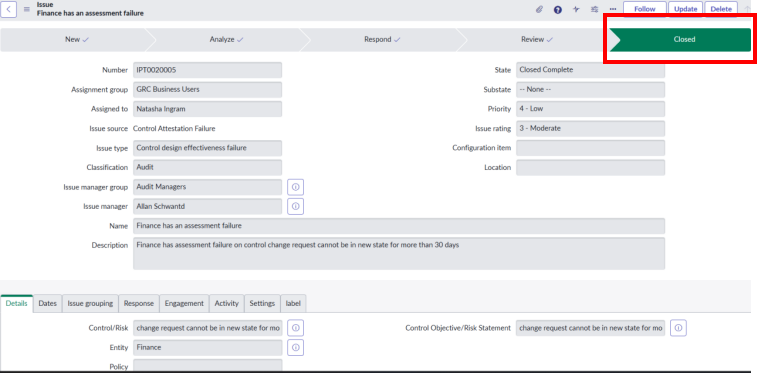
When status changes to closed complete, the issue will be closed
11.4. Monitor state-
The monitor state is the last active state in the Control lifecycle. In the monitoring state, the control will be set to Compliant or Non-Compliant depending on the attestation response, as well as indicators. Indicators are established for continuous monitoring purposes.
In the case that the Risk Management Application is in use on the platform, the scoring of risk will also be adjusted in real-time according to compliance controls in place and their control failure rate.
Clicking Monitor UI action Move to the monitor state