HRSD (Human Resource Service Delivery)
1.What is HRSD
It is a Service Now platform module that helps organizations digitalize, streamline and automate HR process.
1.1 What HRSD does
- Onboarding new employees
- Offboarding (resignations, exits)
- Leave and attendance requests
- Payroll and benefits queries
- Employee documents and policies
- Workplace issues or grievances
1.2 Key features of HRSD
- Employee Service Portal: – Employees can raise HR request using a self-service portal.
- Case Management: -HR Cases are tracked from start to closure.
- Knowledge Base: – Employees can search HR Articles (policies, FAQ’s)
- Workflows & Automation: – Automates approvals and HR processes.
- Confidentiality: – Sensitive HR data is secured with role-based access.
- Lifecycle Events: – Manages hire, transfer, promotion, and exit processes.
2. Plugins required to install HRSD
- Human Resources Scoped App:Core- com.sn_hr_core- Case and Knowledge Management
- HR Service Portal – com.sn_hr_service_portal- Employee Service Center for employee to raise case.
- Human Resources Scoped App: Lifecycle Events- com.sn_hr_lifecycle_events- Multiple activity in multiple departments in sequence e.g. onboarding
- Integrations-com.sn_hr_integrations.
3.Roles Required
- Sn_hr_core.basic : – Given to employees which will allow them to access HR Service portal. Also, they can raise HR case and view their own HR request.
- Sn_hr_core.case_writer: – Allows creation of HR cases on behalf of employees. This role usually given to HR assistant and HR coordinators.
- Sn_hr_core.case_worker: – This role is given to the HR agents so that they can work on HR cases, update case status and communicate with employees.
- Sn_hr_core.case_reader: – This role gives the read only access to HR cases. It is used for audit or managers who only need visibility.
- Sn_hr_core.manager:- This role is given to managers so that they can view team performance, reassign cases and access HR reports and dashboards.
- Sn_hr_core.admin:- The person who is having this role has full control of HRSD. he/she can configure the HR service. Also, he/she can create hr case template and manage HR workflows and lifecycle events.
4.COE (Center of Excellence)
- Center of excellence (COE) in HRSD refers to a structured approach that allows HR teams to manage and deliver services effectively. It helps in organizing various HR functions such as payroll, benefits, talent acquisition, and employee relations into distinct categories, making it easier for users to navigate and request services.
- · It is used to group and organize HR services, cases and tasks into logical categories. It is an extension of HR case table (sn_hr_core_case) e.g. HR Employee Relations, HR Payroll, Talent Management, Lifecycle Events, HRIT Operations.
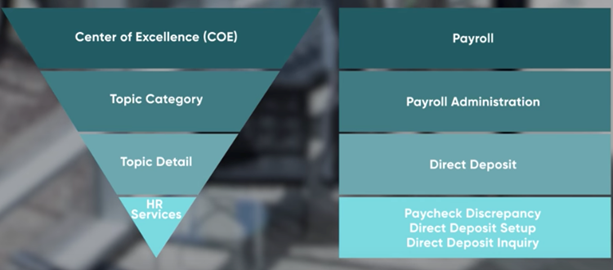
- Each COE is further organized by HR topic category and detail, which defines the first-and second-level of categorization for HR services under that COE. Each COE can have one or more topic categories. Each topic category can have one or more topic details. And each topic detail can have one more HR services. The structure enables you to categorize HR services by functional area, and you configure the categorization structure and the individual HR services to meet the needs of your organization.
4.1 Topic Category
- Topic categories represent the first level of grouping for HR services, like “Benefits” or “Leave Management,”
4.2 Topic Details
- Topic details are the second level of categorization under a topic category, providing further specificity to the service.
4.3 HR Service
- HR services are various functions and support provided by HR department to the employees e.g. onboarding, payroll processing.
- HR service is the most important part of the HRSD application where we bind all the features, we described above to create an HR service.
- Basically, HR services are the starting point for HR case creation and define the process for that case type form request to fulfilment.
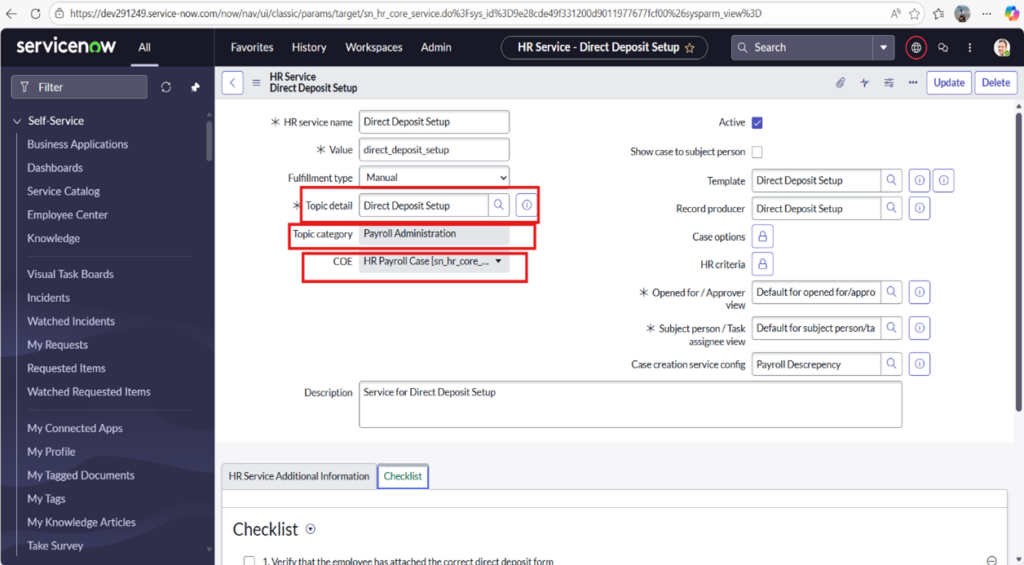
- Fields Present on the HR Service Table
Field Name | Description |
Name
| The display name of the HR service (e.g., “Direct Deposit Setup”).
|
Active | Boolean to indicate if the service is available. |
Description | Detailed description of the service |
Topic Category | Reference to the first-level categorization (similar to category in incident) |
Topic Detail | Reference to the second-level categorization (similar to subcategory) |
COE | Reference to the COE table determining the case table (e.g. sn_hr_core_case_payroll) |
HR Template | Reference to an HR case template for auto-populating fields on case creation. |
Record Producer | Links to employee-facing portal options. |
Case Option | Additional case options for the HR service. 1. Add Manager to Watchlist 2. Skip Automatic User Acceptance State 3. Automatically Create draft document 4. Automatically Initiates Document tasks 5. Do Not Default Subject Person: 6. Skip Auto Assign 7. Skip Automatic User Acceptance State 8. User Cannot Cancel
|
Opened For/Approver view | The person who opened/made the request (the requester). |
Subject Person/Task assignee view | The employee whom the HR case is about (the beneficiary or affected person). |
Case creation service config | Specify a case creation view for this service. |
Checklist | Who is working on a service that is checklist. In this related list, you can provide steps to help HR agents to fulfill HR cases for the associated HR service. |
4.4.1 How It works in HRSD
- HR Services tie into the hierarchical structure:
- COE → Topic Category → Topic Detail → HR Service
- When an employee requests an HR service (via portal or case), it creates an HR case on the appropriate COE-extended table (extending sn_hr_core_case), and the “Service table fields” help control visibility of custom/COE-specific fields on the case form via OOB UI policies (e.g., “Show HR service fields on load” and “Hide HR service fields and related lists”).
5. HR Case
- An HR Case in ServiceNow Human Resources Service Delivery (HRSD) is a centralized record used to manage, track, resolve, and report on employee HR-related inquiries, requests, issues, or services. It acts as the core mechanism for HR case management, similar to how an Incident or Case works in ITSM, but tailored for HR processes.
- Table Structure: – Parent Table: – sn_case (Case Table)
- Core HR case table: – sn_hr_core_case(extends sn_case. Used for general or core HR cases.)
5.1 Life Cycle of HR Case
- Daft - Initial state when a case is created (e.g., via portal submission or manual creation). Allows editing before routing. Limited state options visible here.
- Ready – Case is ready for assignment and work. All full state options become visible in the dro pdown.
- Awaiting approval – Require approval before it can move to next state.
- Work in process - HR agent is actively working on the case.
- Awaiting acceptance – user can accept or reject these solution
- Closed complete – Case fully resolved and closed. Triggers surveys, notifications, and moves case to closed queues.
- Close incomplete - Case closed without full resolution (e.g., employee no longer pursues).
- Suspended - Similar to On Hold but specifically for SLA suspension (e.g., awaiting external input).
- Cancelled – Case is no longer needed (e.g., duplicate or withdrawn). Requires a cancellation reason.
5.2 HR case creation
5.2.1 Create new case (Manual)
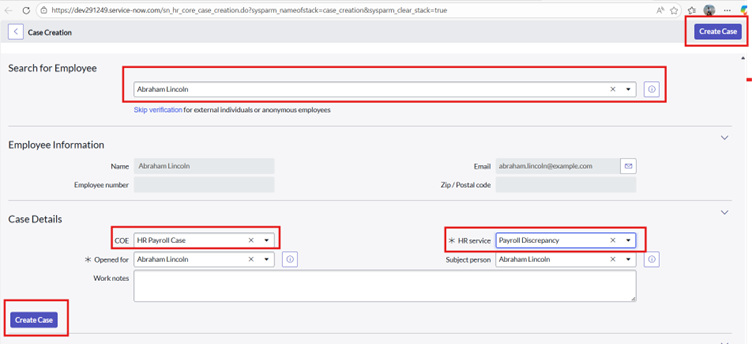
- HR agent can create HR Case manually by to HR Case Module.
- Go to navigation bar ->HR Case->Click on Create New Case
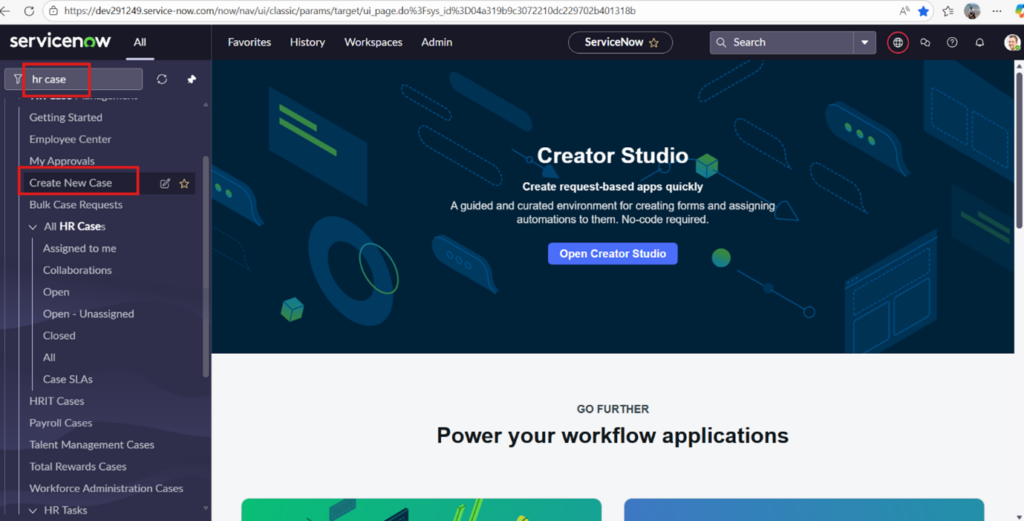
- Provide employee name, COE e.g. HR payroll case also, provide HR service name e.g. Payroll discrepancy. Click on the UI action create case.
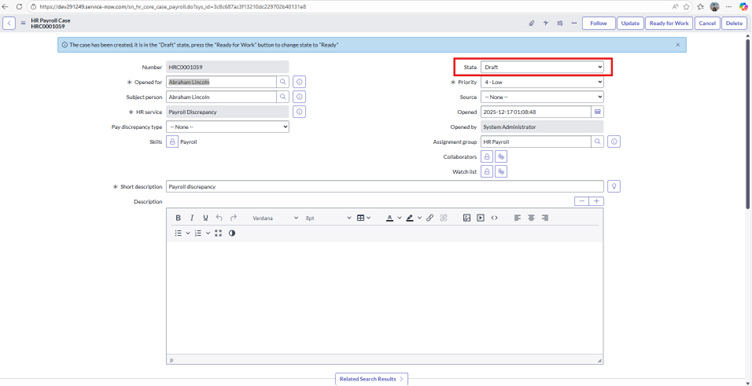
- When you open an HR case from the native UI the state of the HR case is Draft.
5.2.2 Bulk Case Creation
- You can create the same type of HR case for multiple employees without having to create the same case multiple times.
- Bulk case creation can save your time and effort.
- For example, onboarding 20 new employees, a payroll run issue, an annual recertification process are the cases that can be created as a bulk case.
- To create bulk case, navigate to HR Case Management>Bulk Case Request
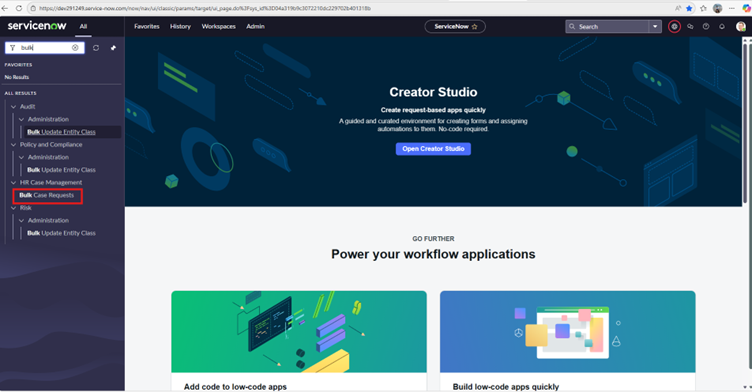
- Click on New Button to create a new Bulk Case

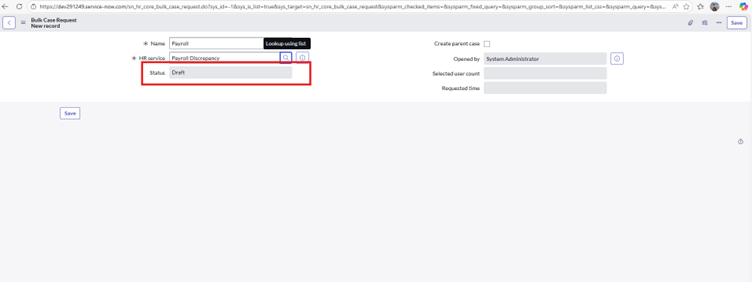
- Enter Name and select the required HR service.
- Click on Save.
- You can see here, Initially the Status is Draft.
Once you saved the record, under User segment groups, you can add multiple users based on following options,
- Upload file
- HR criteria
- User criteria
- HR profiles
- Users
5.2.2.1 Upload File
- Here you can upload the excel file by clicking on Choose File button which includes the required user data.
- Upload an excel file with user_name or email as the first column of the file. The header of the first column must be “user_name” if user_name is being uploaded, “email” if email is being uploaded.
- Click on Download Template to download the template.
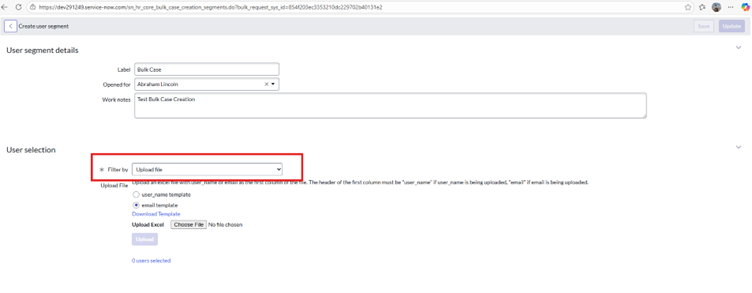
- Enter email addresses of required users in the first column if email template, option is selected or enter user_name if user_name template is selected. (Download template will be as below, where email must be the first column name)
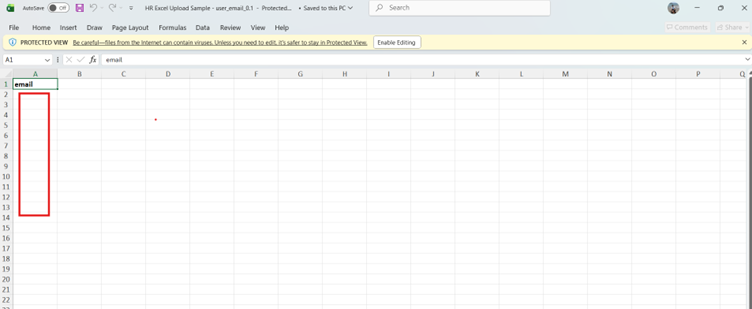
- If user_name template is selected,following template we will get by clicking in the Download Template link,where user_name must be the first column name.
5.2.2.2 HR Criteria
- In this type of filter,you can select users using HR criteria.
- Enter the values as below,
- Filter by: select HR criteria option.
- HR criteria: select the required HR criteria.
- For Example, Select HR profiles belongs to USA using HR criteria named as “US Users”
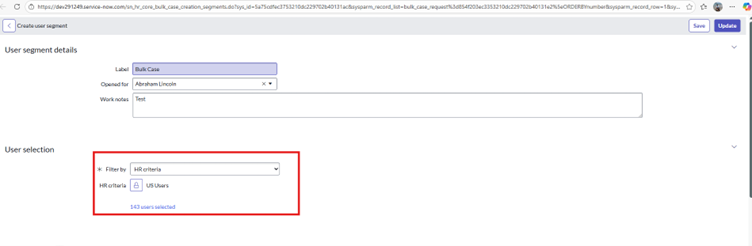
- Once we Save this segment, we can see all selected users’ list at the bottom.
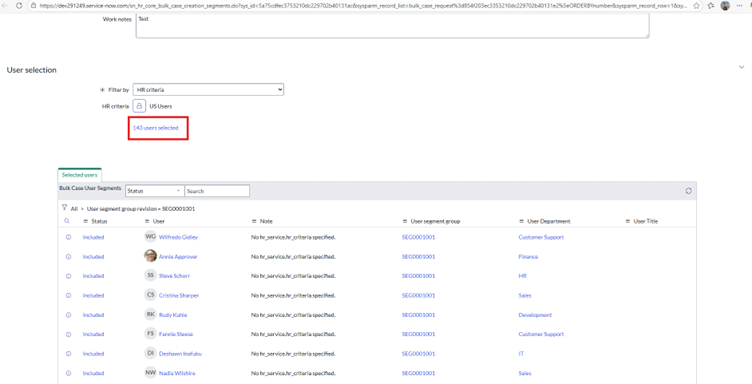
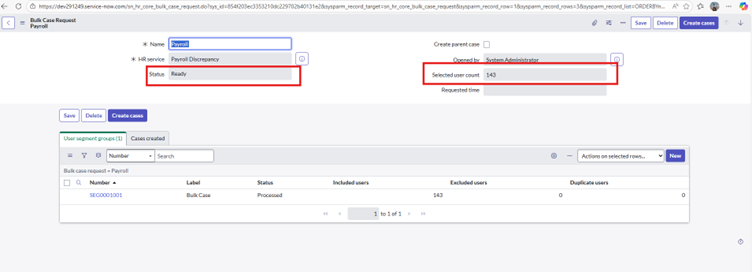
- Once you saved all the segments as per requirement,On the main form Click on Create cases button as below.
- You can see the status of segment as Processed and Status of Bulk case is Ready.
5.2.2.3 User Criteria
- In this type of filter, you can select users using User criteria.
- Enter the values as below,
- Filter by: select User criteria option.
- User criteria: select the required User criteria.
- For Example, select AES users using User Criteria.
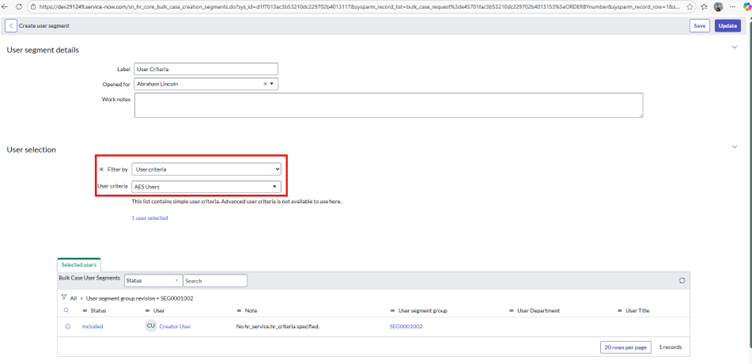
- Click on Save button. The list of user based on user criteria will be displayed at the bottom.
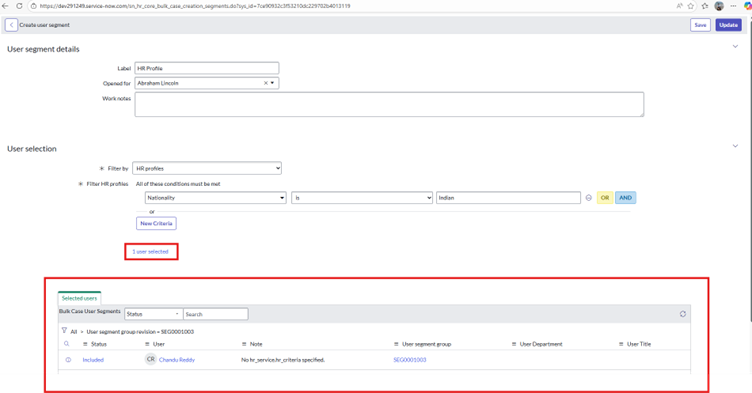
5.2.2.4 HR Profiles
- In this type of filter, you can select users using HR profiles table ( sn_hr_core_profile).
- Enter the values as below,
- Filter by :- select HR profiles option.
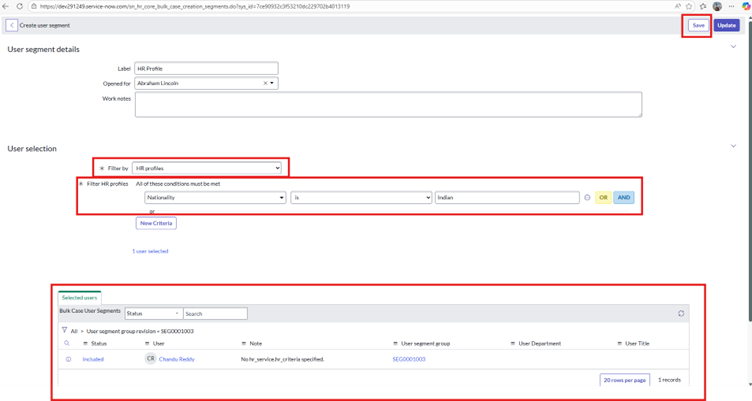
- Filter HR profiles :- create conditions to filter HR profile. For example, select users from HR profile whose Nationality is an “Indian”.
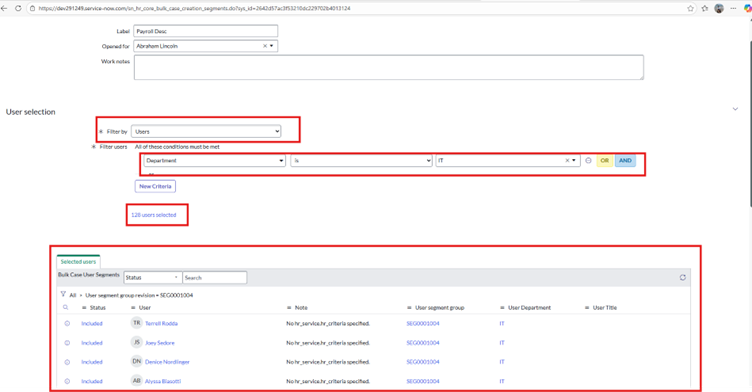
5.2.2.5 Users
- In this type of filter, you can select users using Users (sys_user) table.
- Enter the values as below,
- Filter by: select Users option.
- Filter users: create conditions to filter User’s records.
- For example, select users from User table whose department is “IT”.