Import set and Transform map
Introduction
An import set helps us to pull in data from various data sources and import them into the ServiceNow table.
Ways to import data
- Manual import of data from a file source (CSV, XLS, or XML)
- Manual import of data from an online data source (HTTP, FTP, LDAP, or JDBC)
- Import data periodically from a data source by defining scheduled imports
- Import data from a web service
There are four key points that we should keep in mind while working with import set tool:
- External data source: The source from where the data needs to be imported. Below are the multiple sources:
a. JDBC
b. LDAP
c. HTTP
d. FTP
e. Excel
f. CSV
g. X - Import set table: An import set table is a temporary staging table used to store raw data imported from an external source. It consists of sets of columns and rows imported from external sources. The system also adds a few columns that are used to identify the status of the import process.
- Transform map: A transform map helps to create a relationship between fields in the import set table and the target table.
- Target table: A target table is the one into which the data being imported is either inserted or updated.
Best Practice
- Before import we need to Verify/clean our data.
- Data should not be imported in extremely large chunks
Load Data
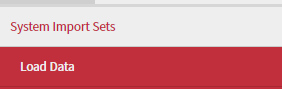
- Navigate to System Import Sets >Load Data
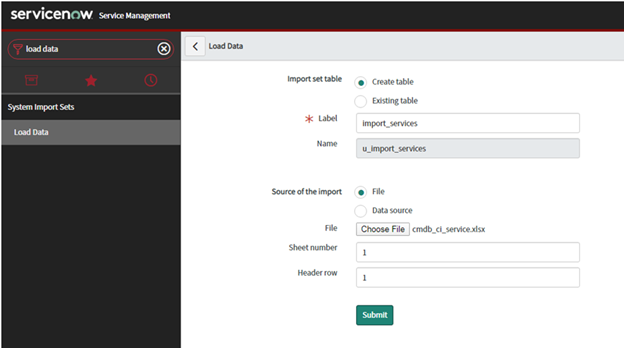
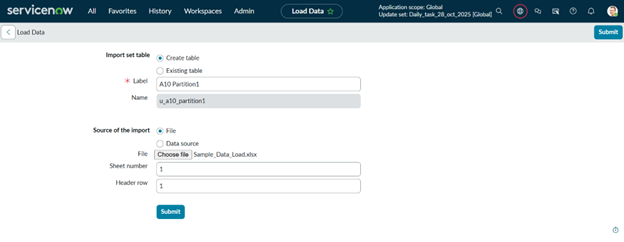
2. Fill-up below fields:
Import set table: There are two options.
- Create Table
- Existing table
Create Table
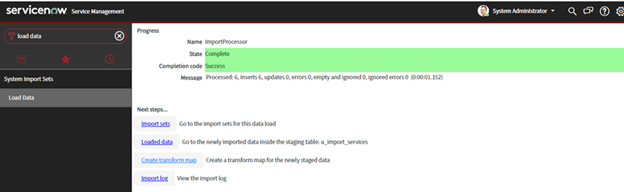
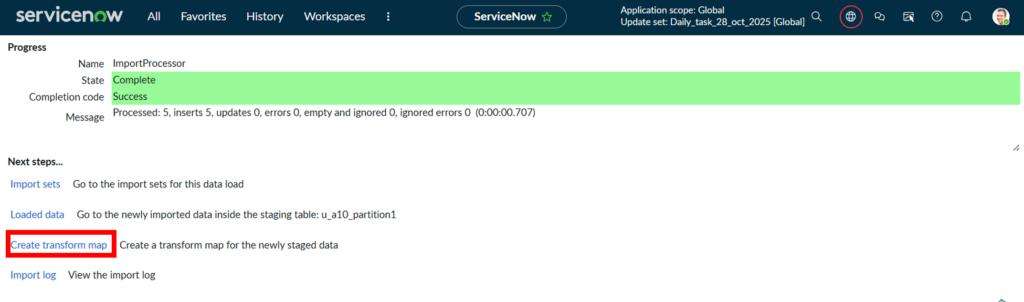
3. Once import set created it will redirect you to following screen
4.
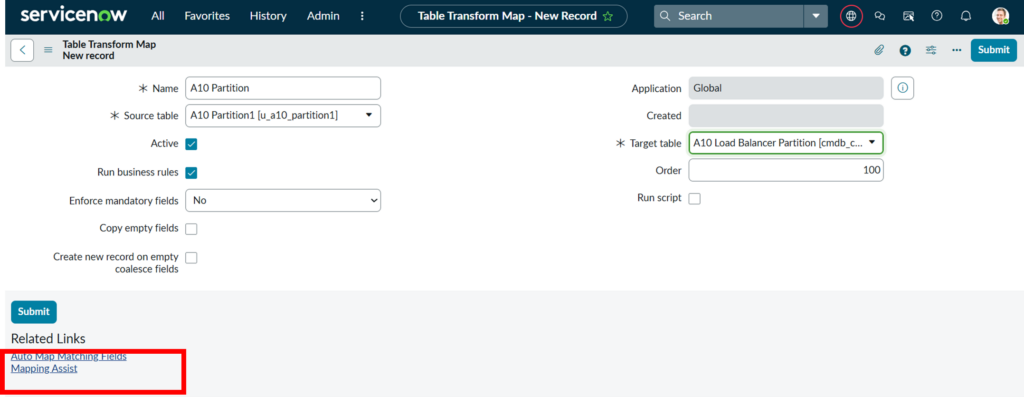
5. Now we need to create transform map
6.
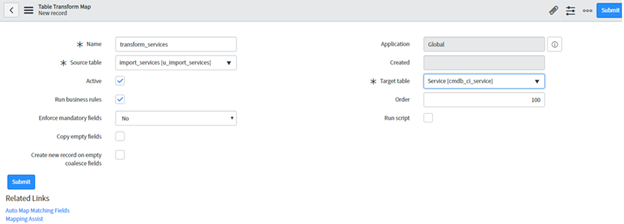
7. Field mapping –
Field mappings are rules that are used to map the fields of stagging or import set table with target table fields.
Field maps establish a relationship between a field in an import set table and a field in the target table.
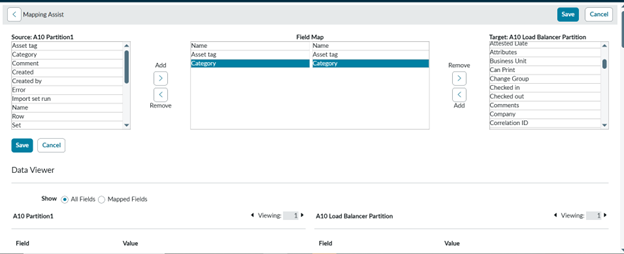
8. Mapping assist –
To map the fields of import set table with target table manually, click the Mapping Assist Related Link.
9.
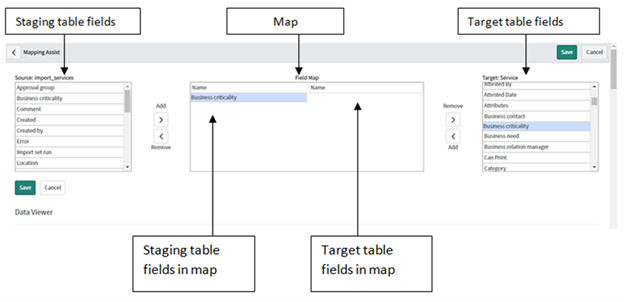
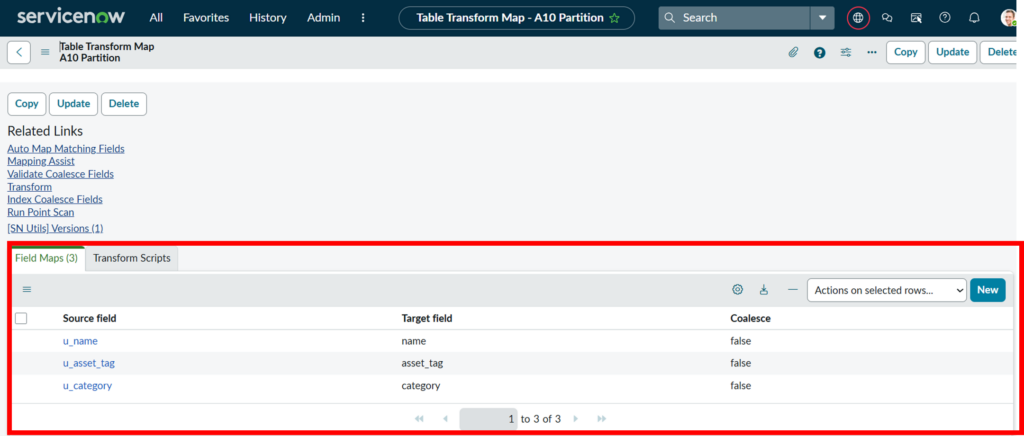
10. Auto Map:
Click the Auto Map Matching Fields Related Link for ServiceNow to attempt to match the staging table columns to the target table columns based on column name. The auto mapped fields appear in the Field Maps section (tab).
11.
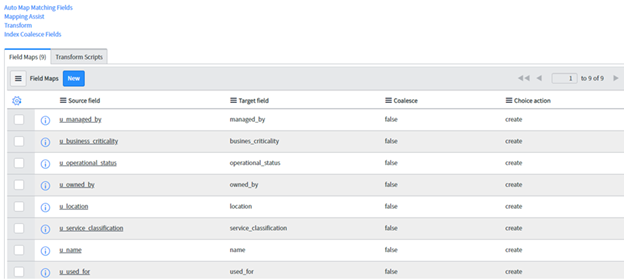
12.
13. Transform map is ready to transform data from import set to target table
14.
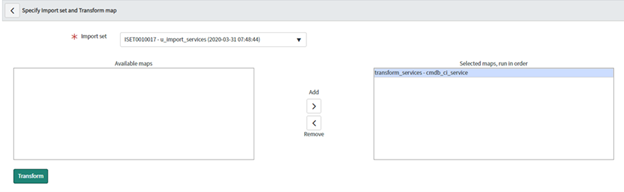
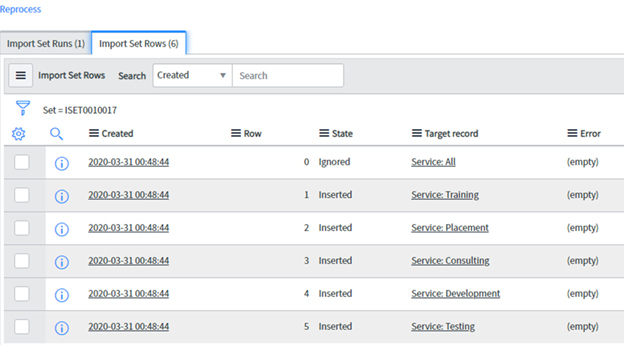
15. Check import set table
16.
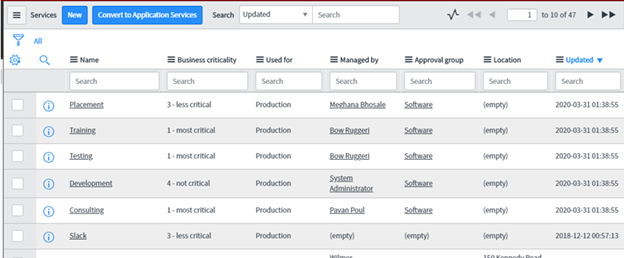
17. Now check the main table – data is loaded
18.
2. Existing table:
If you select existing table then select Import set table which you have created before)
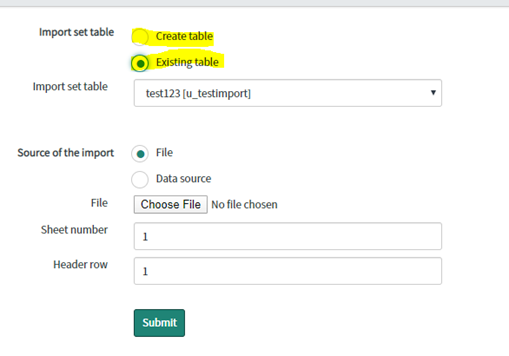
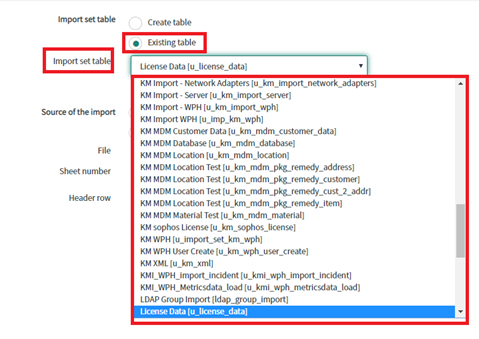
a. Create table: If you select create table fill the below details:
i. Label: Any Name
ii. Name: This field will be automatically populated
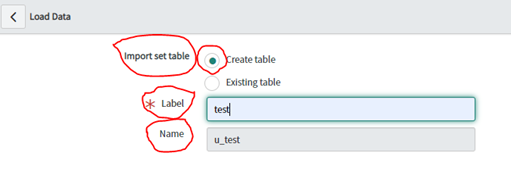
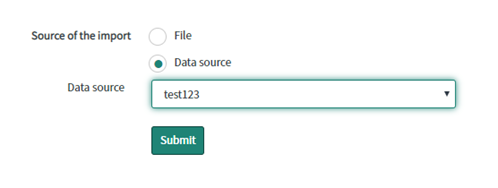
iii. Source of import: Select File/ Data Source
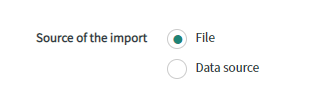
iv. If you select File then you will get below option
v. File : Choose the file that you want to import in ServiceNow
vi. Sheet number: 1
vii. Header row: 1
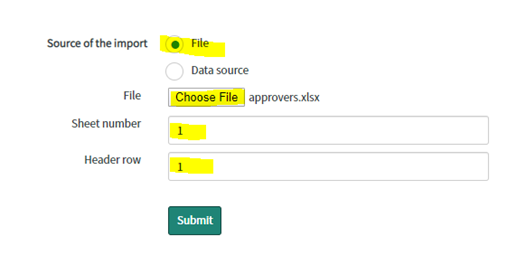
viii. If you select File then you will get below option
ix. Data Source: Select data source from the dropdown.
b. Click on Submit
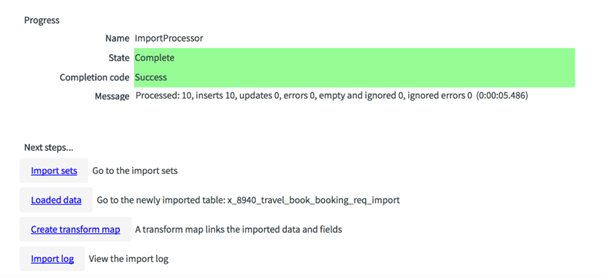
3. Once the process will complete, you will get below message
4. We have to check that the data we is inserted properly into the import set table. We will click on Import Sets links to open Import Sets module.
5. Every attempt to upload new data will create a new Import Sets entry and will be linked to at least one import set table and a source. Each Import Sets is given a unique number that begins with ISET and is followed by 7 digits. The state of the import set is used to determine the status of the import set and tell whether the data is currently loading, loaded, processed, or canceled.

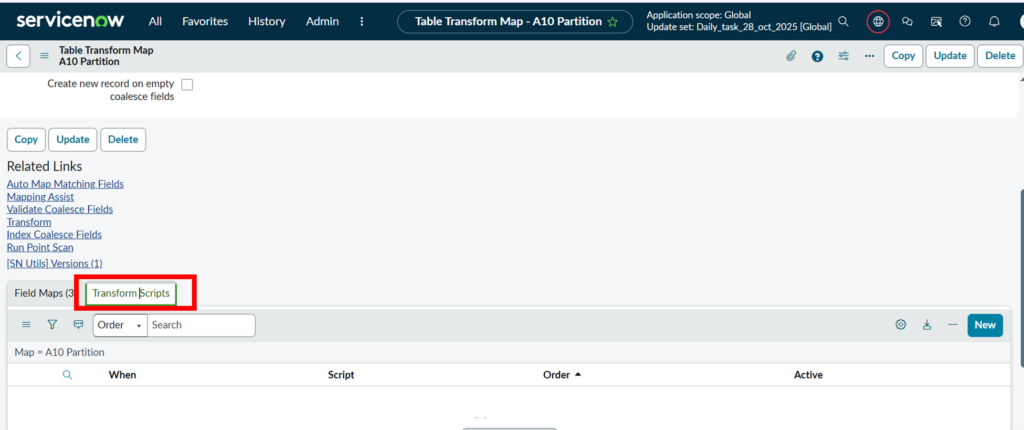
Transform Script
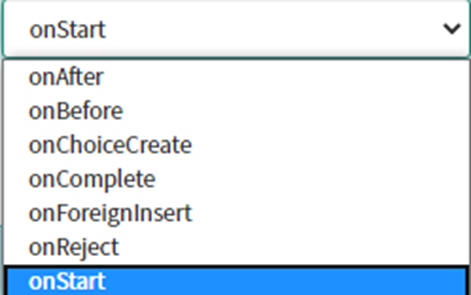
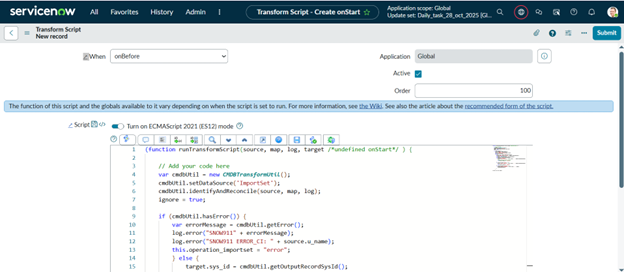
The transform scripts can be used to control the behavior of the transformation process.

onStart: The onStart event script is processed at the start of an import run, before any data rows are read. onStart runs at the very beginning of the import before any of the records are processed. If you want to notify user that the import has started then you can create the onStart script to send out the message.
onBefore: The onBefore event script is processed at the start of a row transformation, before the source row is transformed into the target row. onBefore runs before every row is processed. This script runs for each individual record. If you want to set or alter values on the source table it can be done here. onBefore scripts can be used to verify that the value of a source field is valid. If the value is invalid, the script can take action.
onAfter: The onAfter runs after every row has been processed, after the source row has been transformed into the target row and saved. Fields on the target table can be accessed from this point. They contain the value that was just inserted. At the time that this script runs, the source and target field values should be the same.
onForeignInsert: The onForeignInsert runs before a new referenced record is created. Since this script only runs on an insert, the choice action “create” has to be selected for that field map. If “create” is not selected, the script will never run.
At this point, we can access values on the source table. We also have access to the fields on the target table that have already been filled in. The one being transformed, however, will not yet have a value. onForeignInsert scripts can manage what happens when a new record is added to a referenced table. When I was playing around with onForeignInserts, I couldn’t find a way to change values on the referenced table from my script. There might be a way to do this, but I haven’t figured it out yet. An onAfter script might be a better option if that’s what you’re going for.
onChoiceCreate: he onChoiceCreate event script is processed at the start of a choice value creation, before the new choice value is created.
onComplete: The onComplete event script is processed at the end of an import run, after all data rows are read and transformed. onReject:The onReject event script is processed during the occurrence of a foreign record or choice creation, and the foreign record or choice is rejected, the entire transformation row is not saved.
Choice Action :
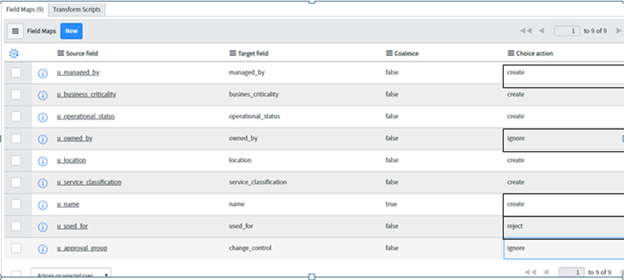
Choice Action is for Reference field and choice field only. It has three choices i.e. create, reject, Ignore. By defult choice action is create. It is for unknown data transfer. We can set choice action in field maps in transform history.
- Case1– Choice Action is Create:
In this case if unknown data is entered then the data value is created in respective reference field or choice field and data is transferred in Target table.
- Case2– Choice Action is ignore:
In this case if unknown data is entered then the data value is ignored in respective reference field or choice field and there will be emplty value get transfered (or previous value remains unchanged) in Target table.
- Case3– Choice Action is reject:
In this case if unknown data is entered the whole record is rejected and no data transfer in Target table.
Identification Rule:
An Identification Rule in ServiceNow is a set of criteria used by the Identification and Reconciliation Engine (IRE) to determine whether an incoming CI (Configuration Item) already exists in the CMDB—or whether a new CI record should be created.
These rules help maintain data accuracy, prevent duplicate CIs, and ensure consistent CI identity across multiple data sources.
Why Identification Rules Matter
Prevent duplicate CI entries
Avoid merging unrelated CI into one
Ensure consistent identification across Discovery, SCCM, Import set, service mapping.
How Identification Rules Work with Import Sets in ServiceNow
Create Import set or load the data
Create a Transform Map.
Click on Auto-Match Fields / Mapping Assist.
Map the fields from the source table to the target table.
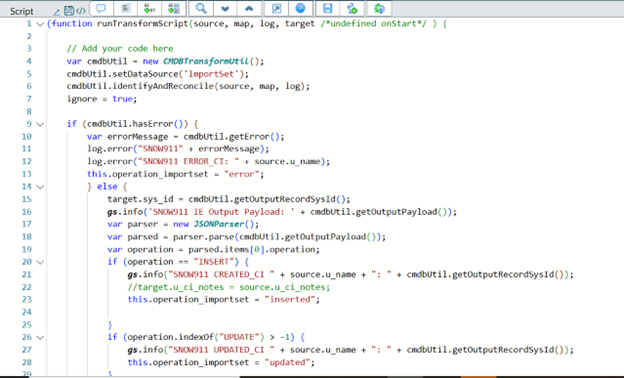
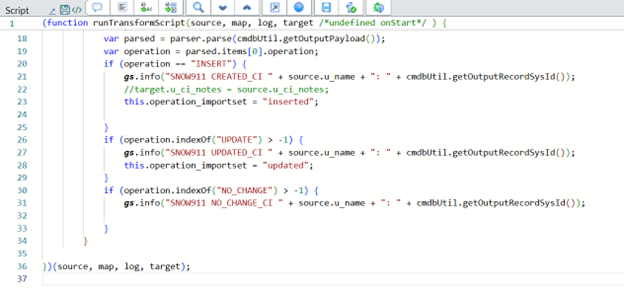
Create the Transform Script (if required).
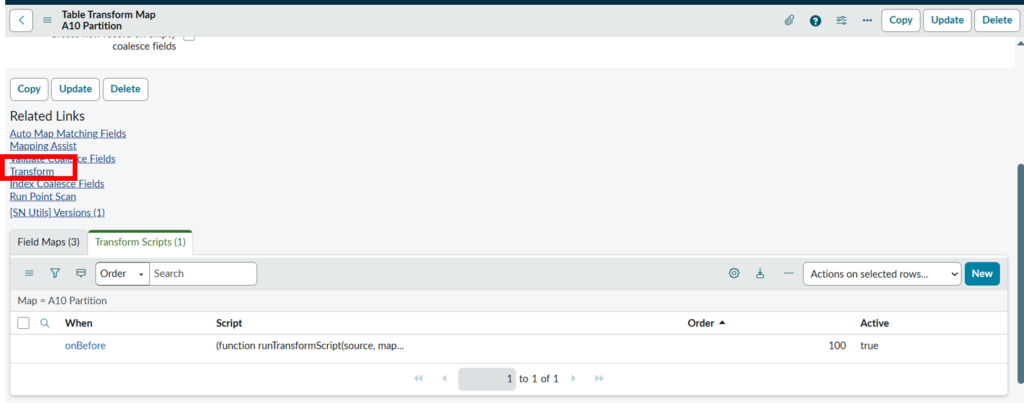
Click on Transform.

Verify the result.