
Introduction
In ServiceNow, Scheduled Jobs are used to run scripts automatically at a defined time or interval. They are commonly used for tasks like sending reminder emails, updating records, cleaning up old data, or monitoring SLAs.
This blog explains:
- What a Scheduled Job is
- When to use it
- How it works
- One real-time example with script
What is a Scheduled Job in ServiceNow?
A Scheduled Job is a server-side script that runs:
- At a specific date and time
- Daily / Weekly / Monthly
- At regular intervals (for example, every 15 minutes)
It runs in the background without user interaction.
When Should You Use a Scheduled Job?
Use a Scheduled Job when:
- You need automation based on time
- No user action is involved
- You want to run reports or checks regularly
Common Use Cases
- Send daily or weekly reports
- Notify users about SLA breaches
- Auto-close old incidents
- Escalate tickets stuck in a state
Scheduled Job Types in ServiceNow
- Run once – Executes only one time
- Repeat – Runs daily, weekly, or monthly
- Run at intervals – Runs every X minutes or hours
Example Scenario (Real-Time Use Case) Requirement
Send an email every day at 7:00 AM to the IT Manager listing all Incidents that are still Open for more than 3 days.
Step-by-Step: Create Scheduled Job
Step 1: Navigate to Scheduled Jobs
System Definition → Scheduled Jobs → New
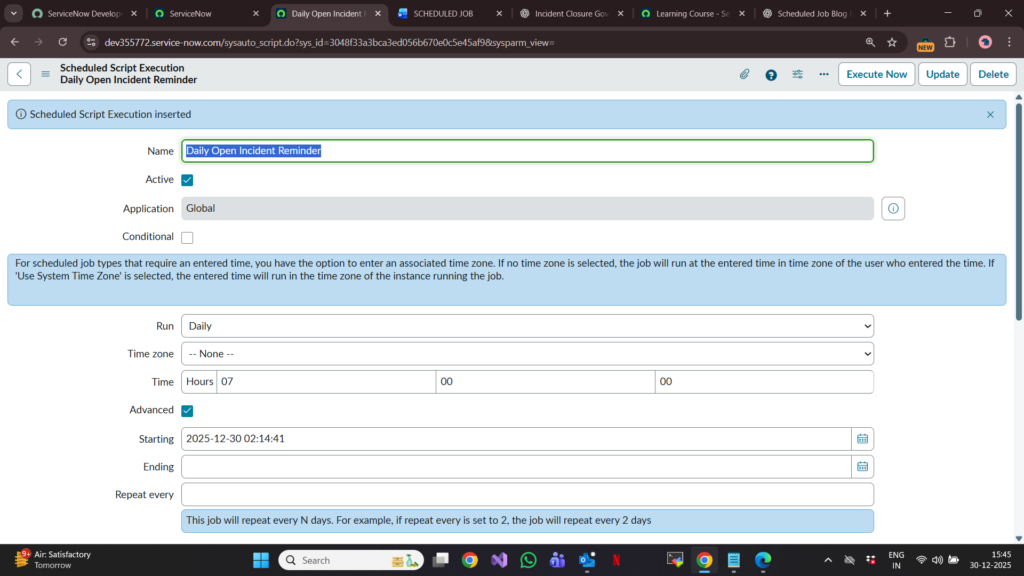
Step 2: Fill Basic Details
- Name: Daily Open Incident Reminder
- Run: Daily
- Time: 07:00:00
- Active: true
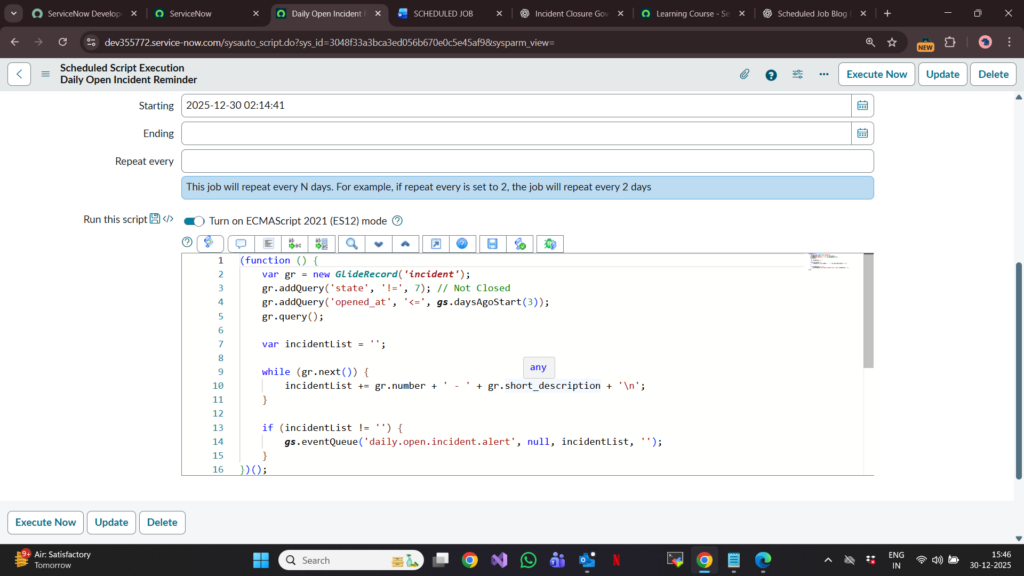
Step 3: Script (Example Code)
(function () {
var gr = new GlideRecord(‘incident’);
gr.addQuery(‘state’, ‘!=’, 7); // Not Closed
gr.addQuery(‘opened_at’, ‘<=’, gs.daysAgoStart(3));
gr.query();
var incidentList = ”;
while (gr.next()) {
incidentList += gr.number + ‘ – ‘ + gr.short_description + ‘\n’;
}
if (incidentList != ”) {
gs.eventQueue(‘daily.open.incident.alert’, null, incidentList, ”);
}
})();
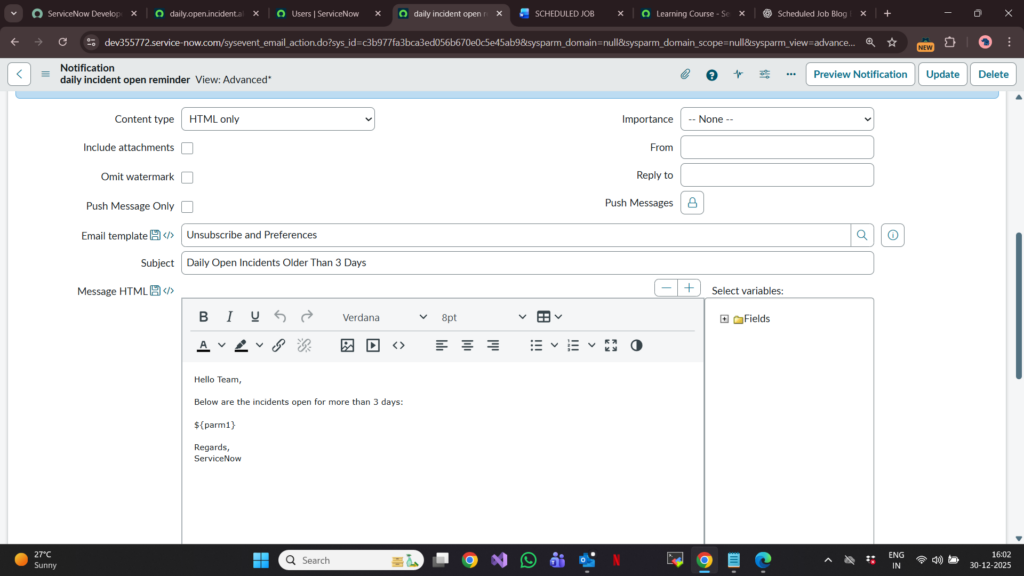
Step 4: Email Notification
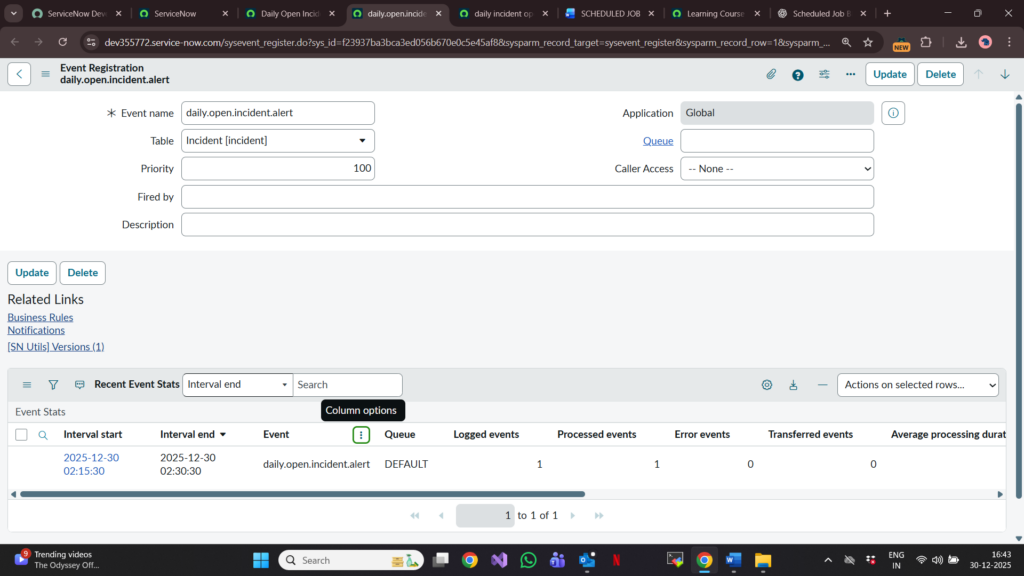
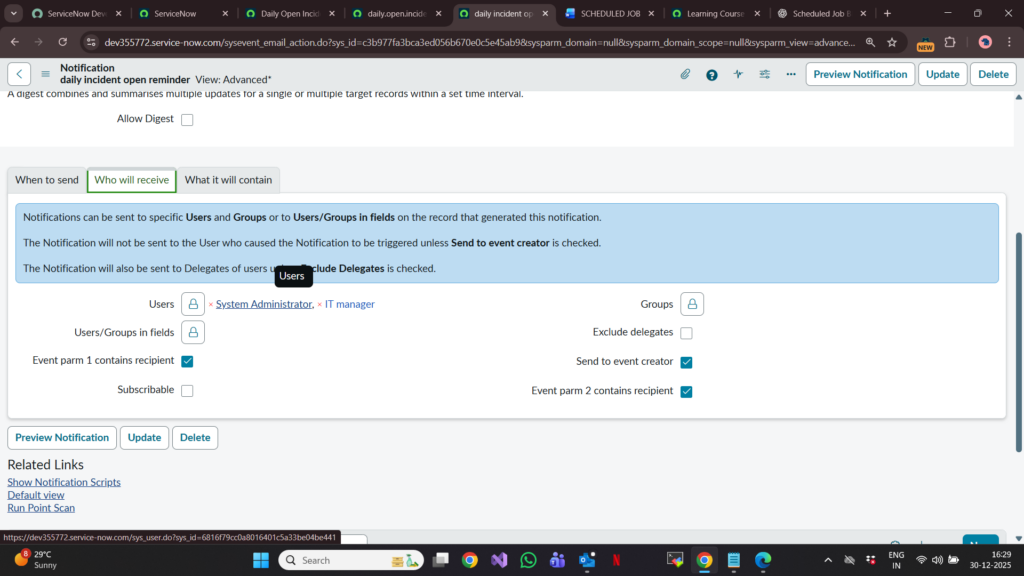
Create an Email Notification:
- Table: Incident
- Event name:daily.open.incident.alert
- To: IT Manager
- Subject: Daily Open Incidents Older Than 3 Days
- Body:
Hello Team,
Below are the incidents open for more than 3 days:
${parm1}
Regards,
ServiceNow

Output
Every morning at 7:00 AM:
- Scheduled Job runs
- Checks for old open incidents
- Sends one consolidated email to the IT Manager
Best Practices
- Always test scripts in Background Scripts first
- Avoid heavy queries during business hours
- Log messages using gs.log() for debugging
- Keep scheduled jobs simple and efficient
Conclusion
Scheduled Jobs are powerful automation tools in ServiceNow. With proper planning and scripting, they help reduce manual effort and improve operational efficiency.