- Service-now Webservice
- By default, in Service-now for every table there will be SOPA WSDL and Rest endpoints for following operations
- For Soap if your table name is “u_customer_table”, the WSDL will be
- For Rest if your table name is “u_customer_table”, the WSDL will be
- https://instancename.service-now.com/api/now/table/u_customer_table
- Soap WSDL functions
- Insert
- update
- deleteMultuple
- getKeys
- deleteRecords
- get
- getRecords
- Rest Endpoints Methods
- Post
- Get
- Put
- Delete
- Soap Web Service Integration with Third Party Tool (Here we are considering as another service instance is a third party tool)
- Whenever we need to integrate with third party tool, we need to request the SOAP WSDL from them.
- Once we will get the WSDL from third party tool, we will create SOAP Message in ServiceNow.
- How to Create Soap Message
- System Navigator–>Search Soap Message as below

- Click on “SOAP Message” Module, you will get all the list of Soap Messages.
- Click on “New” UI Action.
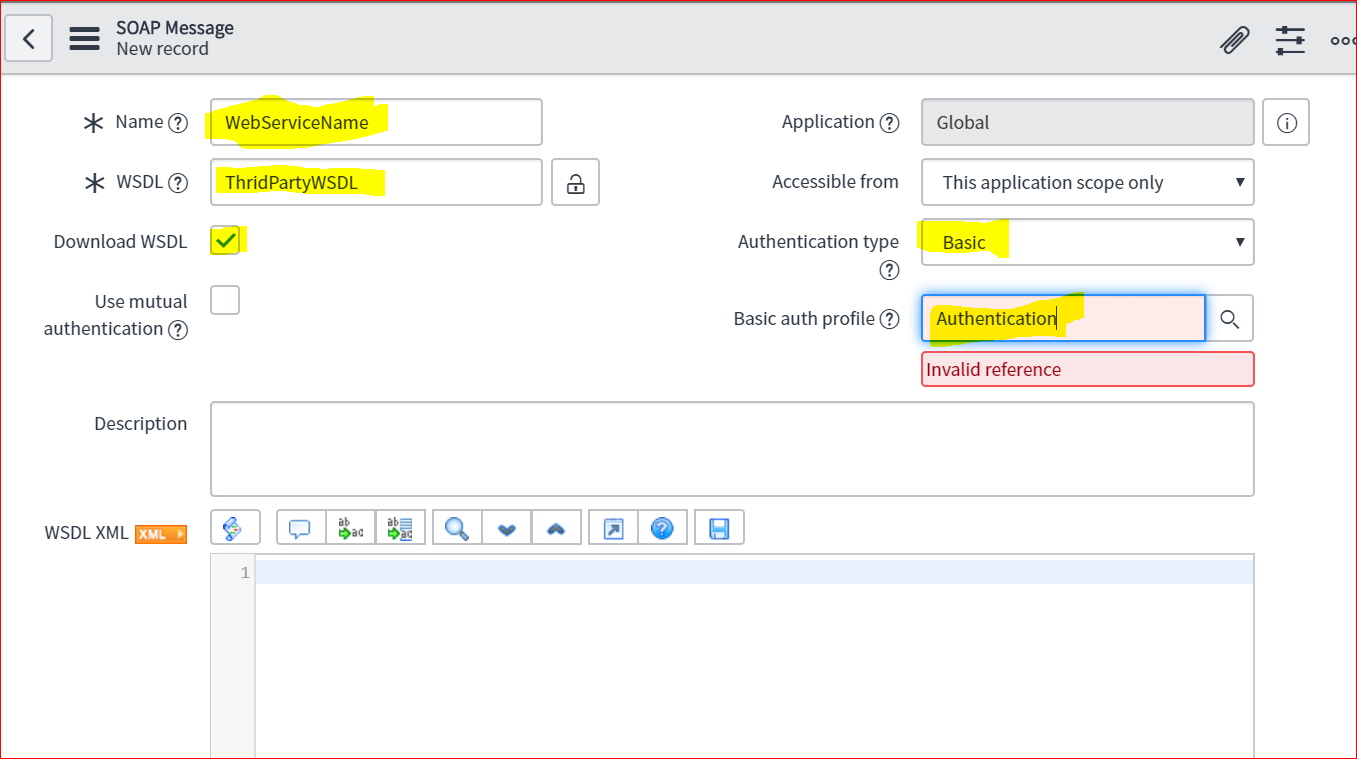
- Here I am using WSDL of incident table as fallows
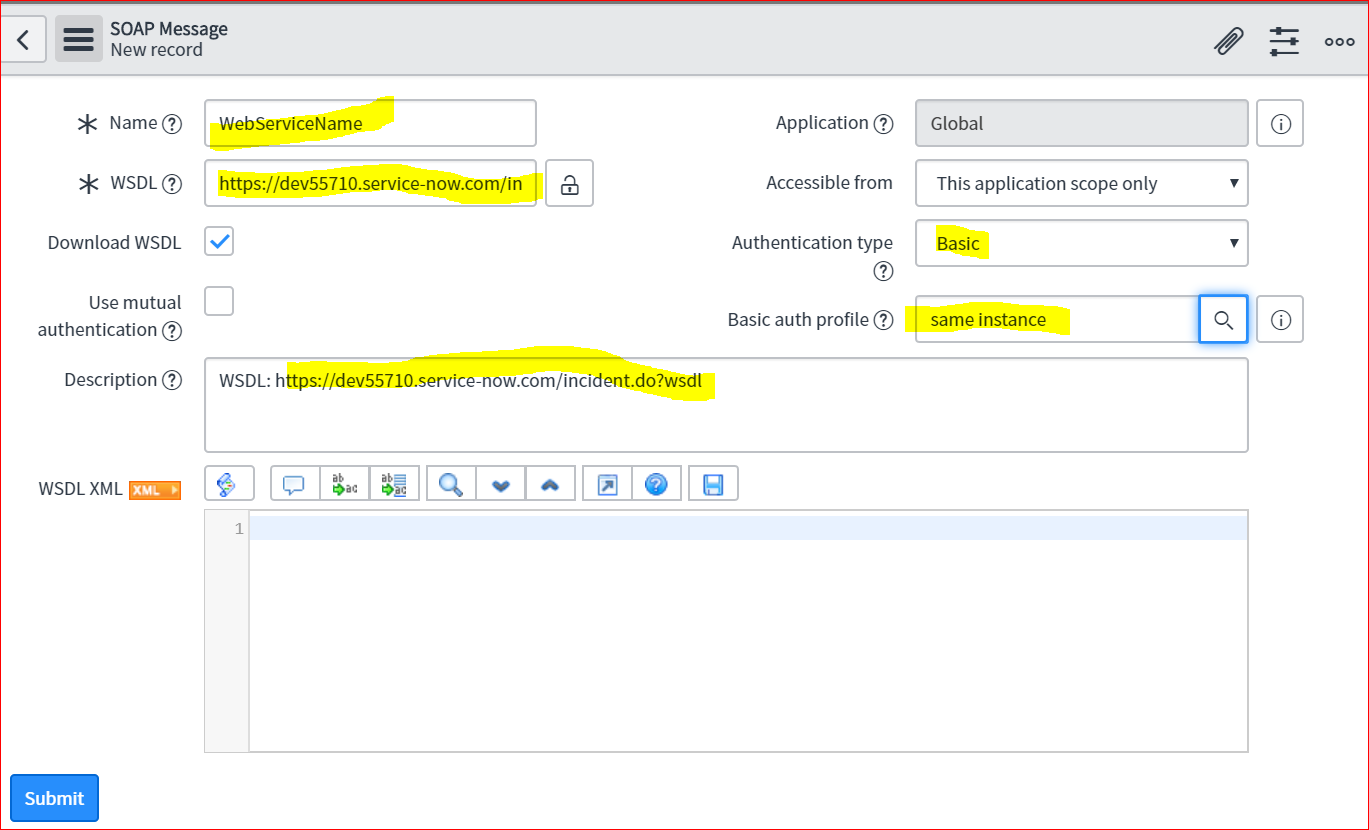
- And Save it.
- After Save you will get the related link at bottom of the form
- Click on that
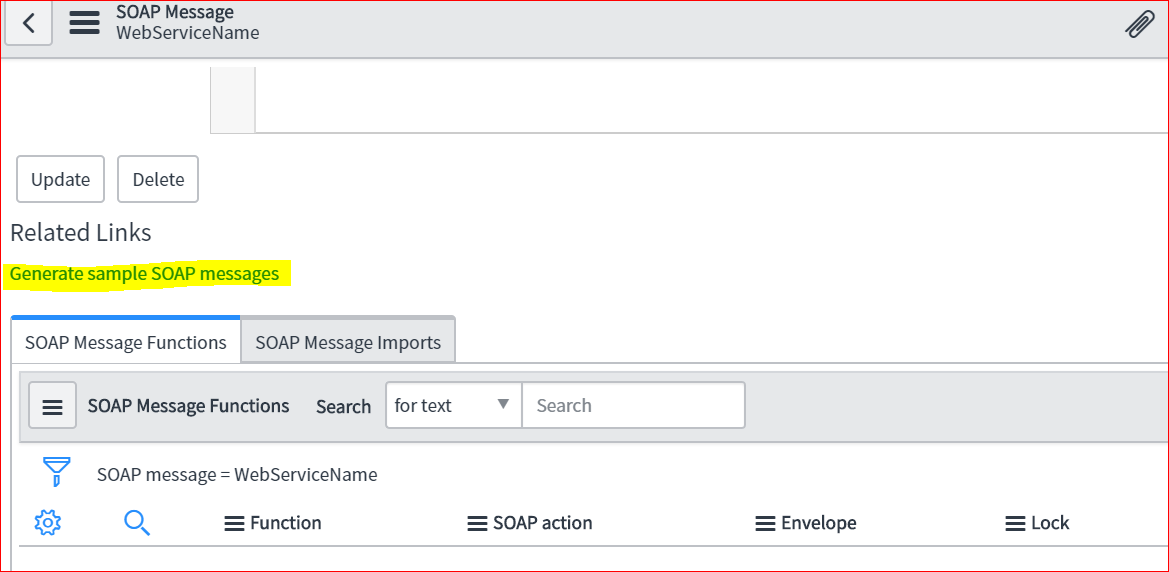
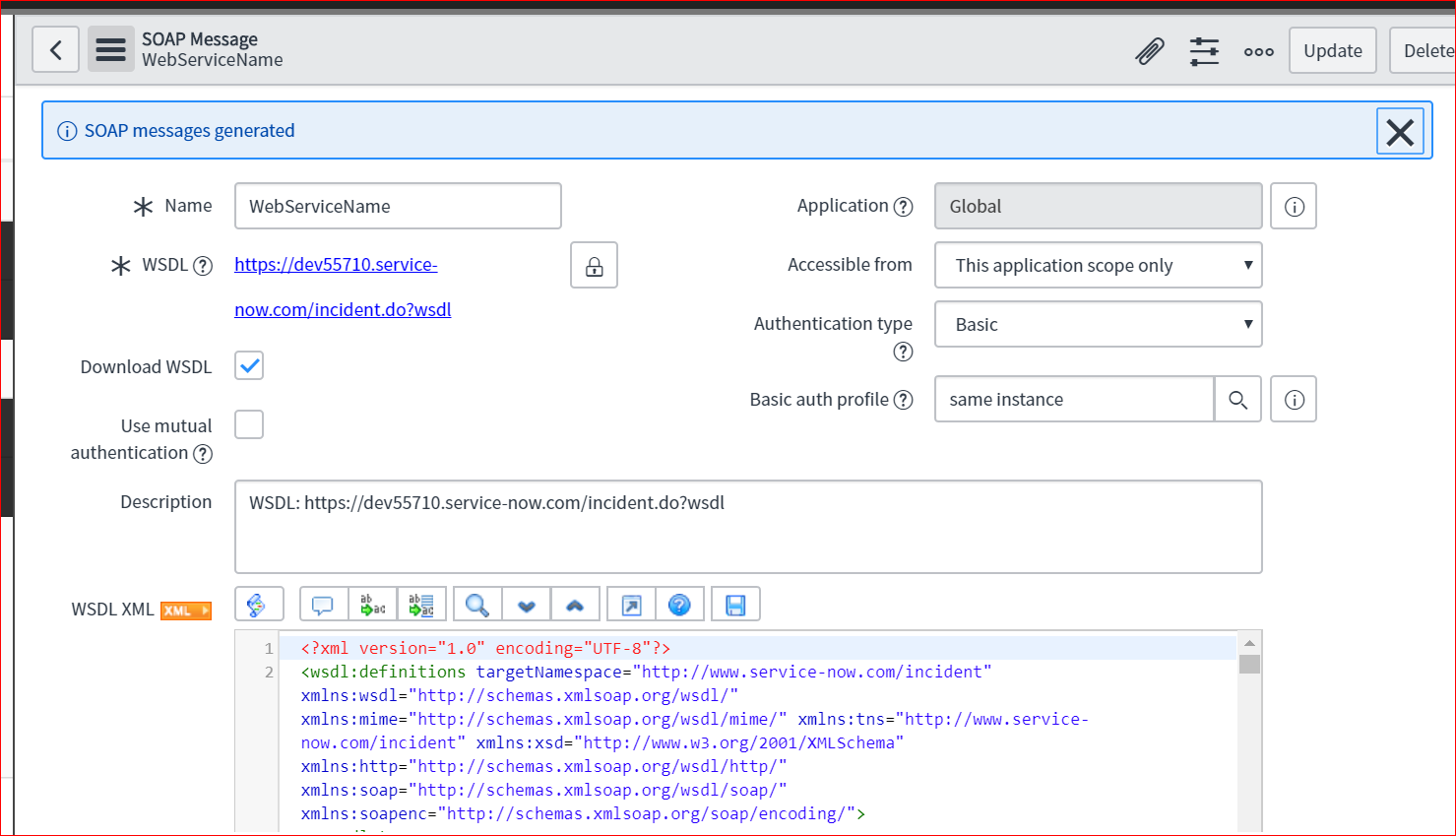
- After Clicking on the UI Action : Generate Sample SOAP messages, it will create a WSDL xml and functions and will get one add info message at top as fallows.
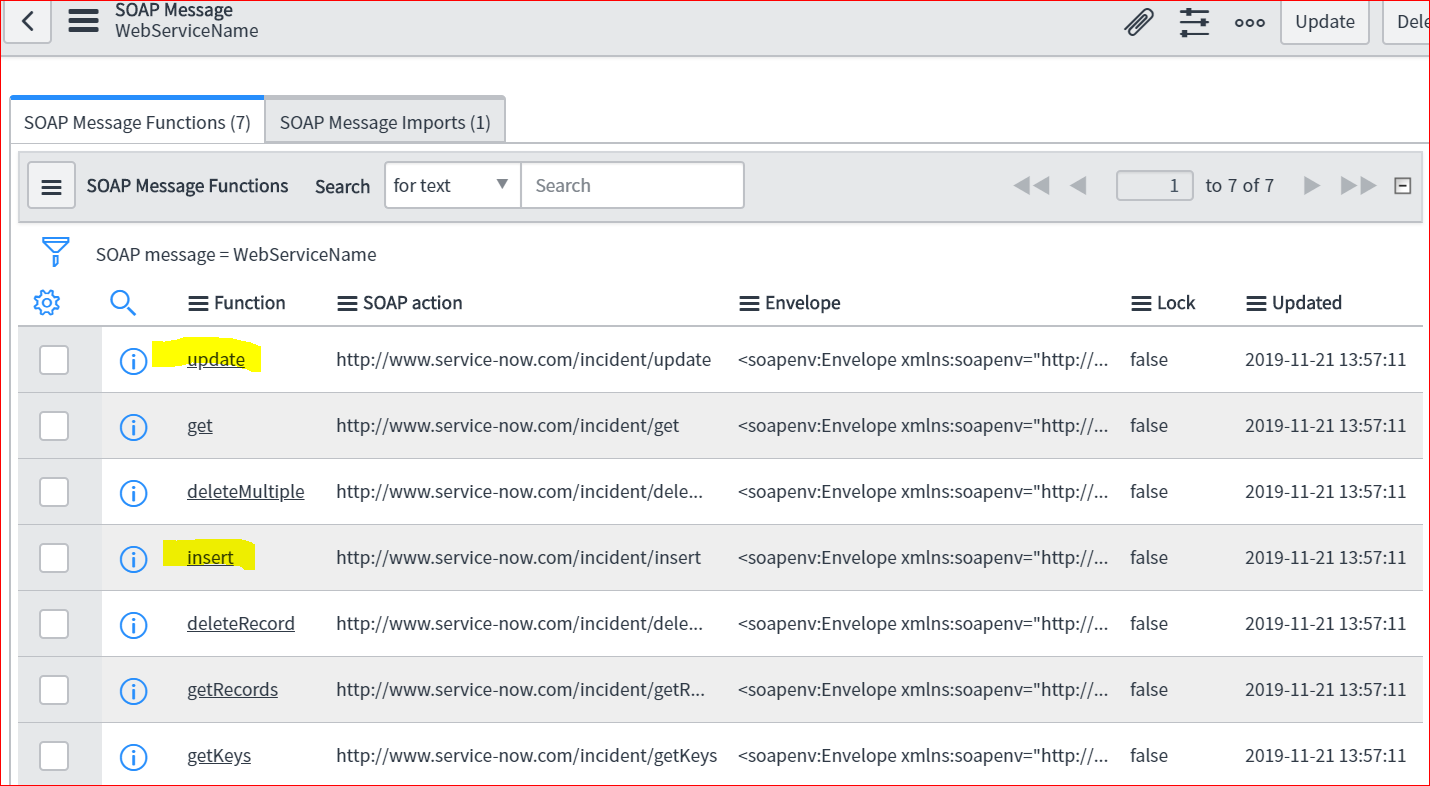
- Click on the “insert” function in another tab.
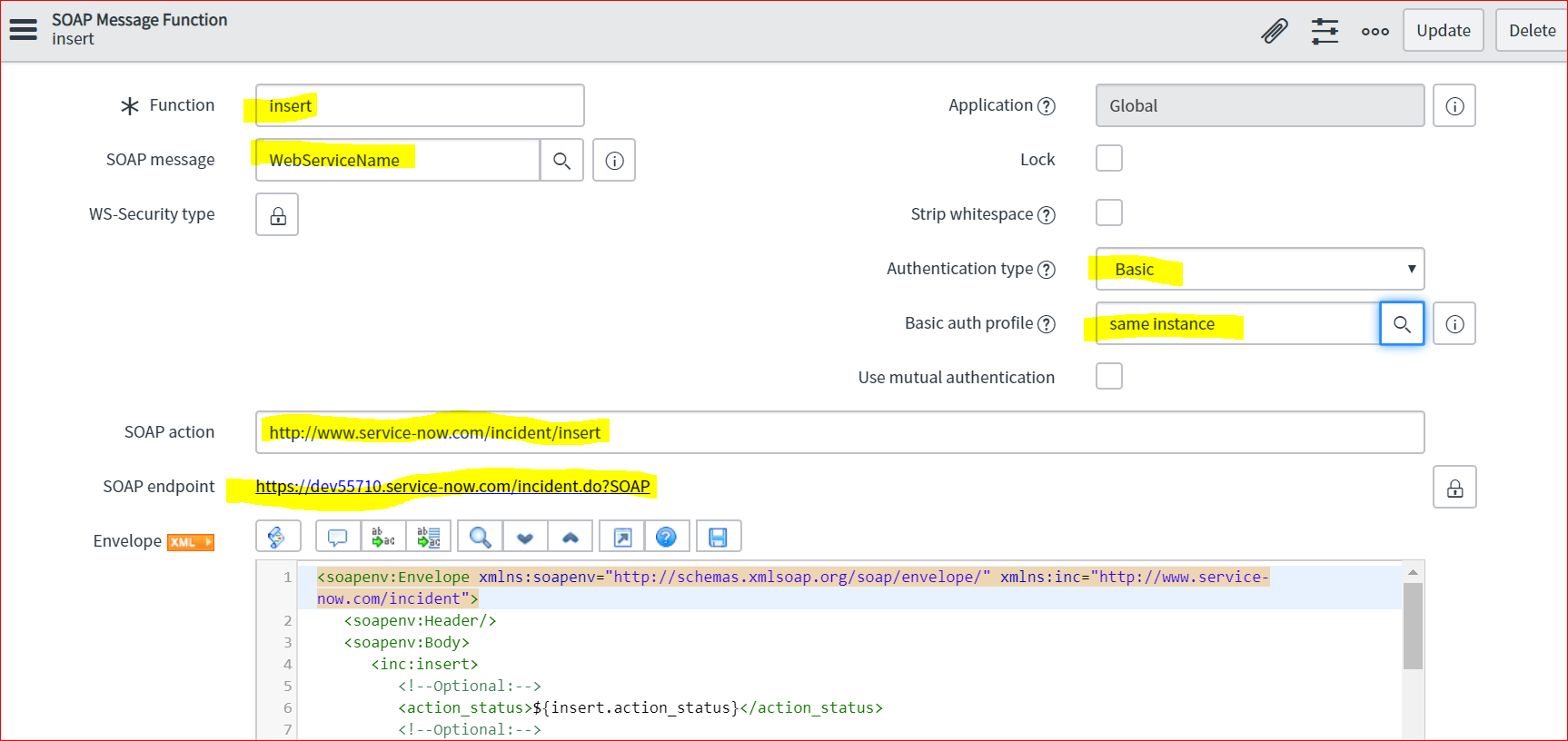
- Select Authentication type as Basic one and select the same profile from reference field in Basic auth Profile and save the record.
- Click on the Auto Generated Variables
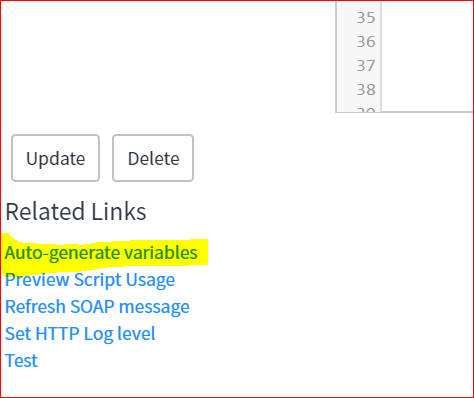
- After clicking on that, you will get all the variable in “Variable Substitution” related list
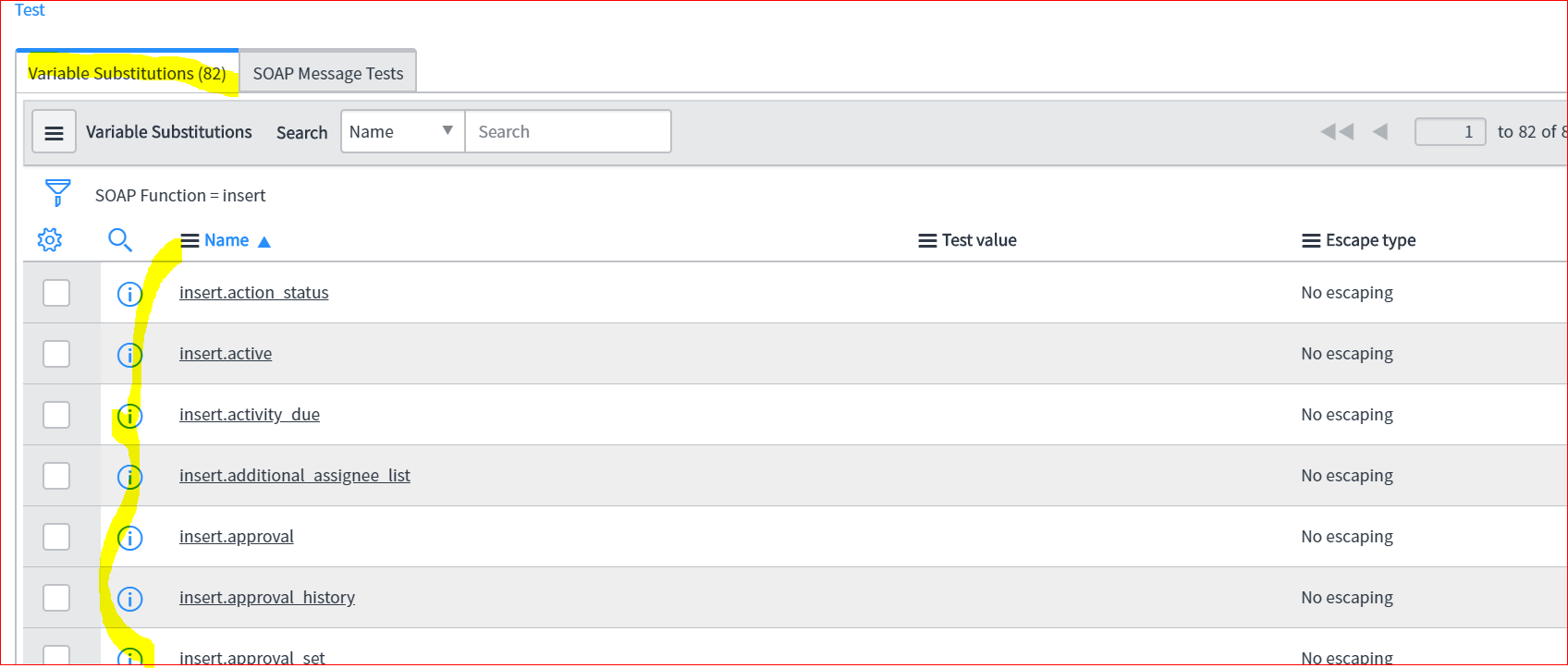
- Select insert.shortdescription variable and put some test value as fallows
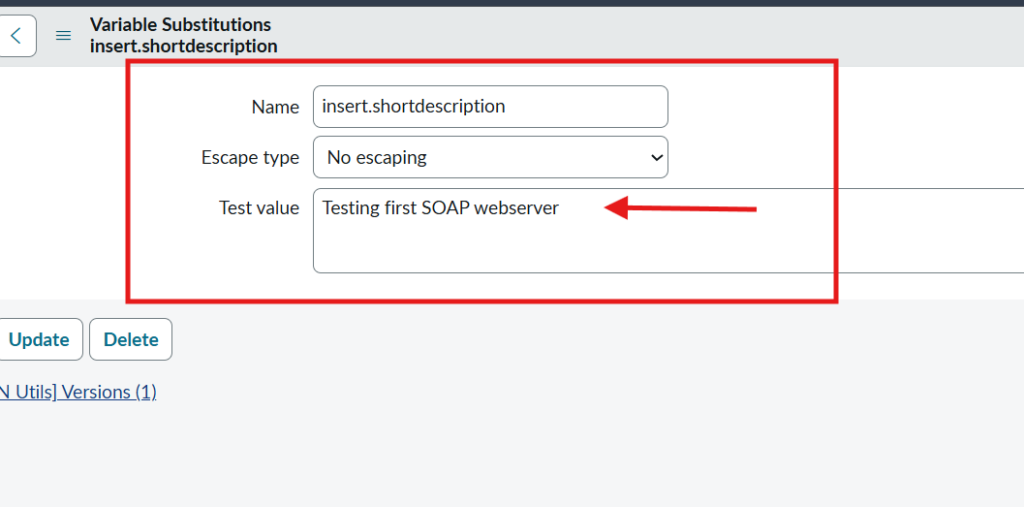
- After that click on Test from related link
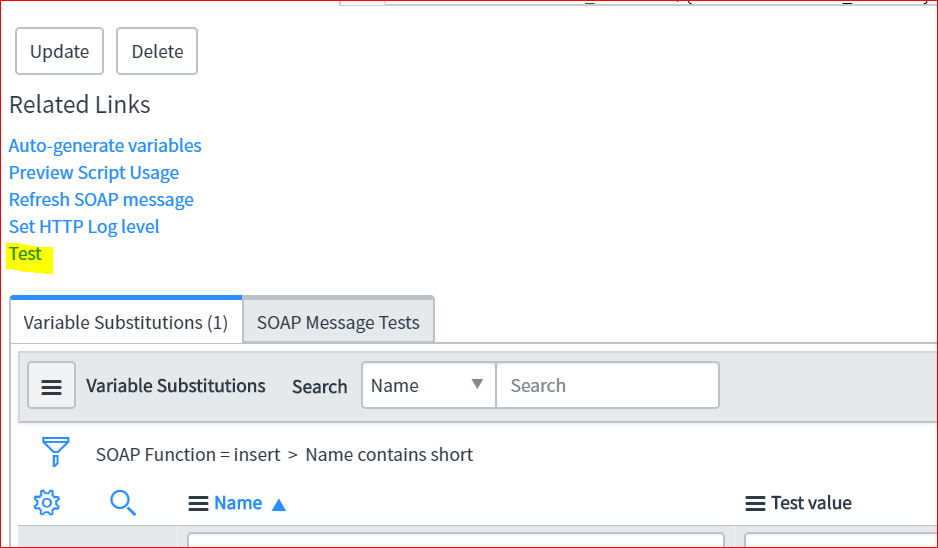
- After clicking on Test, you will get the request and response xml on the screen.
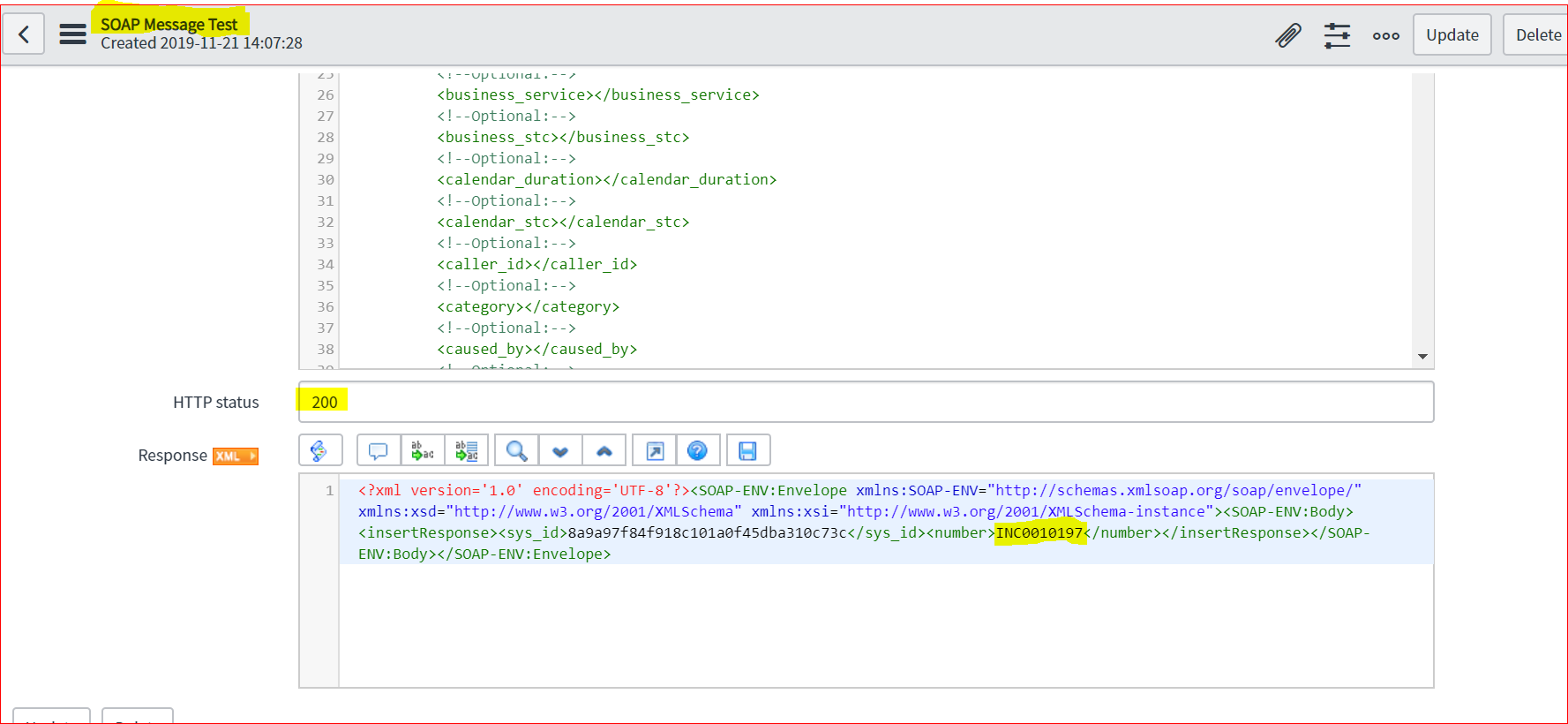
- If you get 200, it means, you have created an incident and in response you will get incident number as well as sys_id.
- Now go back to your insert function again.
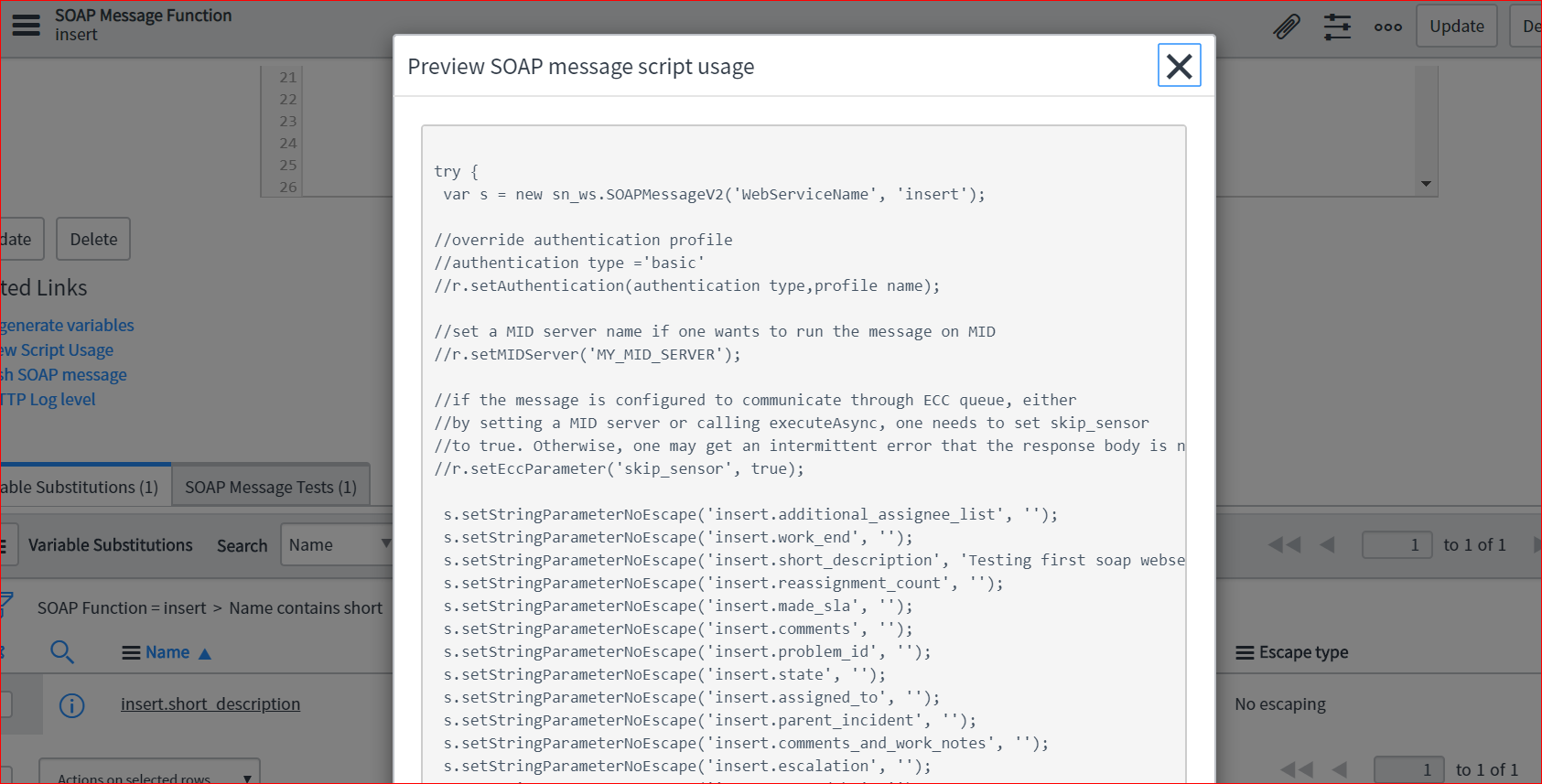
- Click on Preview Script Usages as fallows
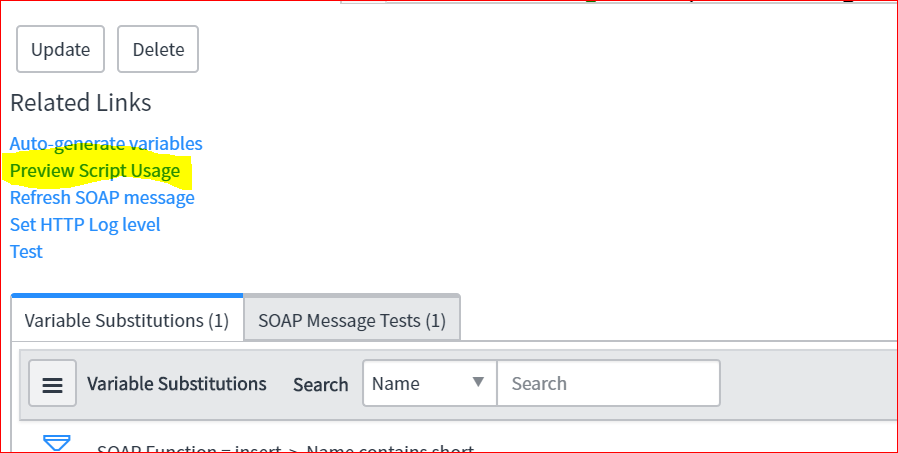
- You will get a code, which you can use in your server-side scripting.
- Rest Web Service Integration with Third Party Tool (Here we are considering as another service instance is a third-party tool)
- Go through Navigation Search and search Rest
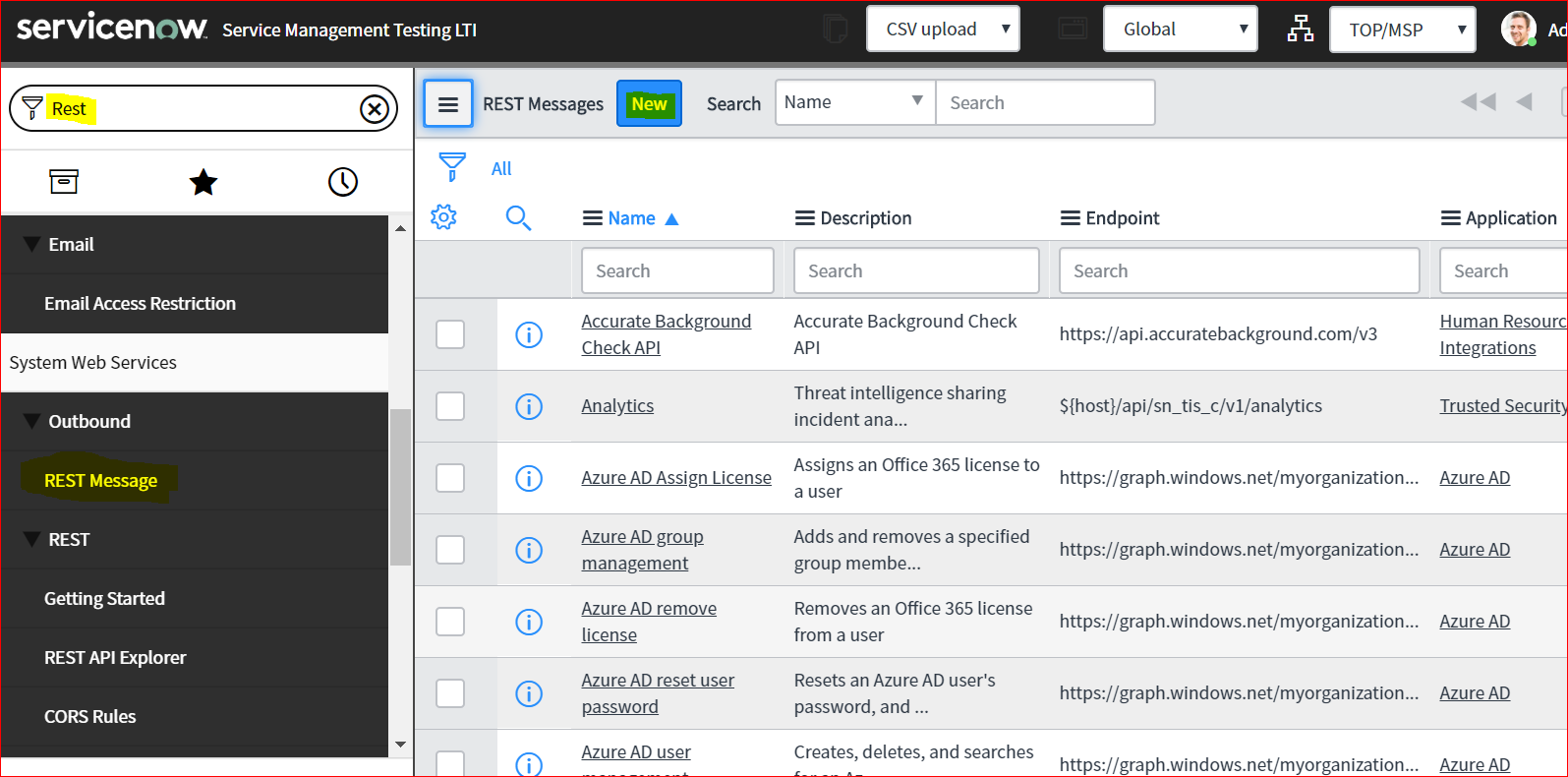
- Click on New
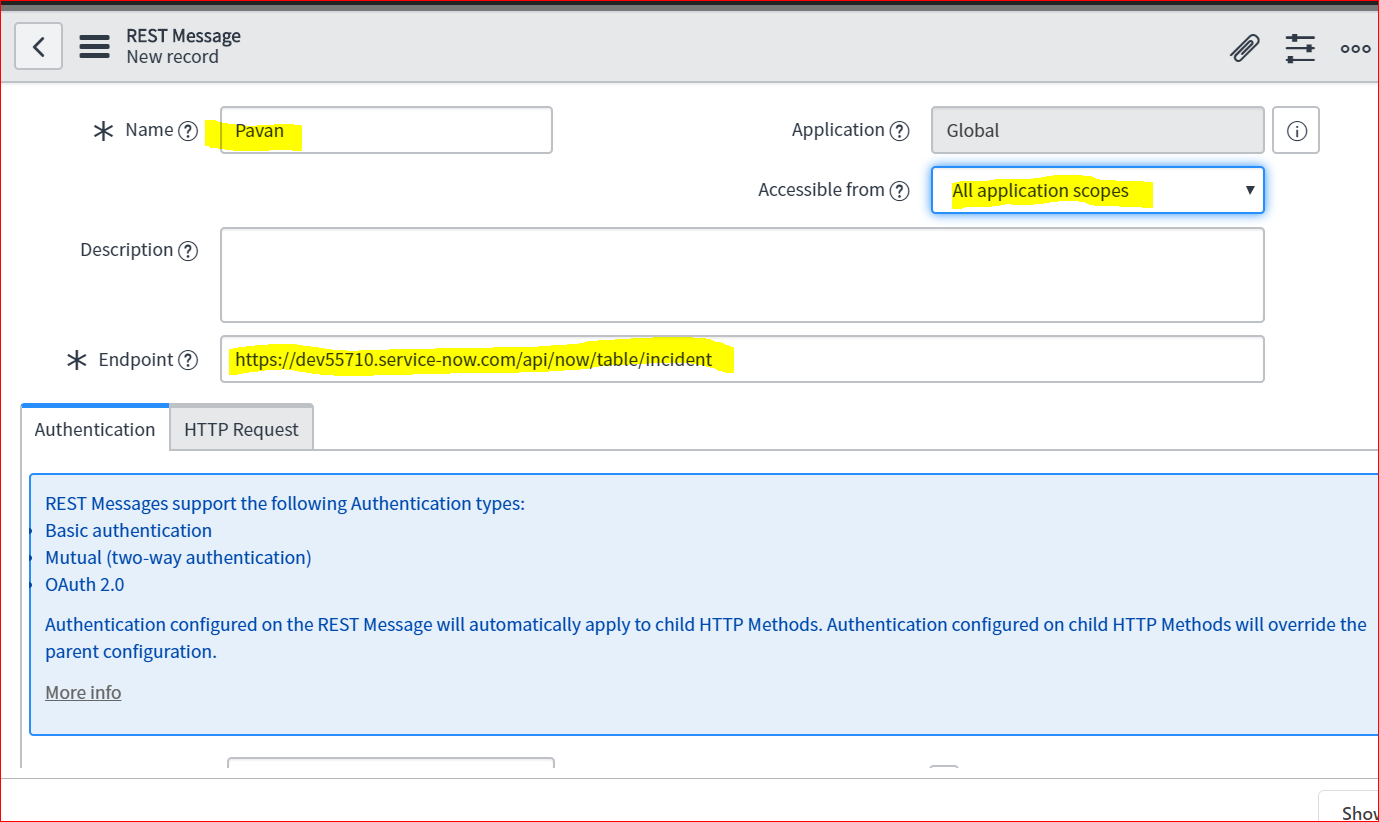
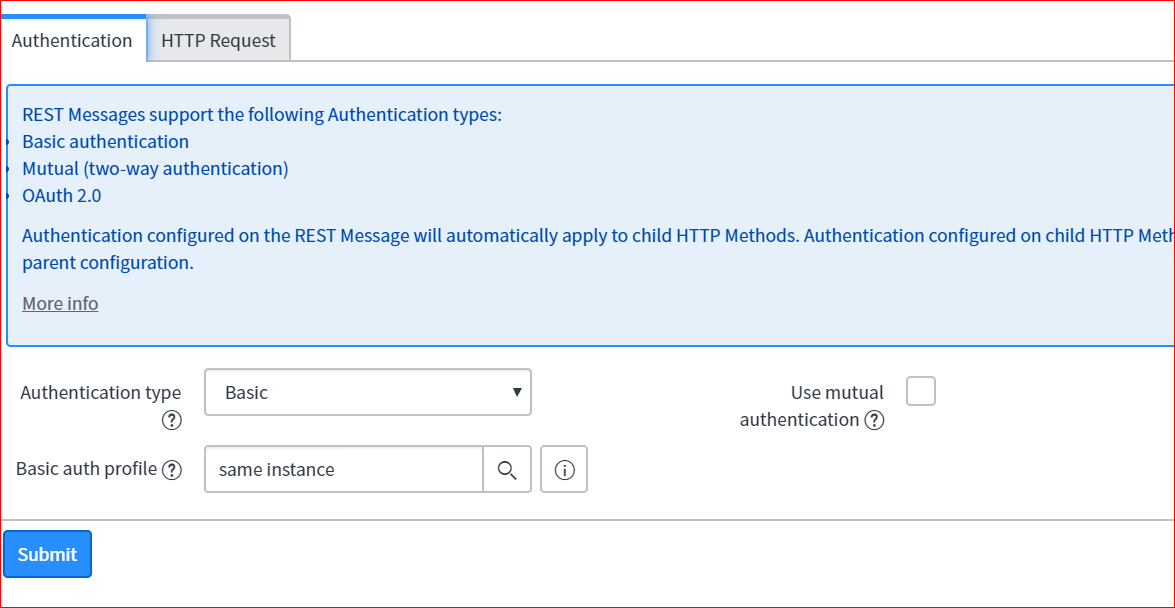
- Add the authentication type as a Basic
- And put values for HTPP Request
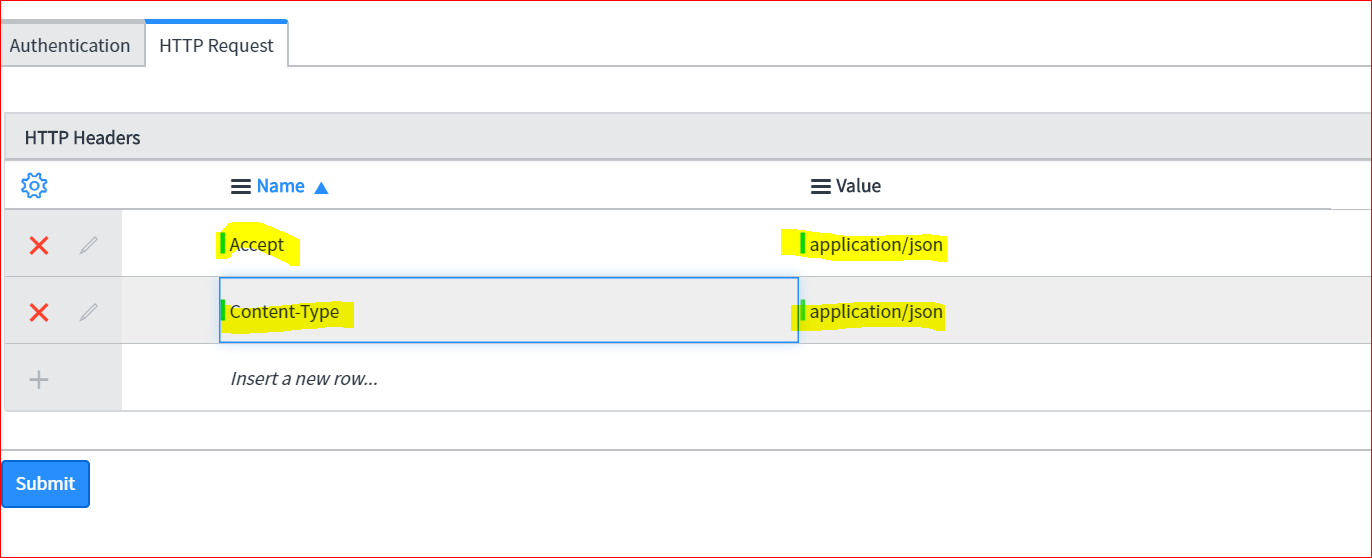
- And save it.
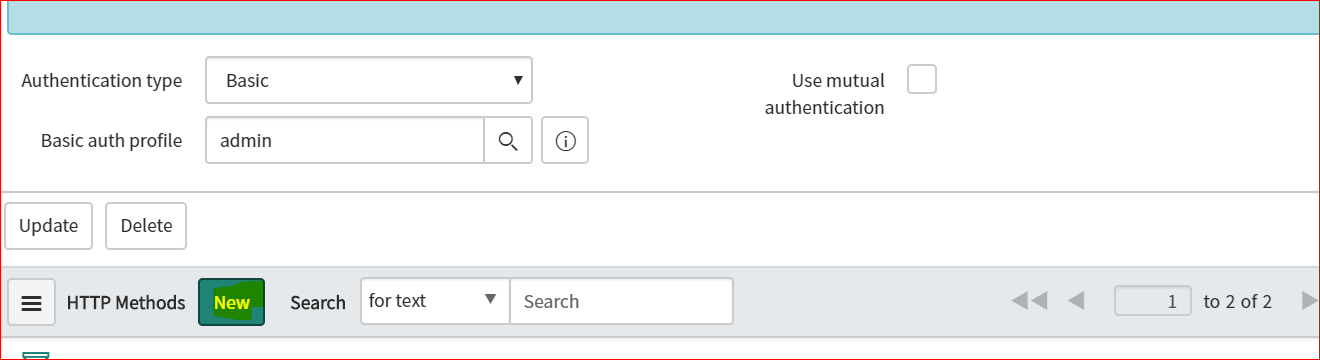
- Now create HTTP Method for this Message as below – to create it click on New which is on “HTTP Method” related list
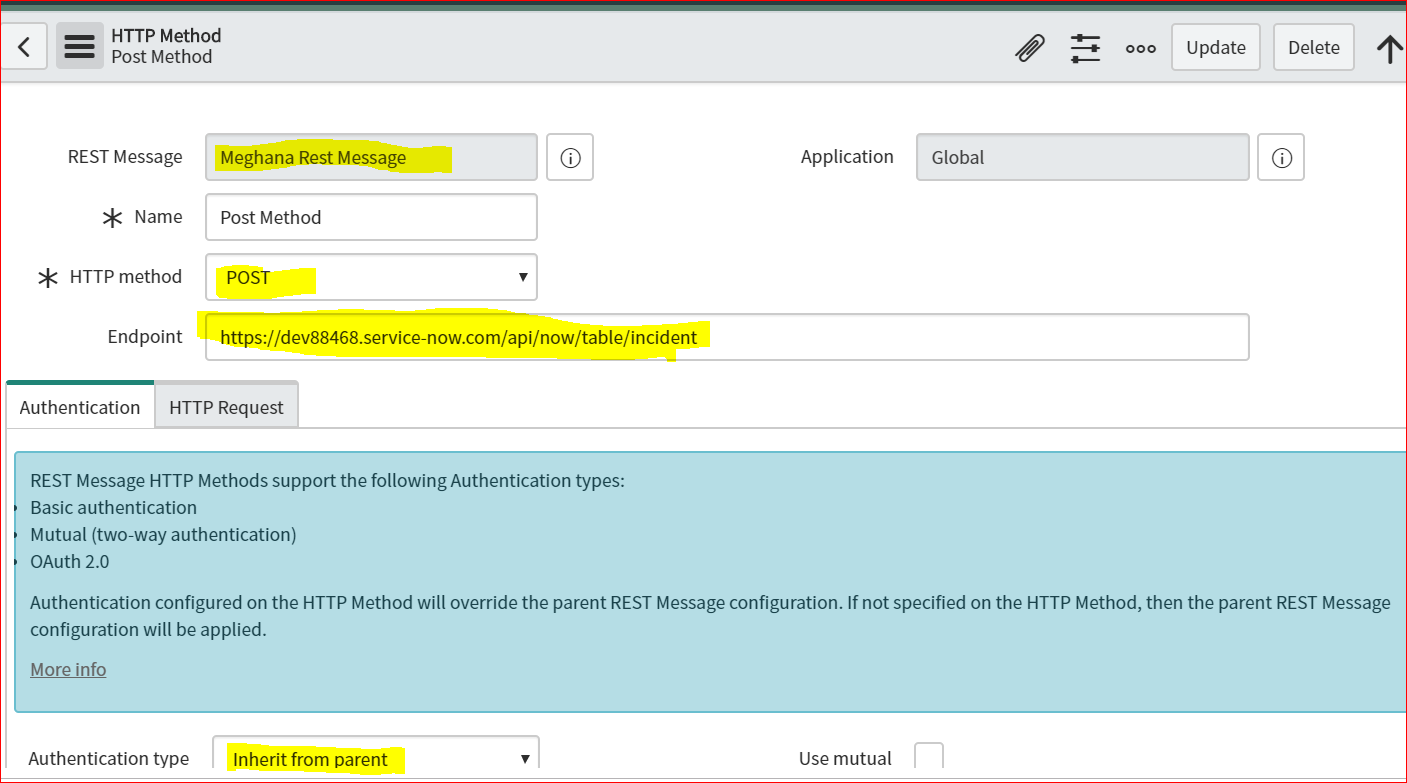
- You will get new form, then please fill the values like below
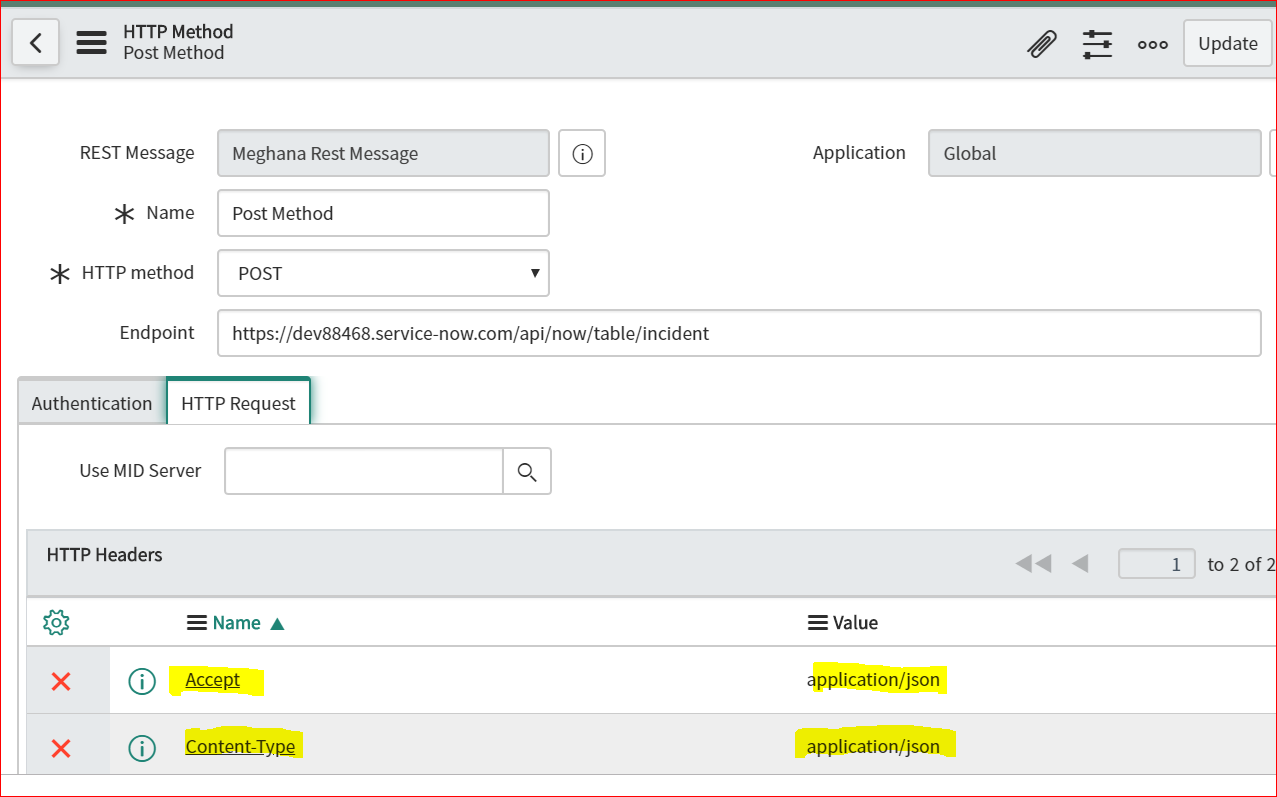
- Fill the HTTP Request tab
- Then create HTTP query parameter and content with variable for description ${des}
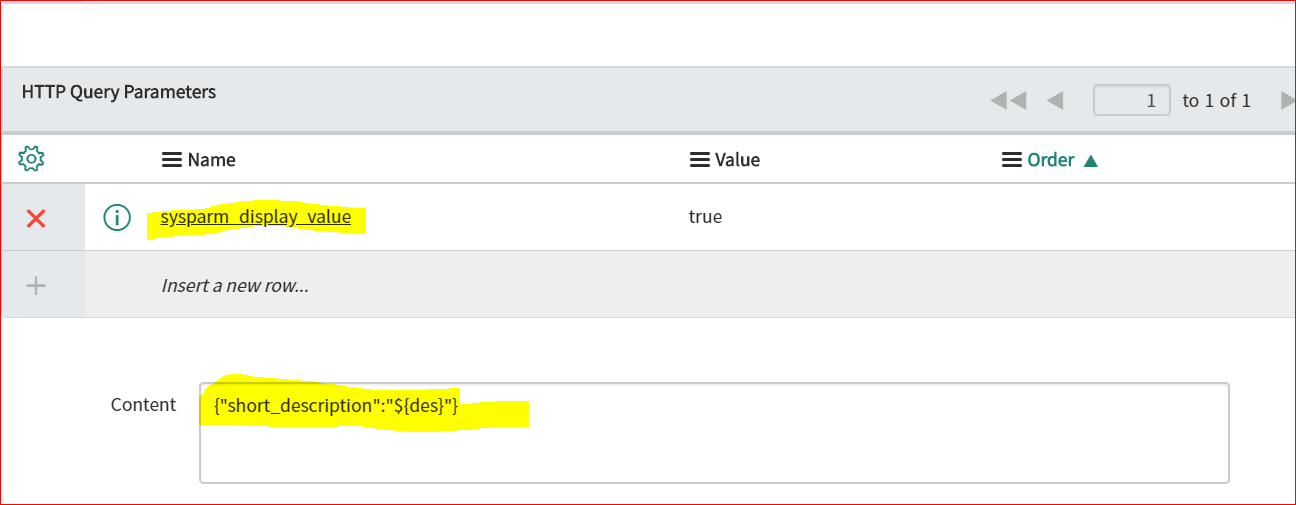
- And save it.
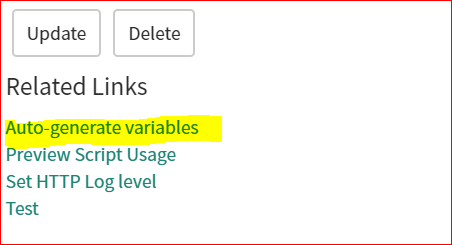
- Then click on “Auto generate Variables”
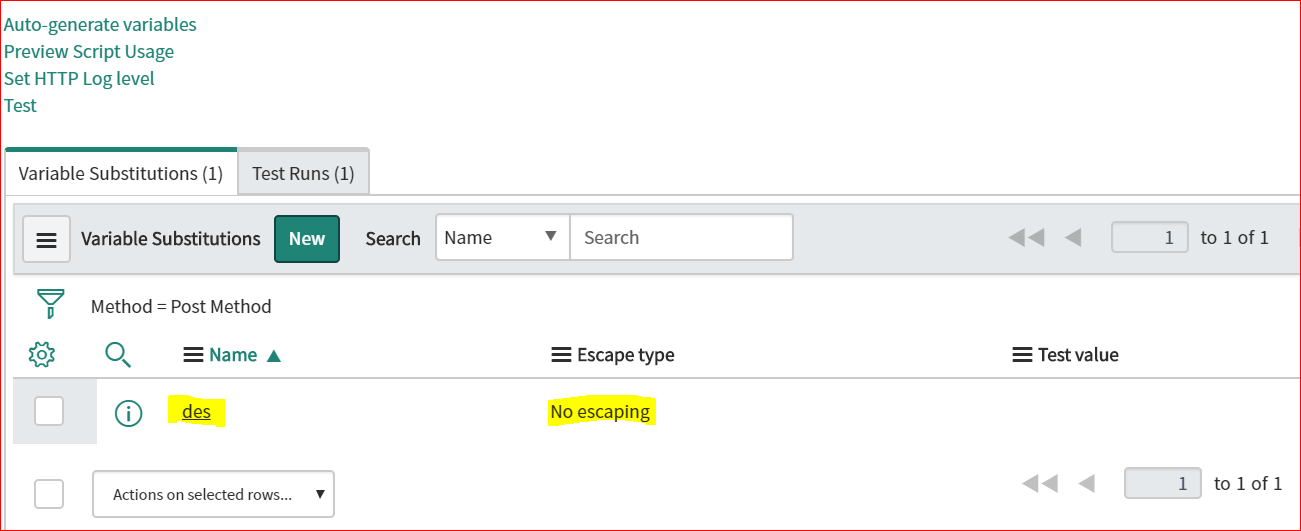
- Then it will create a entry in related list of variable substitution.
- Put some test value for des variable and then click on TEST
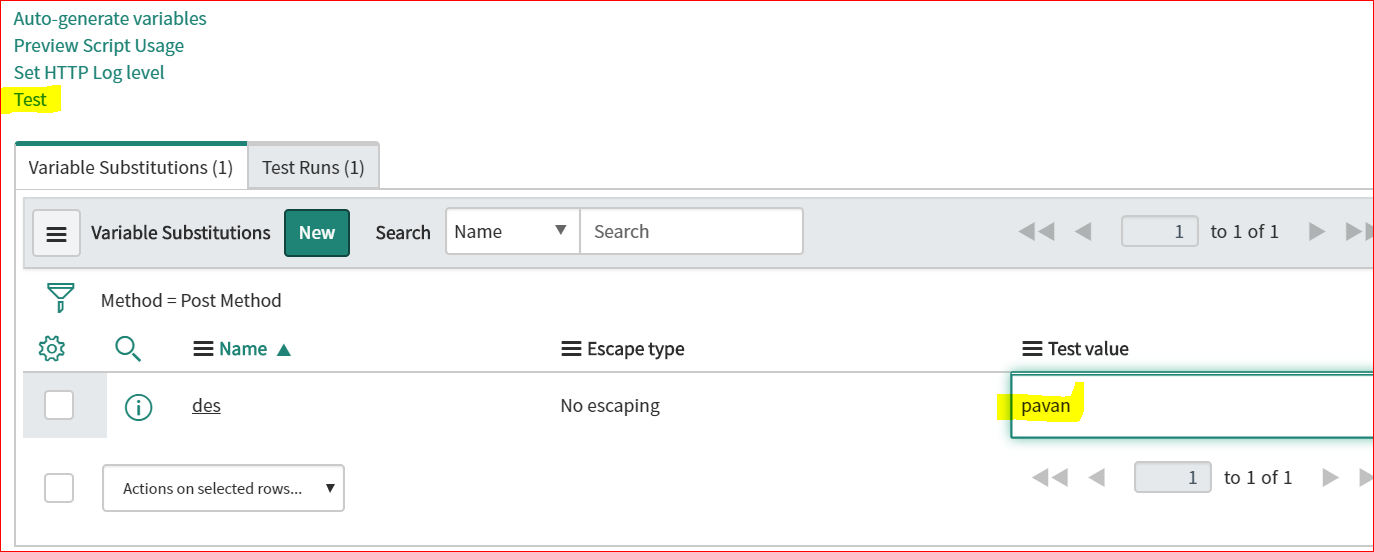
- After clicking on Test, you will get request and response details.
- Http Status Codes
- 2xx – Success: IT represents Request was accept successfully.
- 200 – Success
- 201- Success and record created
- 202 – Accepted
- 4xx – Error -IT represents the Request was incorrect at client only means requester.
- 400 – Bad Request
- 401– Authentication Failed
- 403 – Forbidden
- 404 -Not Found
- 405 -Method not Allowed
- 5xx -Error -It represents the request was correct but error at Server side.
- 500 – Internal Server Error
- 502 – Not Implemented
- 502 – Bad Gateway
- 503 – Service Unavailable
- 504- Gateway timeout
- 2xx – Success: IT represents Request was accept successfully.
