
ServiceNow JSON Parsing: Processing REST API Responses
Use Case:
When an Incident is created in Instance A, the caller information is sent to Instance B. Instance B fetches all incidents related to that caller and sends the incident details back to Instance A. Instance A parses the response and stores the incident data in a custom table.
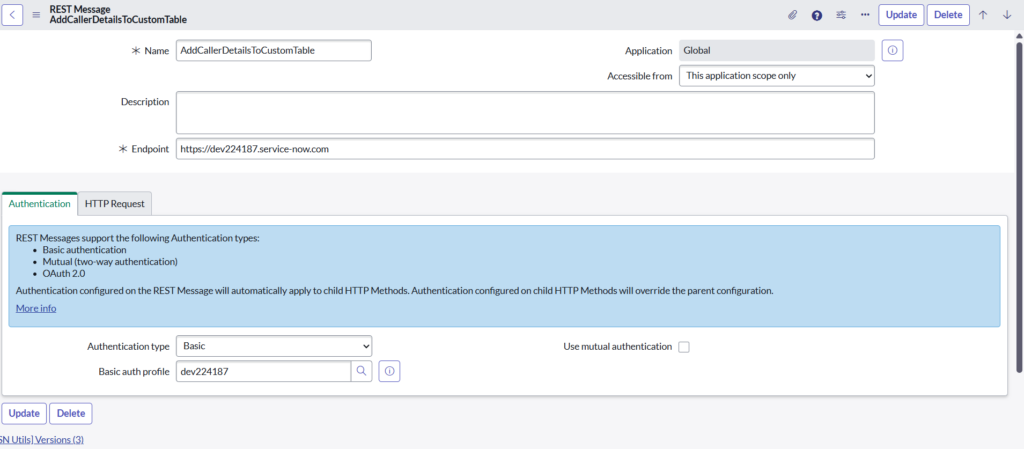
Step 1: Create REST Message
- Create a REST Message named AddCallerDetailsToCustomTable
- Purpose: To communicate from Instance A to Instance B
- Endpoint is the target ServiceNow instance (Instance B) where the request will be sent
- Selected Authentication type: Basic
- Chose an existing Basic Auth Profile (dev224187)
- This profile contains:
Username
Password
- Used to authenticate REST calls to Instance B
Step 2: Create HTTP Method
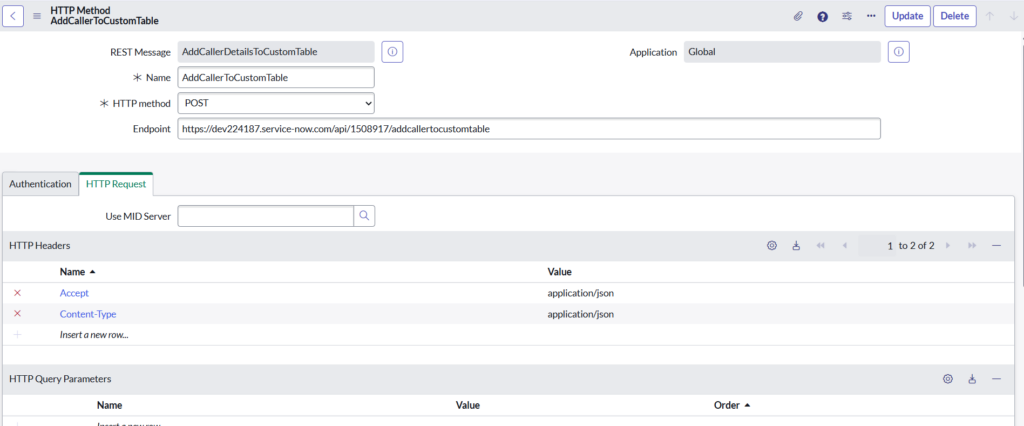
- Selected HTTP Method = POST
- Reason: Sending data (caller) to the target instance
- Provided the Scripted REST API endpoint of Instance B
- This endpoint points to the Scripted REST API created in Instance B
- Added required headers to handle JSON data:
Accept: application/json
Content-Type: application/json
- Ensures request and response are in JSON format
Step 3: Create Scripted REST Service (Instance B)
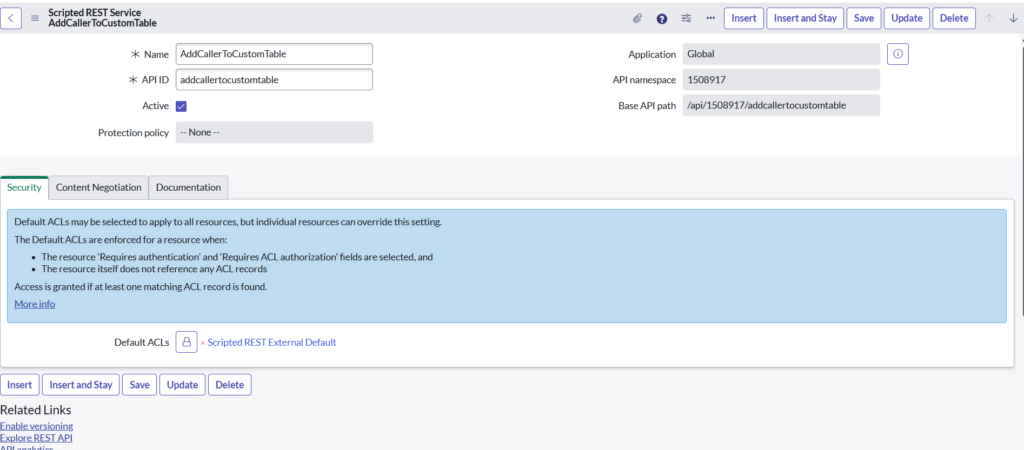
- Created a Scripted REST Service named AddCallerToCustomTable
- Purpose: To receive caller-related incident data from another ServiceNow instance
Step 4: Create Scripted REST Resource
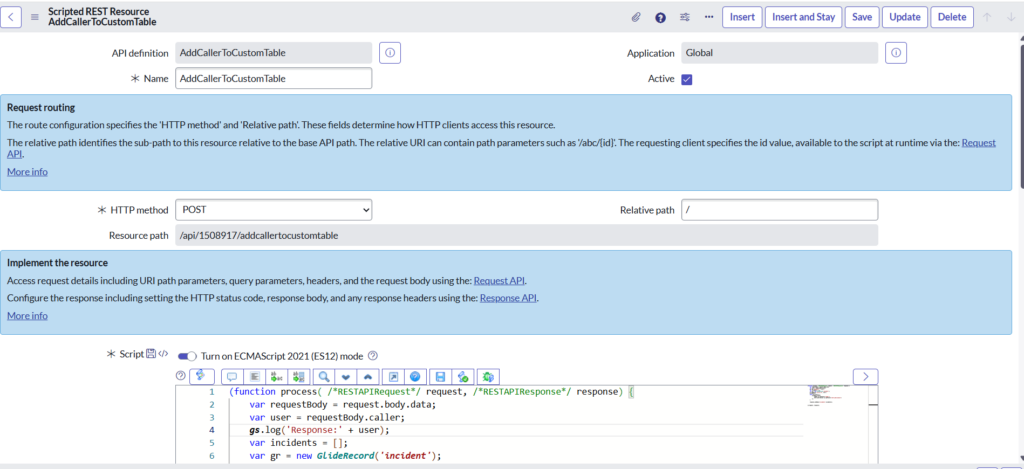
- Created a Scripted REST Resource under the API AddCallerToCustomTable
- Resource name: AddCallerToCustomTable
- Selected HTTP Method: POST
- This allows the source instance to send POST requests to this endpoint
1. Accept Incoming Request Payload
- The resource is designed to accept JSON request body
- Request body contains caller information sent from Instance A
(function process( /*RESTAPIRequest*/ request, /*RESTAPIResponse*/ response) {
var requestBody = request.body.data;
var user = requestBody.caller;
var incidents = [];
2. Query Incident Table
- Initialized a GlideRecord on the incident table
- Filtered incidents based on the received caller_id:
var gr = new GlideRecord(‘incident’);
gr.addQuery(‘caller_id’, user);
gr.query();
3. Build Response Payload
- Loop through all matching incident records
- Collected required incident details:
- Incident number
- Short description
- Stored them in an array:
while (gr.next()) {
incidents.push({
number: gr.getValue(‘number’),
short_description: gr.getValue(‘short_description’)
});
}
4. Send JSON Response
- Returned the incident data as a JSON response
- This response is sent back to Instance A
response.setBody({‘incidents’:incidents});
})(request, response);
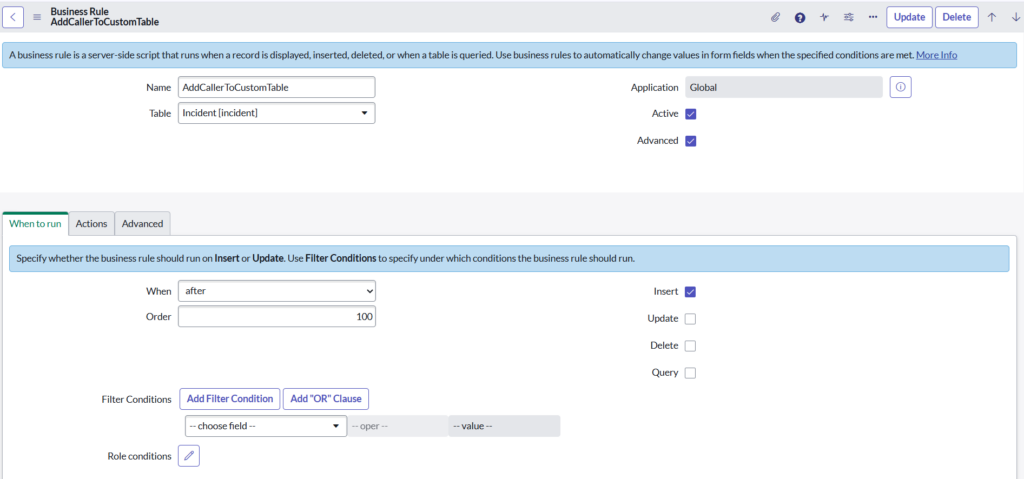
Step 5: Create Business Rule (Instance A)
- Navigate to System Definition > Business Rules and click New.
- Table: Incident
- When: after
- Insert: Checked
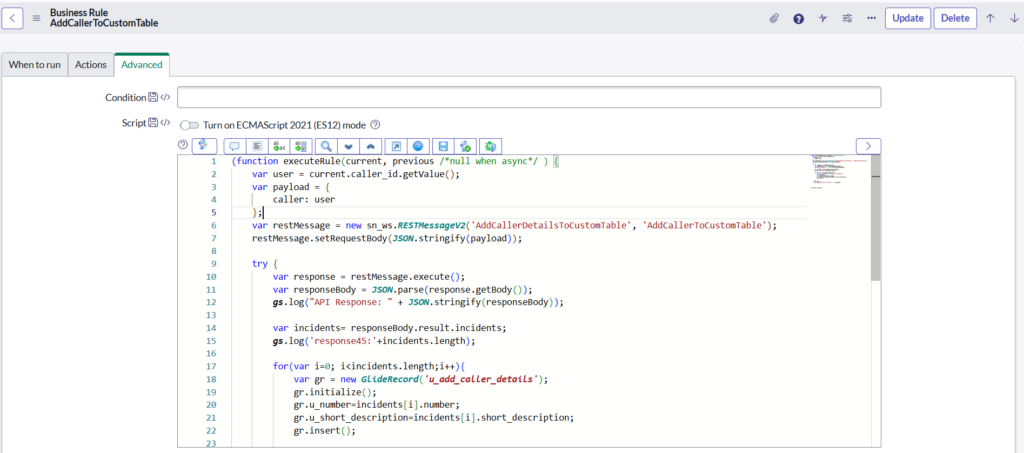
- Get Caller ID
- Fetches the caller_id sys_id from the incident
- This value is sent to another instance/API
(function executeRule(current, previous /*null when async*/ ) {
var user = current.caller_id.getValue();
- Create Payload
- JSON payload containing the caller
- Will be sent in REST request body
var payload = {
caller: user
};
- Prepare REST Message
- Calls a Named REST Message
- AddCallerDetailsToCustomTable → REST Message
- AddCallerToCustomTable → HTTP Method
var restMessage = new sn_ws.RESTMessageV2(‘AddCallerDetailsToCustomTable’, ‘AddCallerToCustomTable’);
- Attach Payload
- Converts payload to JSON
- Sets it as the request body
restMessage.setRequestBody(JSON.stringify(payload));
- Execute REST API Call
- Sends the request to the external/other ServiceNow instance
try {
var response = restMessage.execute();
6.Convert JSON String → JavaScript Object
- The REST API response body is always a string

- JSON.parse() Converts JSON string into a JavaScript object
- Allows field-level access using dot notation
var responseBody = JSON.parse(response.getBody());
gs.log(“API Response: “ + JSON.stringify(responseBody));
- Read Incident Data from Response
- Extracts incident list from API response
- responseBody → full parsed object
- result → main response wrapper
- incidents → array of incident objects
- Structure:
responseBody
└── result
└── incidents [ array ]
var incidents= responseBody.result.incidents;
- Insert Data into Custom Table
- Loops through each incident returned
for(var i=0; i<incidents.length;i++){
var gr = new GlideRecord(‘u_add_caller_details’);
- Creates new record in custom table
gr.initialize();
- Accessing Fields Using Dot Notation
- incidents[i]. number → Fetches incident number from API response
gr.u_number → Custom table field
- incidents[i].short_description → Fetches short description
gr.u_short_description → Custom table field
- incidents[i] gives one incident
- .number and .short_description fetch values
gr.u_number=incidents[i].number;
gr.u_short_description=incidents[i].short_description;
- Inserts record into custom table
gr.insert();
}
- Catches REST API errors
- Logs error message to system logs
} catch (ex) {
gs.error(“REST API call failed: “ + ex.message);
}
})(current, previous);
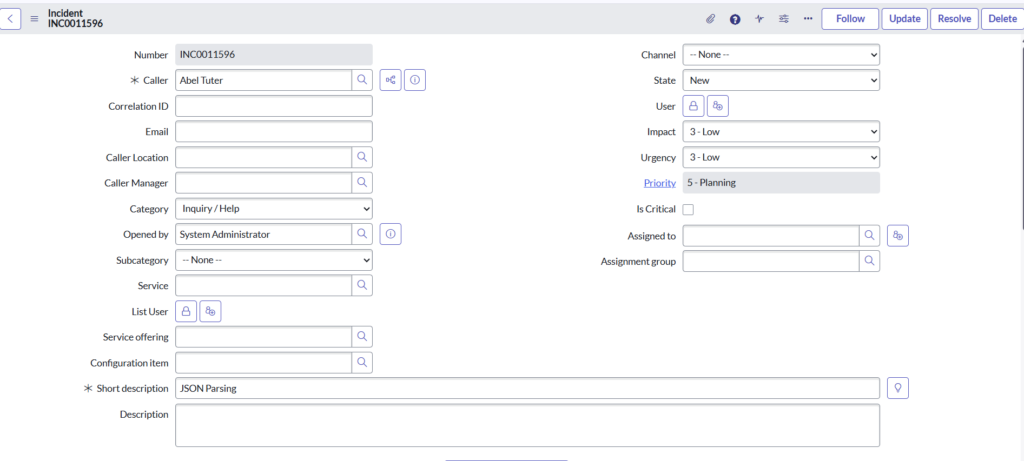
Instance A:
This incident creation is the trigger point for:
- REST API call
- JSON parsing
- Custom table insertion
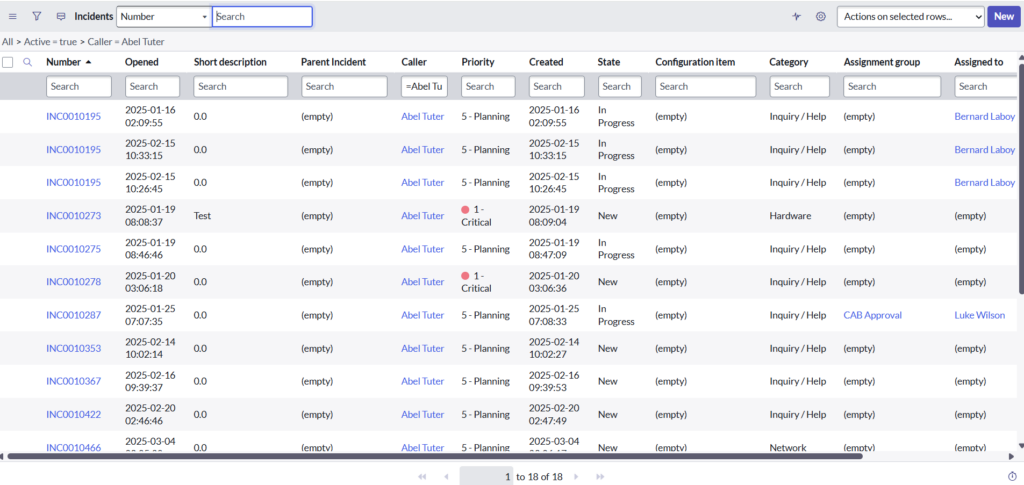
Instance B:
- ALL incidents available for the caller “Abel Tuter” in Instance B
- These are the incidents that:
- The Scripted REST API in Instance B queries
- And returns back to Instance A in the API response
Instance A:
REST API Test Result:
- REST Message executed successfully
- API returned data in JSON format
- Response contains:
result object
incidents array
- Each incident has:
- number
- short_description
API Response: {“result”:{“incidents”:[{“number”:”INC0010488″,”short_description”:”0.0″},{“number”:”INC0010560″,”short_description”:”0.0″},{“number”:”INC0010232″,”short_description”:”0.0″},{“number”:”INC0010487″,”short_description”:”0.0″},{“number”:”INC0010233″,”short_description”:”0.0″},{“number”:”INC0010355″,”short_description”:”0.0″},{“number”:”INC0010356″,”short_description”:”0.0″},{“number”:”INC0010204″,”short_description”:”0.0″},{“number”:”INC0010359″,”short_description”:”0.0″},{“number”:”INC0010195″,”short_description”:”0.0″},{“number”:”INC0010292″,”short_description”:”0.0″},{“number”:”INC0010187″,”short_description”:”0.0″},{“number”:”INC0010357″,”short_description”:”0.0″},{“number”:”INC0010180″,”short_description”:”0.0″},{“number”:”INC0010181″,”short_description”:”0.0″},{“number”:”INC0010357″,”short_description”:”0.0″}]}}
Instance A:
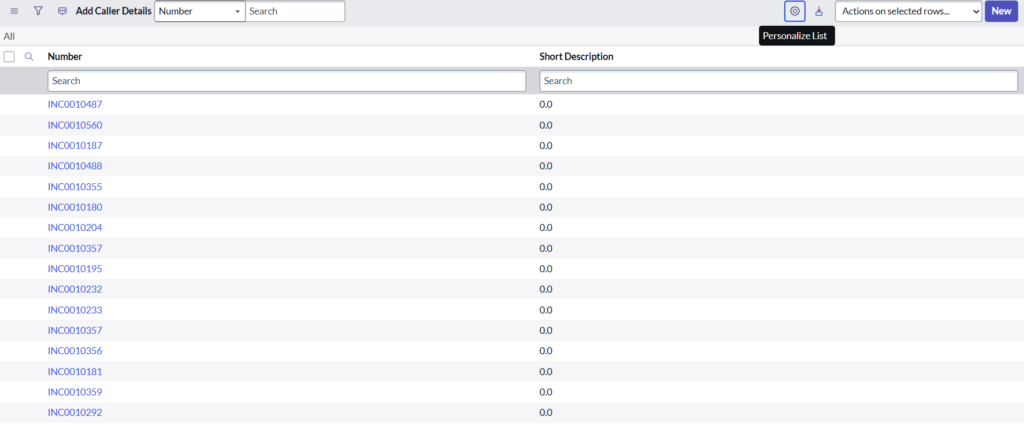
Custom Table(u_add_caller_details)
- The data shown here is not manually created
- It is automatically inserted by the Business Rule in Instance A
End-to-End Flow
- Incident created in Instance A
- Business Rule runs after insert
- Caller ID sent to Instance B via REST API
- Scripted REST API in Instance B:
- Queries all incidents for Abel Tuter
- Instance B returns incident data as JSON
- Instance A:
- Parses JSON response
- Loops through incidents
- Each incident is inserted into:
u_add_caller_details