
Third Party Risk Management (TPRM)
Third Party Risk Management (TPRM)
1. What is Third Party Risk Management (TPRM)?
Third-Party Risk Management (TPRM) is the process of identifying, assessing, and managing risks from vendors, suppliers, contractors, or service providers.
The TPRM application helps you organize and standardize these processes, track third-party issues, and reduce risks to your organization’s operations, reputation, and assets. It also automates risk assessments, saving time, and reducing manual work.
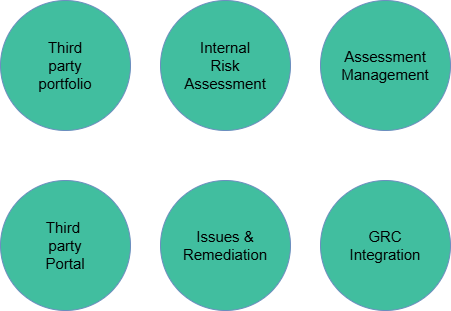
1.1. Overview of TPRM
The TPRM application helps ensure that external vendors and suppliers do not disrupt business or affect performance. It allows organizations to assess third-party risks, automate processes to save time and costs, and manage risks effectively. A strong TPRM framework covers governance, roles and responsibilities, processes, and technology.
1.2. Third-Party Risks and How They Impact Your Business
Risk Type | Impact on Business | Real-World Example |
Data Privacy Risk | Exposure of customer or employee personal data, leading to loss of trust and legal issues. | A marketing vendor accidentally exposes customer email addresses due to improper data handling. |
Compliance Risk | Failure to meet regulatory standards, resulting in audit failures, fines, or penalties. | A payroll vendor cannot provide SOC 2 reports, putting your company at risk during compliance audits. |
Security Risk | Cyberattacks on the vendor can compromise your systems or sensitive information. | A cloud storage vendor gets hacked, allowing attackers to access stored files. |
Operational Risk | Vendor outages or performance issues disrupt your business operations and customer experience. | Your payment gateway provider goes down for 3 hours, stopping all customer transactions. |
Financial Risk | A vendor’s financial instability affects service continuation, support, or obligations. | A small SaaS vendor suddenly shuts down due to bankruptcy, leaving your operations unsupported. |
1.3. Before Starting the TPRM Flow – Required Plugins
To use TPRM and Vendor Risk Management features, ensure the following plugins are activated:
Plugin Name | Purpose |
TPRM – Vendor Risk Management (sn_vdr_risk_asmt) | Core TPRM functionality including assessments, due diligence, and risk workflows |
GRC Common (sn_grc) | Base tables, engine, and workflows required for risk operations |
ServiceNow Workspace Experience (sn_workspace) | Allows access to Vendor Management Workspace, Due Diligence Workspace, etc. |
TPRM Portal / SVDP Portal Plugin (if applicable) | Required for external vendor survey submission through SVDP portal
|
Note: Without sn_workspace, users cannot see Vendor Management Workspace in the workspace.
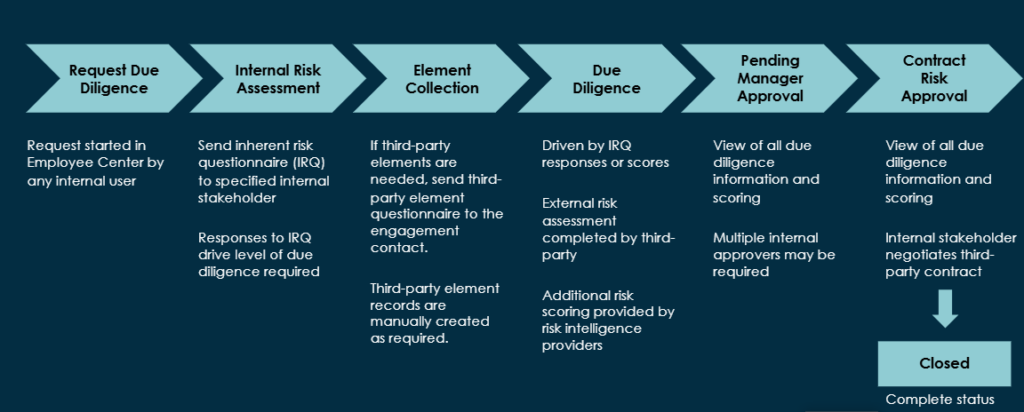
2. TPRM Workflow
3. TPRM Roles
3.1. TPRM Internal Roles
Role | Technical Role Name | Description | Contains Roles |
Third-party Reader | vendor_reader | Read only access to third-party and contact records. | — |
Third-party Editor | vendor_editor | Create, update, and delete third-party contact records. | vendor_reader |
Third-party Assessment Reviewer | sn_vdr_risk_asmt.vendor_assessment_reviewer | View assessment & questionnaire data and comment on tiering, internal assessments, risk assessments, issues, tasks, and due diligence requests. | compliance_reader, risk_reader, task_editor, vendor_reader |
Third-party Risk (TPR) Assessor | sn_vdr_risk_asmt.vendor_assessor | All reviewer permissions + manage third parties, contacts, engagements, external risk assessments, and issues. | compliance_reader, vendor_assessment_reviewer, vendor_editor, vendor_reader |
Due Diligence Approver | sn_vdr_risk_asmt.approver | All reviewer permissions + approve Internal Risk Questionnaires (IRQs). | vendor_assessment_reviewer |
Third-party Contract Negotiator | sn_vdr_risk_asmt.contract_negotiator | All assessor permissions + modify contract status, start date, and end date. | sn_vdr_risk_asmt.vendor_assessor |
Third-party Risk (TPR) Manager | sn_vdr_risk_asmt.vendor_risk_manager | All assessor permissions + manage assessment templates, scheduled assessments, property settings, and scoring rules. | vendor_assessment_reviewer, vendor_assessor |
Third-party Risk Admin | sn_vdr_risk_asmt.vendor_risk_admin | Full admin access. Manage questionnaire templates and document request templates. | assessment_admin, sn_vdr_risk_asmt.vendor_risk_manager |
Third-party Reader | vendor_reader | Read only access to third-party and contact records. | — |
Third-party Editor | vendor_editor | Create, update, and delete third-party contact records. | vendor_reader |
Third-party Assessment Reviewer | sn_vdr_risk_asmt.vendor_assessment_reviewer | View assessment & questionnaire data and comment on tiering, internal assessments, risk assessments, issues, tasks, and due diligence requests. | compliance_reader, risk_reader, task_editor, vendor_reader |
Third-party Risk (TPR) Assessor | sn_vdr_risk_asmt.vendor_assessor | All reviewer permissions + manage third parties, contacts, engagements, external risk assessments, and issues. | compliance_reader, vendor_assessment_reviewer, vendor_editor, vendor_reader |
Due Diligence Approver | sn_vdr_risk_asmt.approver | All reviewer permissions + approve Internal Risk Questionnaires (IRQs). | vendor_assessment_reviewer |
Third-party Contract Negotiator | sn_vdr_risk_asmt.contract_negotiator | All assessor permissions + modify contract status, start date, and end date. | sn_vdr_risk_asmt.vendor_assessor |
Third-party Risk (TPR) Manager | sn_vdr_risk_asmt.vendor_risk_manager | All assessor permissions + manage assessment templates, scheduled assessments, property settings, and scoring rules. | vendor_assessment_reviewer, vendor_assessor |
Third-party Risk Admin | sn_vdr_risk_asmt.vendor_risk_admin | Full admin access. Manage questionnaire templates and document request templates. | assessment_admin, sn_vdr_risk_asmt.vendor_risk_manager |
3.2. TPRM External Role
Role | Description | Contains Role |
Vendor Contact (vendor_contact) | Access third-party assessment portal- Answer assessment questions- Assign/manage other contacts- Communicate with TPR managers | snc_external |
4. Fields in Due Diligence
Field | Description / Key Points |
Number | Auto-assigned unique ID starting with DDR. |
State | Current stage: IRQ, external due diligence, approval, contract risk, or closed. |
Request Type | Onboard: New engagement with third party. – Reassess existing engagement: Due to changes/adverse news. – Reassess for contract renewal. – Offboard with due diligence. – Offboard without due diligence: Normal IRQ still applies. |
Priority | 1-Critical, 2-High, 3-Moderate, 4-Low, 5-Planning |
Third Party | Associated third-party organization. |
Annual Spend | Money spent with the third party per year. |
Engagement | Associated engagement; can be updated post-submission to link existing engagement. |
Skip Contract Risk Process | Checkbox to bypass contract negotiation; replaces contract dates with engagement dates. Request closes after TPR manager approval. |
Requestor | Creator of the request. |
Opened | Date request was created. |
Contract Start/Expiration Date | Preferred start/end dates for contract interactions. |
Engagement Start/Expiration Date | Preferred start/end dates for engagement interactions. |
IRQ Assessor | User responding to the Inherent Risk Questionnaire (IRQ). |
Contract Negotiator | User preparing, negotiating, and approving the contract. |
Assignment Group | Group responsible for the request; notifications sent automatically. Members can assign to self or others; TPR managers/assessors can modify. |
Assigned To | Individual responsible for completing, reviewing, and resolving assessment tasks. Must have TPR manager/assessor role. |
Short Description / Description | Summary of request purpose and requirements. |
5. Process of TPRM
5.1. Request Submission
- The lifecycle begins when an employee submits a Due Diligence Request through the Employee Center.
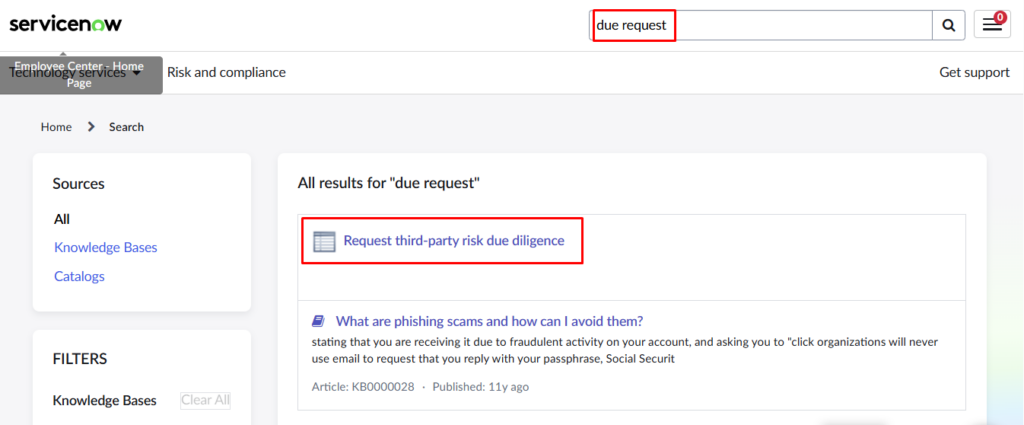
- Open the Employee Service Center (ESC) portal.
This is where employees submit requests related to vendors and third-party assessments.
- Use the search bar at the top of the portal.
Type “Due Request” in the search field.
- View the search results.
The portal displays all matching catalog items.
- Select: “Request Third-Party Risk Due Diligence”
This is the official catalog item used to start the TPRM lifecycle.
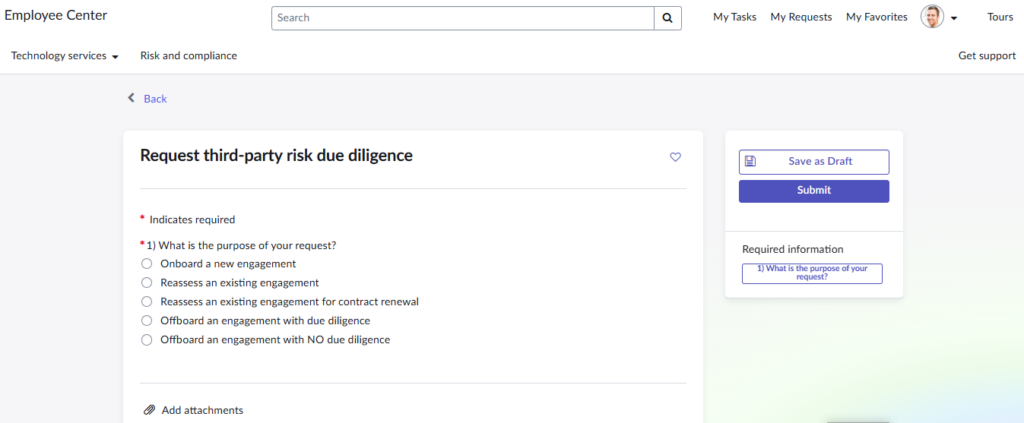
- After selecting “Request Third-Party Risk Due Diligence”, the form opens.
- The employee must choose the type of request they want to initiate. The available options are:
- Onboard a New Vendor
For introducing a new third-party vendor to the organization.
- Reassess an Existing Vendor Engagement
For periodic evaluations or when vendor risk/operations change.
- Prepare for Contract Renewal
For reviewing risk before renewing an existing contract.
- Off board a Vendor
For terminating the relationship with a vendor, ensuring proper closure, data return/deletion, and risk documentation.
- The requester fills in key details, including:
- Third Party Information
- Name*, Type*, Website, Phone, Industry
- Engagement Information
- Name*, Type*, Request start and end date, User who will respond to the initial IRQ questionnaire*
- Third party Address
- Street*, City*, State, Zip, Country
- Engagement Address
- Street*, City*, State, Zip, Country
- Third-party Primary Contact
- First Name*, Last Name*, Email*, Phone
- Engagement Primary Contact
- First Name*, Last Name*, Email*, Phone
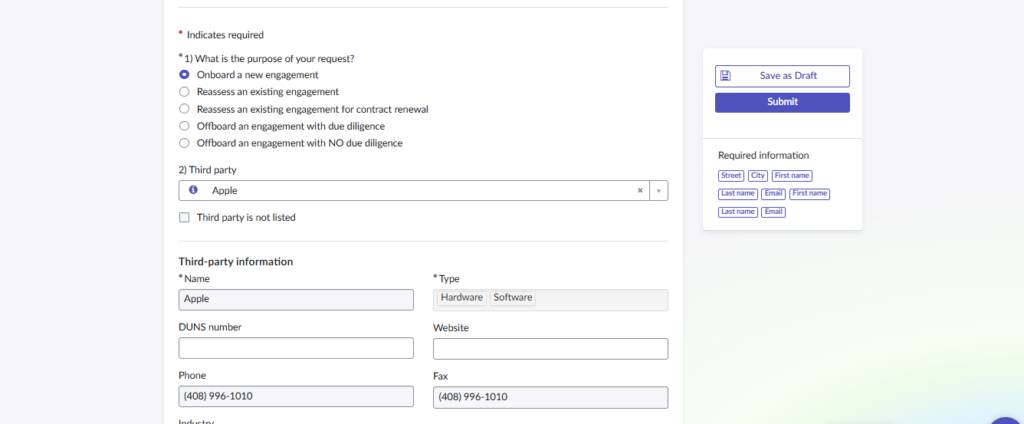
- After completing all fields, the employee submits the form to begin the TPRM lifecycle.
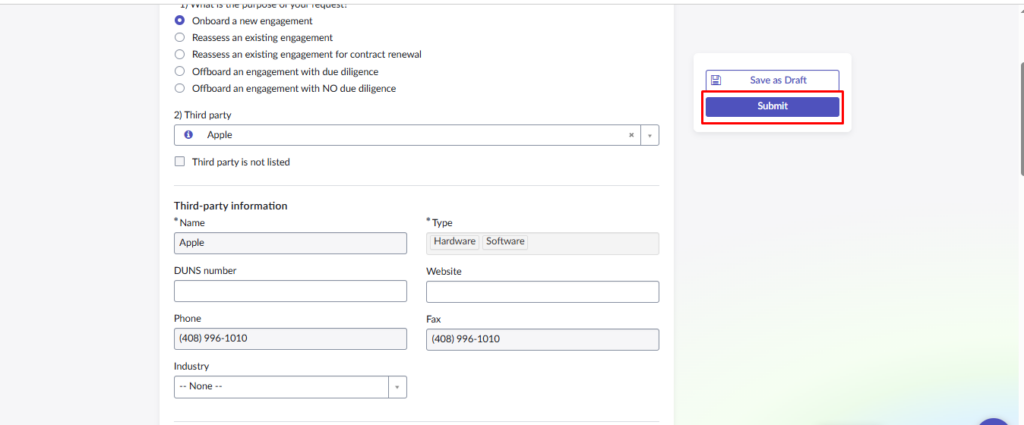
- Once the request has been submitted, it becomes available for rejection or approval by TPR Managers.
- All requests can be viewed on the vendor management workspace via the due diligence management page and will initially have the state ‘New’.
- Every new request will initially have the state “New”, indicating it is waiting for review.
- Steps: Open the Submitted Request
- Go to the application navigator in ServiceNow.
- Search for “Due request”.
- Open the module “All Requests”.
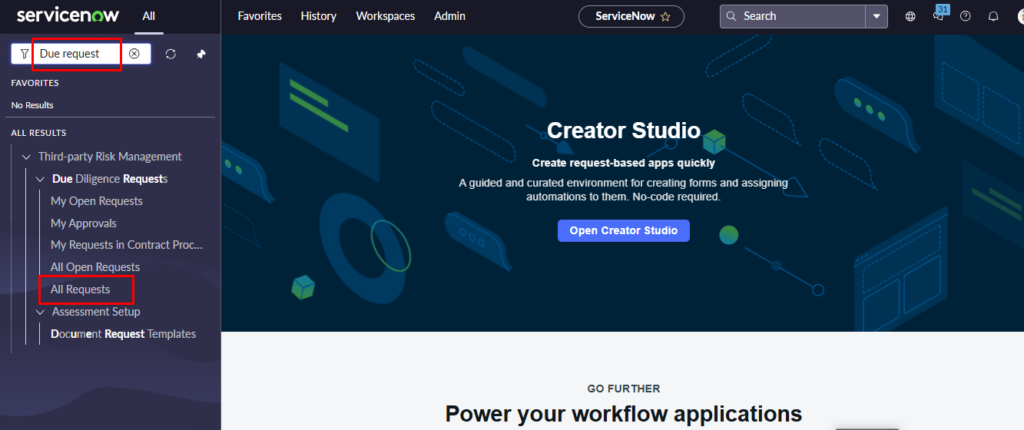
- Locate and open the request that was created.
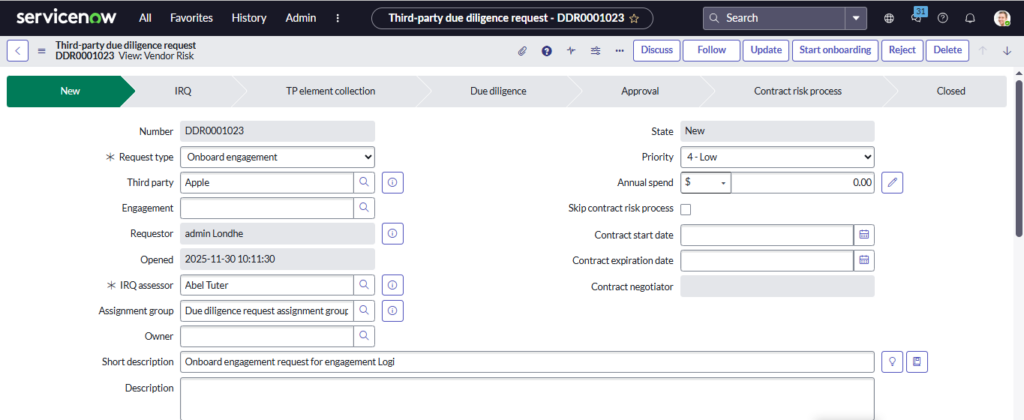
- This allows the TPR manager to begin reviewing the details, validating information, and taking the next action (Approve or Reject).
5.2. Request Review
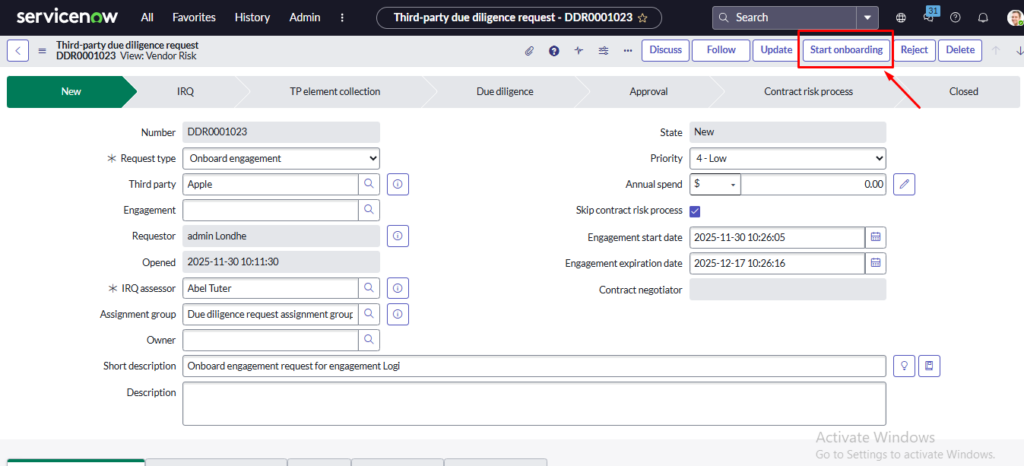
- Step: Submit the Request by Clicking “Onboard”
- After the TPR Manager reviews the form and confirms that all required information is complete:
- The TPR Manager clicks the “Onboard” button on the Due Diligence Request form.
- This action officially submits the request and pushes it forward in the TPRM workflow.
- Once “Onboard” is selected, the system transitions the request to the Initial Risk Questionnaire (IRQ) stage, where internal risk assessors begin evaluating inherent risks.
5.3. IRQ (Inherent Risk Questionnaire):
- Once the TPR Manager clicks Onboard, the request automatically moves into the Initial Risk Questionnaire (IRQ) phase.
- This phase helps determine the inherent risk level of the vendor’s engagement before any detailed assessments begin.
- IRQ Assignment
- The system assigns the IRQ to the internal IRQ Assessor specified in the request form.
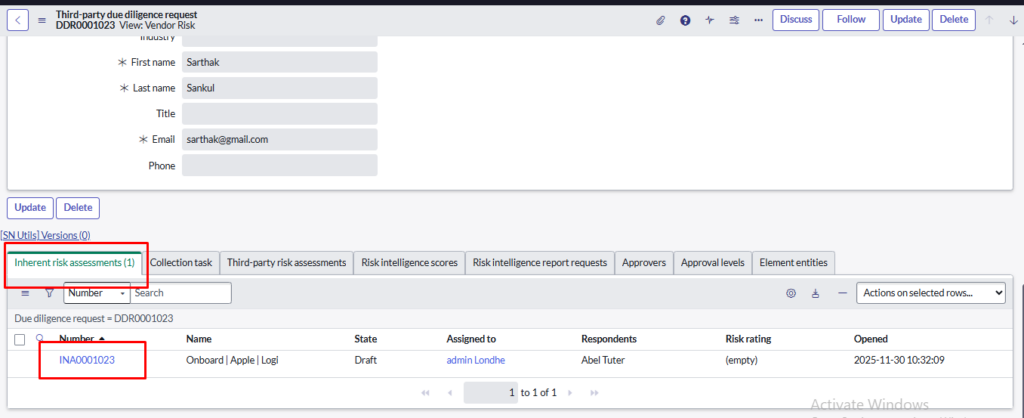
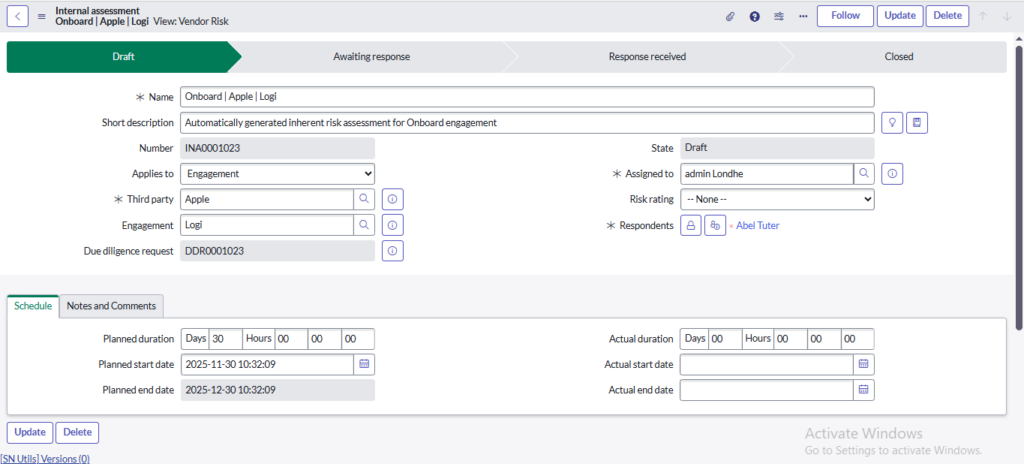
- The assessor is responsible for completing the initial risk analysis.
- Add the IRQ Questionnaire
- Before answering the assessment, the IRQ Assessor must add the questionnaire using the Related List:
- Scroll down to the “Assessments” or “IRQ Questionnaires” related list.
- Click “Edit”.
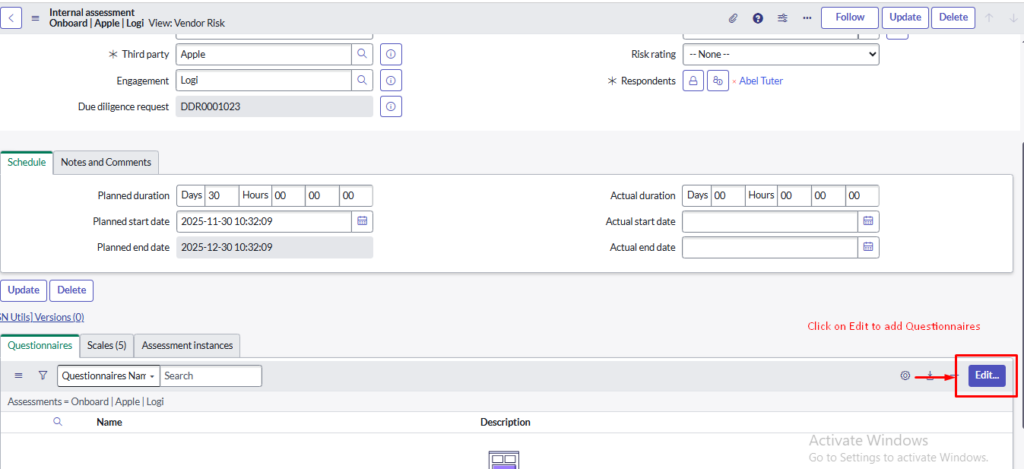
- Choose the correct IRQ Assessment Template (e.g., Inherent Risk Questionnaire – Vendor).
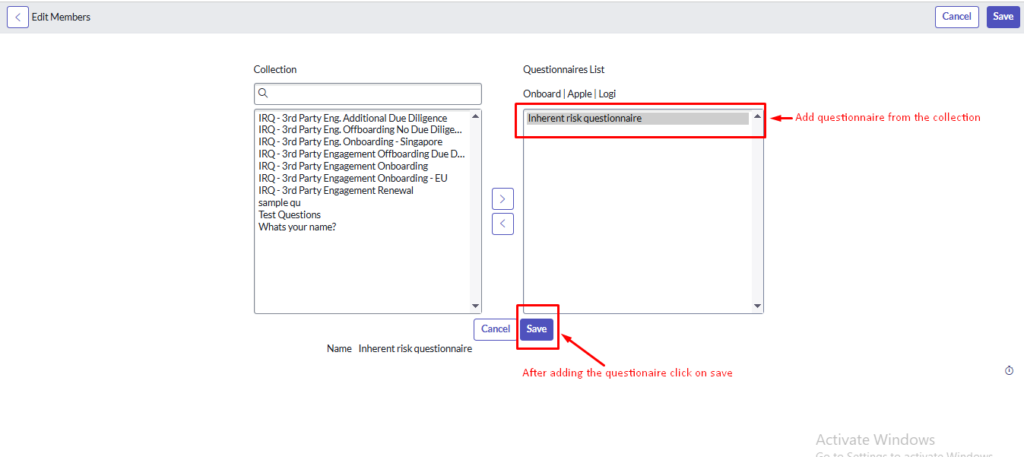
- The selected questionnaire will now appear under the related list and will be assigned automatically.
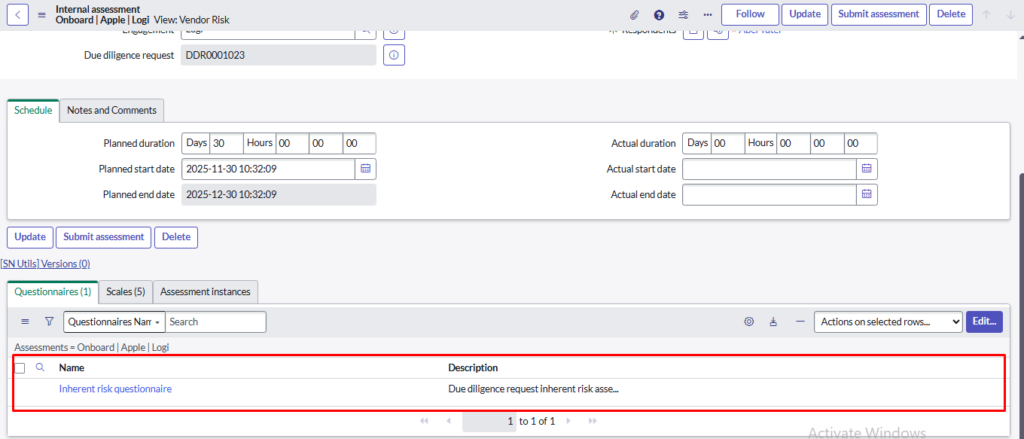
- This step ensures that the proper questionnaire is linked to the request, so the IRQ Assessor can begin answering the risk-related questions.
- Click on submit assessment.
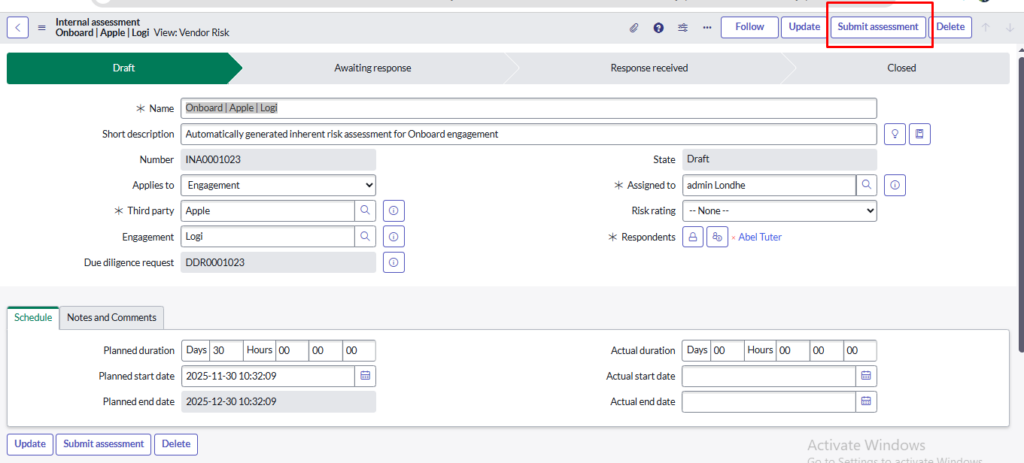
- Complete the IRQ
- After adding the Initial Risk Questionnaire (IRQ) to the request, the IRQ Assessor needs to complete it.
- Since you may not be logged in as the assessor, you can impersonate the IRQ Assessor in ServiceNow:
- Click on your user avatar in the top-right corner.
- Select “Impersonate User”.
- Choose the IRQ Assessor assigned to the request.
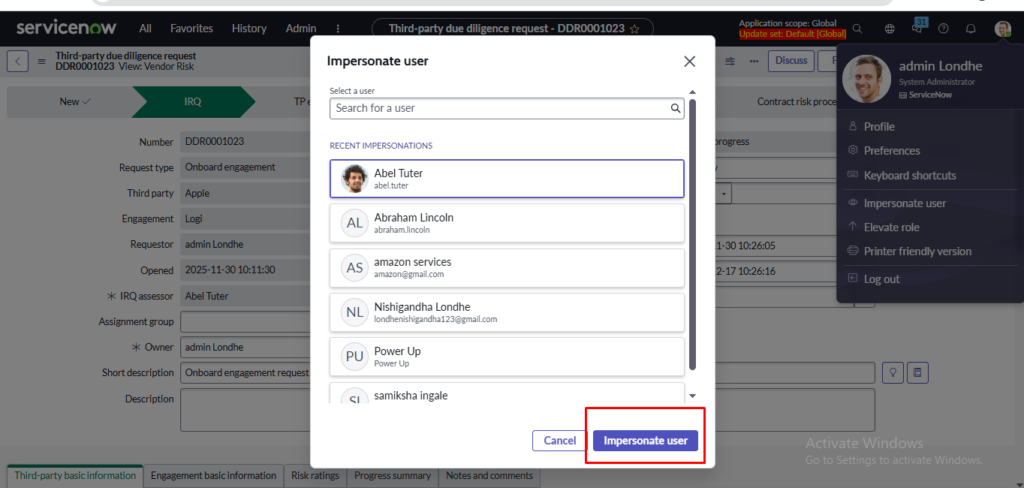
- Once impersonated, Navigate to the Employee Service Center (ESC) portal.
- Search for “Survey” and Press Enter.
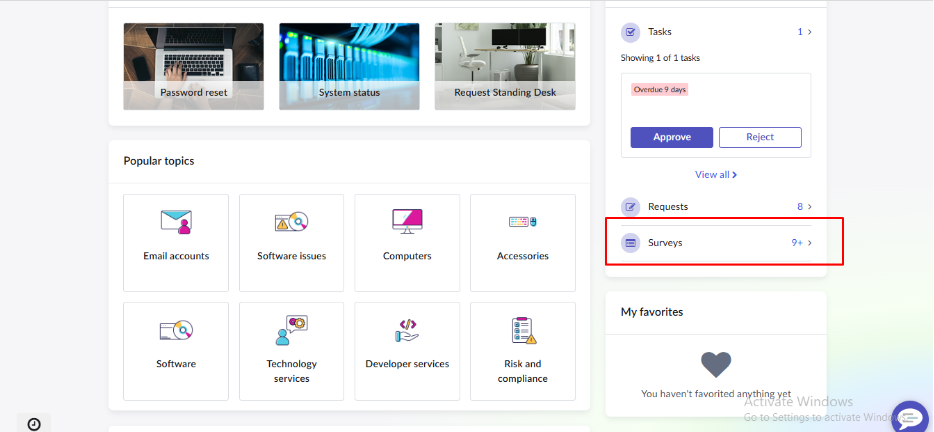
- Select the correct survey from the search results.
- Click on the survey to open it.
- Click on Get Started.
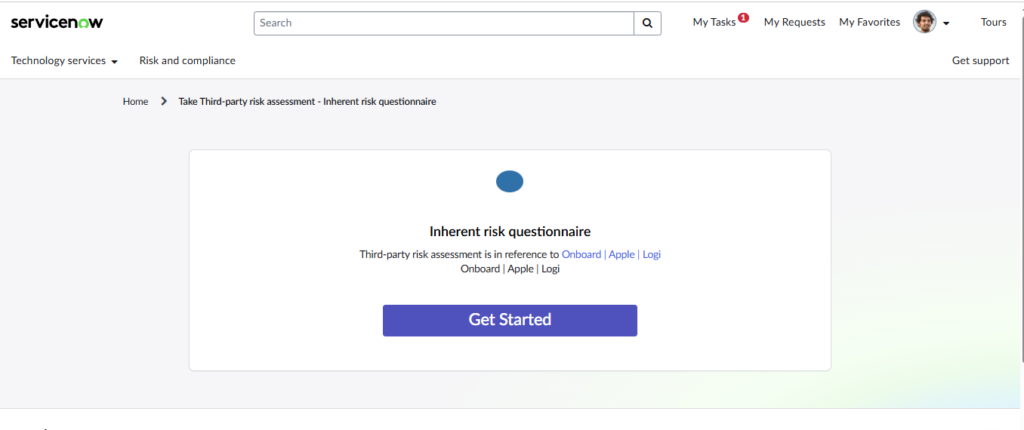
- You will now see all the questions that the IRQ Assessor needs to answer.
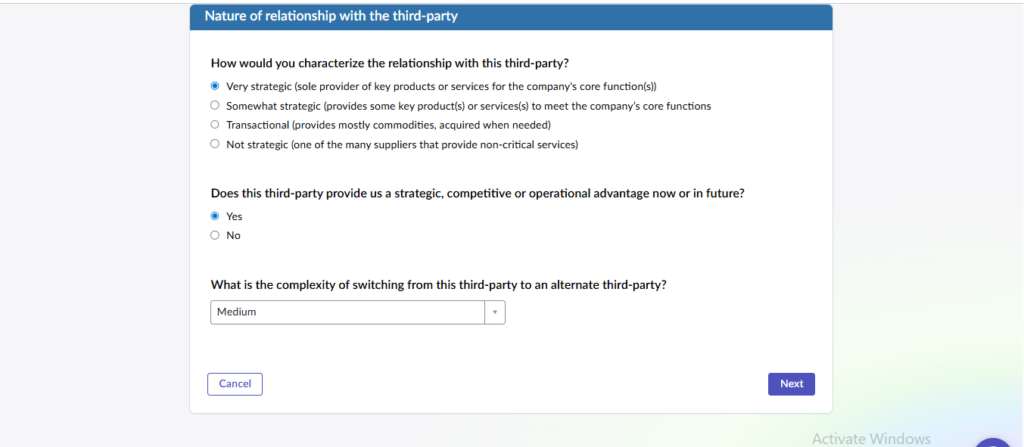
- Complete the survey by filling in all required answers and uploading any supporting documents if needed.
- Submit the survey.
- Once submitted, the TPR Manager can review the responses and approve or reject the IRQ.
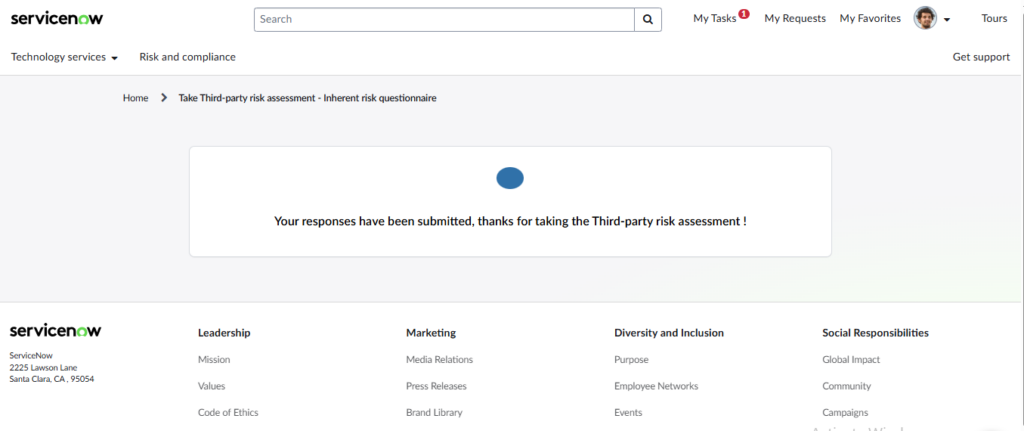
- After completing the IRQ survey as the impersonated user
- Click on your user avatar in the top-right corner of ServiceNow.
- Select “End Impersonation”.
- You are now back to your own user account and can continue the workflow as your normal role.
- After completing the IRQ survey and ending impersonation:
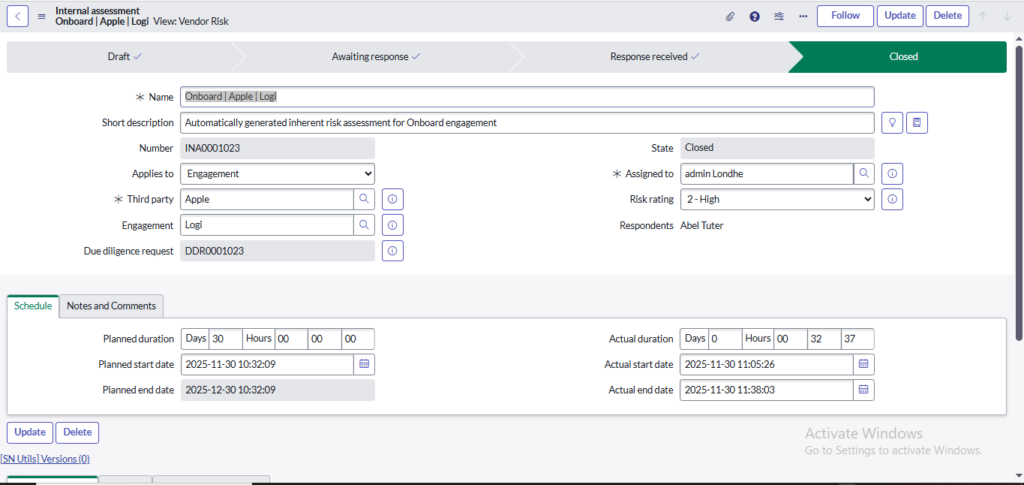
- The system updates the request status to “Response Received” in the Internal Assessment module.
- This status indicates that the vendor responses or internal questionnaires have been submitted and are ready for review.
- The TPR Manager reviews all responses submitted by the IRQ Assessor or other internal stakeholders.
- After confirming that all information is complete and accurate, the Internal Assessment can be closed.
- Closing the internal assessment marks the completion of the initial risk evaluation and prepares the request for the next step in the TPRM lifecycle, such as TP Element Collection or Due Diligence.
5.4. TP Element Collection (Third-Party Element Collection)
- After the IRQ is approved, the TPR Manager may collect TP Elements if the engagement involves multiple units, products, or services.
- Element Questionnaires are sent to the vendor via the Third-Party Portal.
- Vendor responses are reviewed and converted into Element Records.
- This ensures that all relevant parts of the engagement are assessed before moving to the Due Diligence phase.
- Tip: Skip this step if the engagement involves only a single service or unit.
5.5. Due Diligence
- After the IRQ (and Element Collection, if required) is completed, the Due Diligence phase officially begins.
- Click on the start due diligence button.
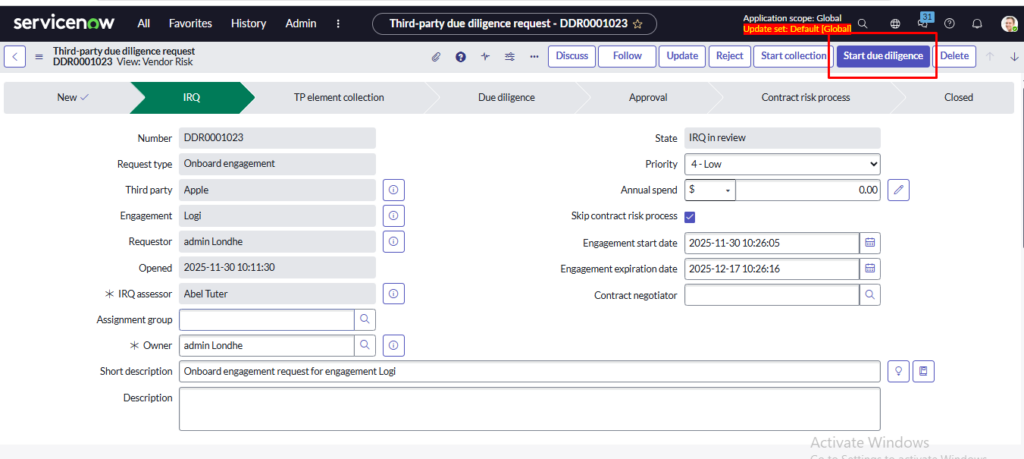
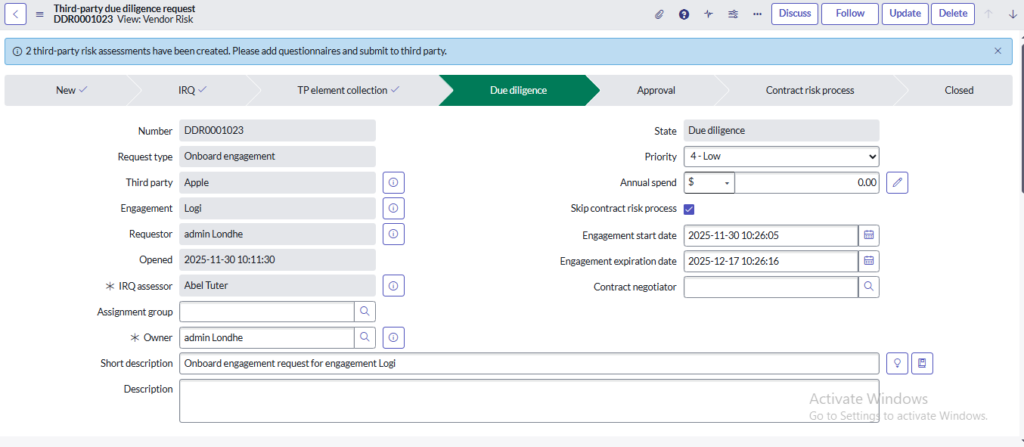
- Once the request moves to the Due Diligence stage:
- The system automatically generates two main external assessments for the vendor:
- Organization-Level Assessment – evaluates overall vendor policies, compliance, and risk management.
- Engagement-Level Assessment – evaluates risks specific to the particular service, product, or engagement.
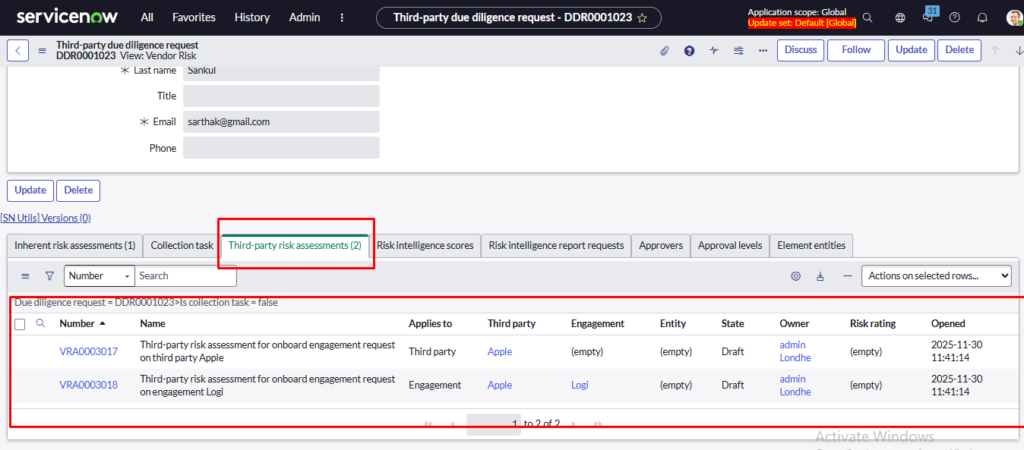
- Open each assessment in a new browser tab to review them side by side.
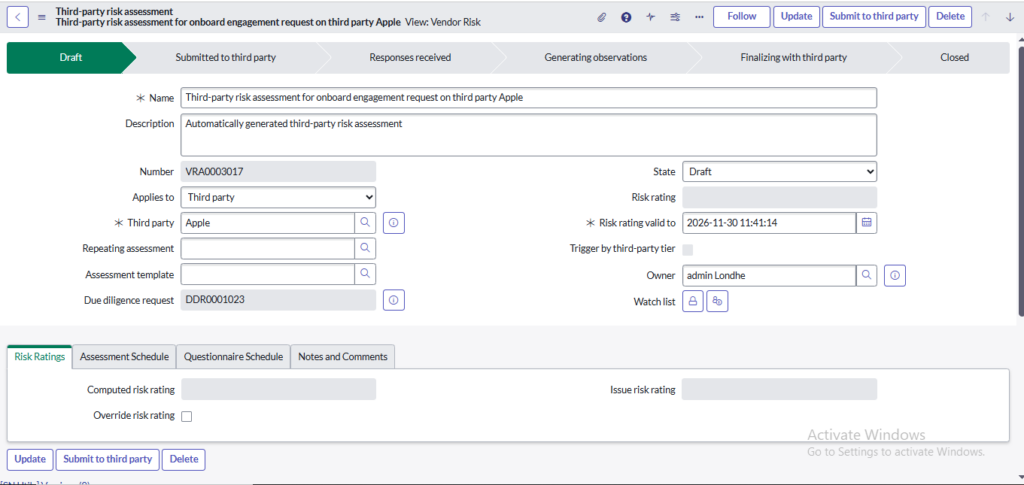
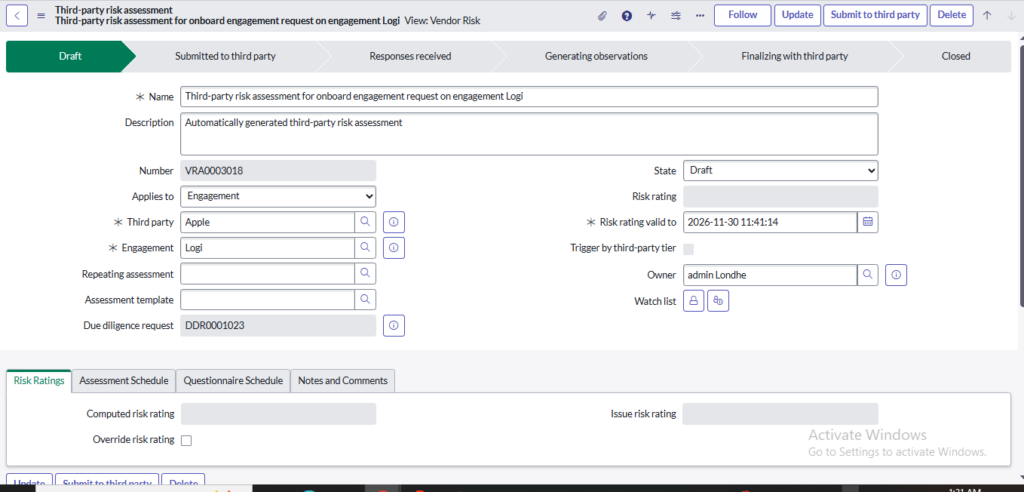
- After opening one of the external assessments in a new tab:
- Impersonate the Vendor or Engagement Contact:
- Select “Impersonate User”.
- Choose the Vendor/Engagement Contact assigned to the assessment.
- Add the Assessment Questionnaire:
- Scroll to the Related List (Questionnaires).
- Click “edit” (you can create a new questionnaire as well).
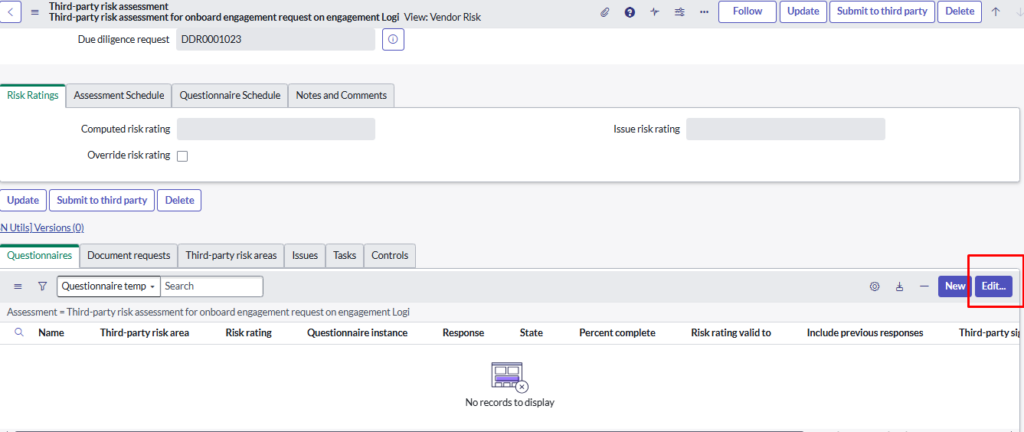
- Select the correct Assessment Template (Third party or Engagement request).
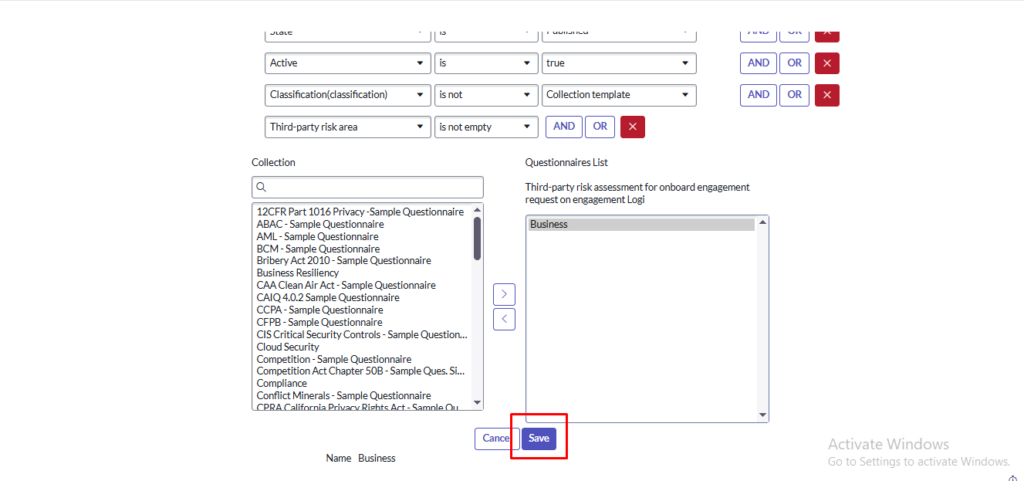
- The questionnaire now appears in the related list, ready to be answered.
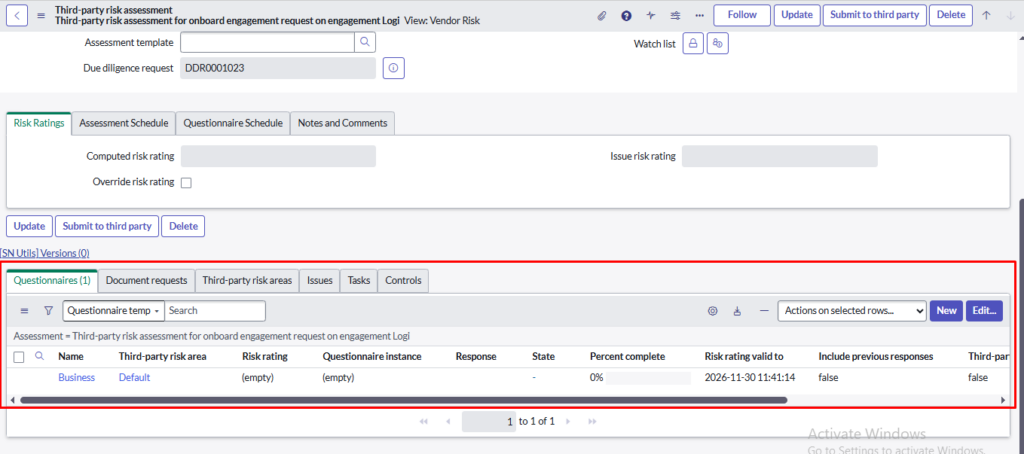
- After adding the questionnaire to the external assessment click on Submit to Third Party:
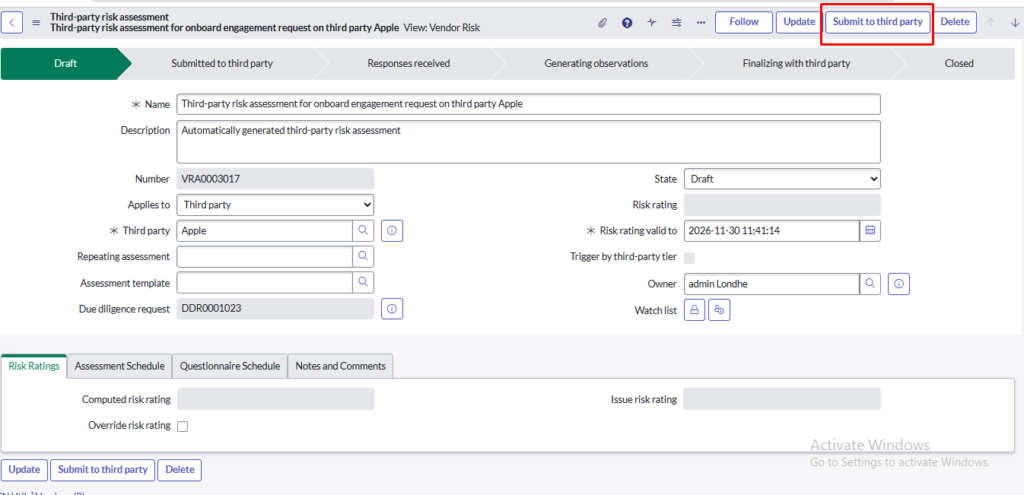
- Impersonate the Vendor or Engagement Contact:
- Select “Impersonate User”.
- Choose the Vendor/Engagement Contact assigned to the assessment.
- After adding the questionnaire and impersonating the vendor or engagement contact:
- Navigate to the SVDP Portal:
- Open the Third-Party Vendor Portal (SVDP) in your browser.
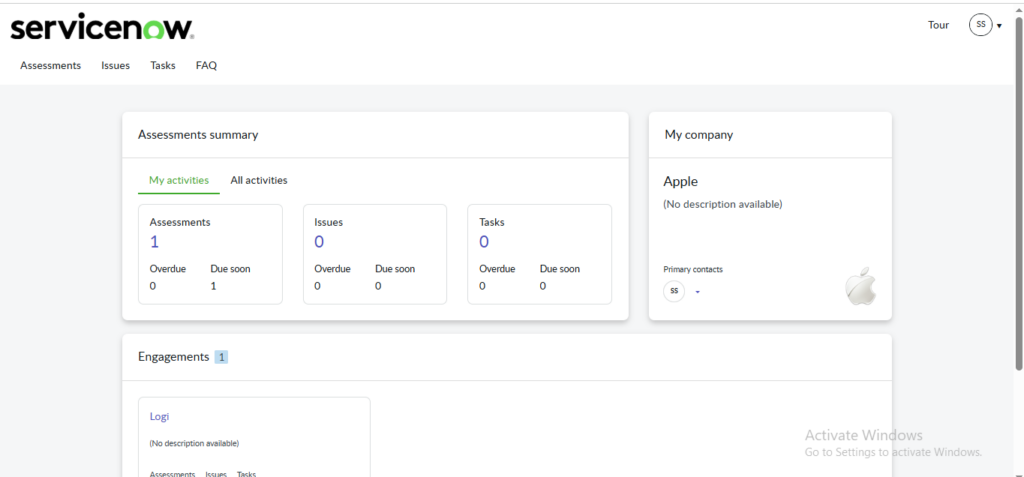
- Find the assigned Third Party or Engagement assessment.
- Click on Assessment.
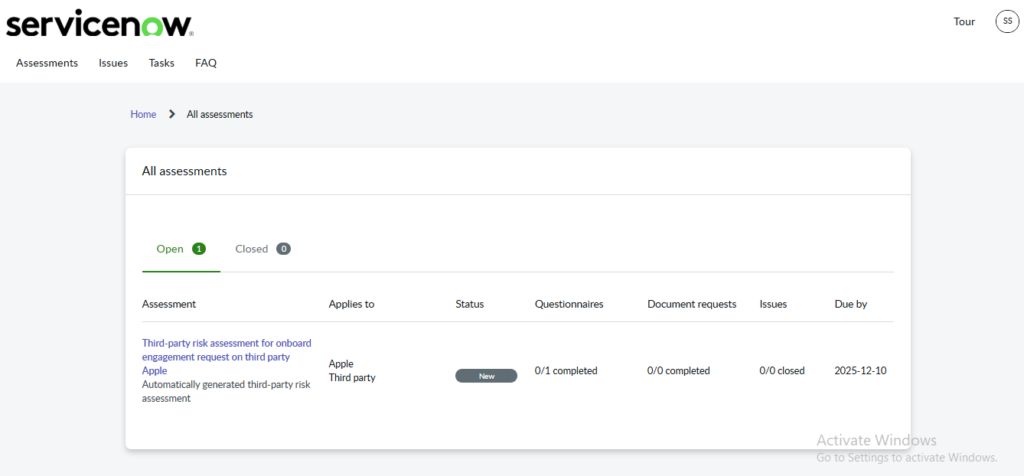
- Complete the Questionnaire:
- Open the assessment and answer all required questions.
- Upload any supporting documents requested.
- Submit clarifications if needed.
- Submit clarifications if needed.
- Submit the Assessment and End Impersonation
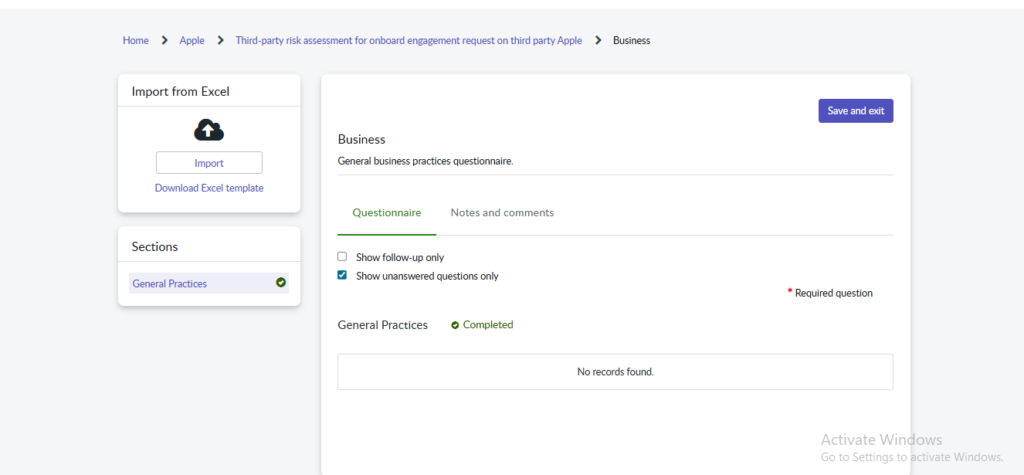
- Once the vendor submits the assessment through the SVDP Portal, the External Assessment state automatically moves to Response Received.
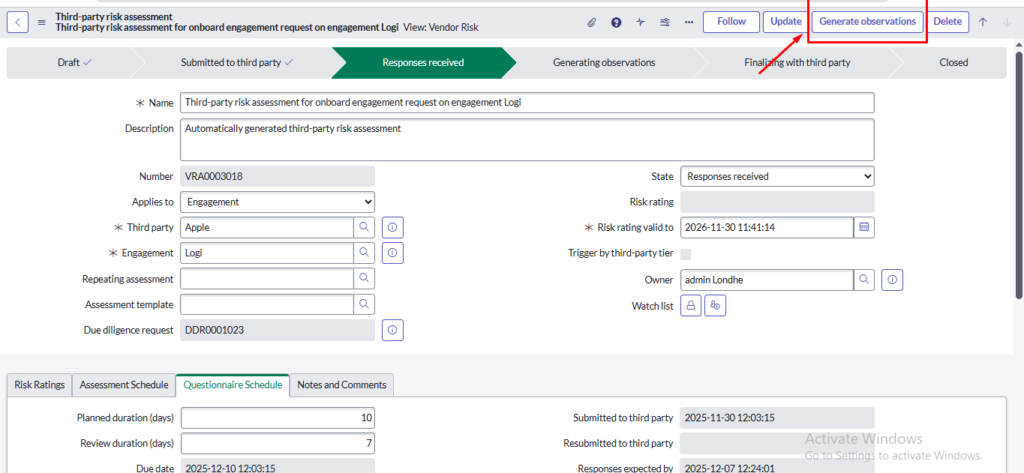
- After the assessment reaches the Response Received state, click on Generate Observation.
- Once all observations are reviewed, click Finalize with Third party and Close.
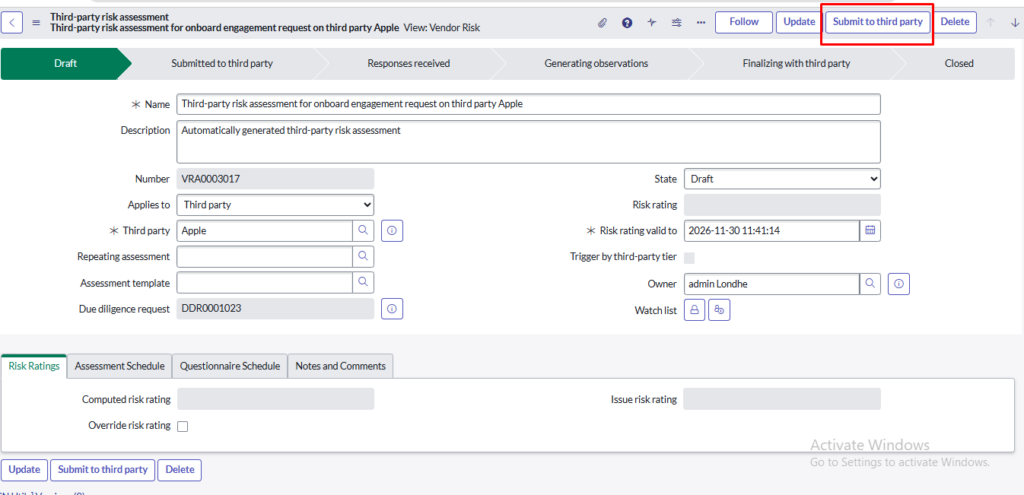
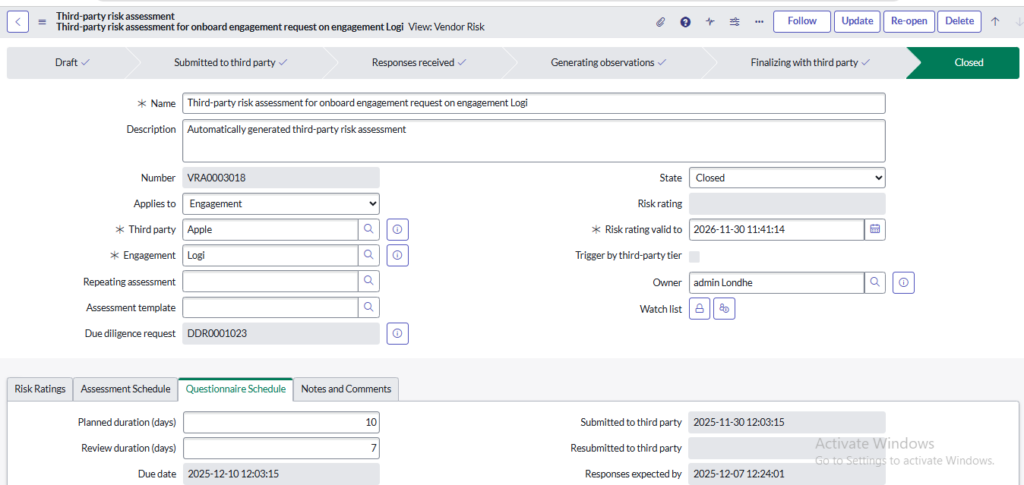
- This locks the assessment, confirms that the due diligence review is complete, and automatically updates the request to move to the next stage in the TPRM lifecycle.
5.6. Approval
- After Due Diligence is completed, the engagement moves into the Approval Phase.
- Click on Request for approval.
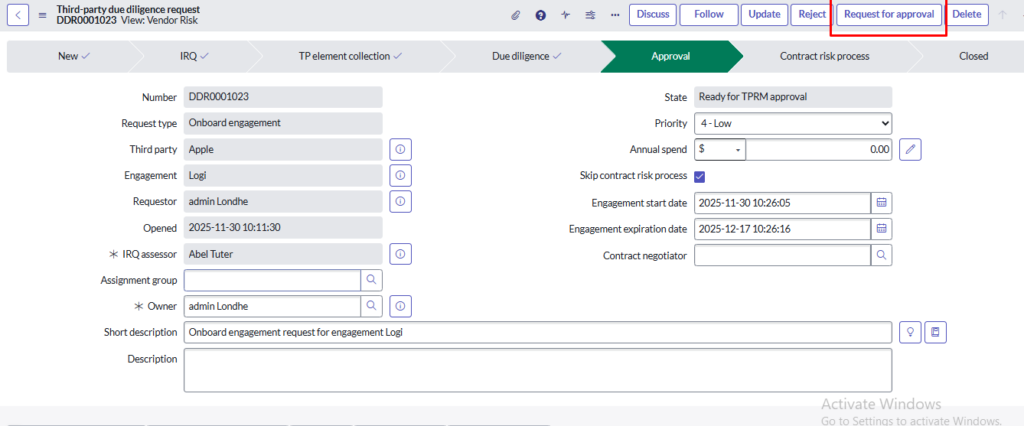
- Internal stakeholders such as TPR Assessors, Risk Approvers, and TPR Managers review vendor questionnaires, documents, and identified risks.
They ensure the vendor meets security, compliance, and operational risk requirements. Approvers may request more details, raise issues, or send the request back for corrections. - If everything looks good, the TPR Manager or Risk Approver approves the request.
- Once approved, the request moves forward to the contracting risk process stage.
5.7. Contract Risk Process
- Once the approval is completed, the request automatically moves to the Contract Risk stage.
- If the skip contract risk process is selected, then follow the step below.
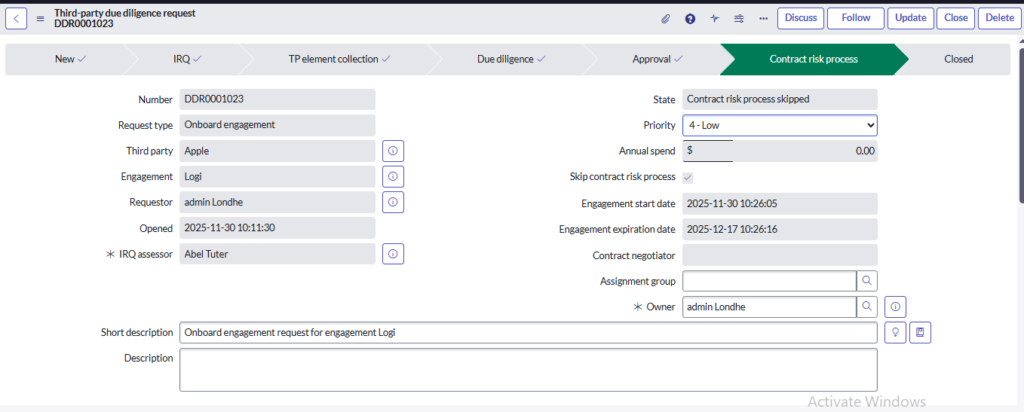
- If the engagement requires a contract, the request enters the Contract Risk stage.
- A Contract Negotiator or Legal team member reviews all previously collected risk data, including:
- Due diligence findings
- Risk scores
- Open or resolved issues
- Vendor documentation and evidence
- Based on the assessment, they may:
- Modify contract terms to address identified risks
- Request additional due diligence if more clarity is needed
- Skip the contract process if a new contract is not required
- Upload the executed contract directly into the system
- Once the final contract is signed and submitted:
- The system notifies key stakeholders, including the TPR Manager and requester
- The vendor is officially considered ready for onboarding
- If the Skip Contract Risk Process option is unchecked, proceed with the steps below.
- Once the due diligence stage is completed and the system routes the request for contract review, follow these steps:
- Assign the Contract Negotiator
- Before sending the request, you must select/enter the Contract Negotiator name in the designated field.
- This assigns the request to the correct person for contract validation.
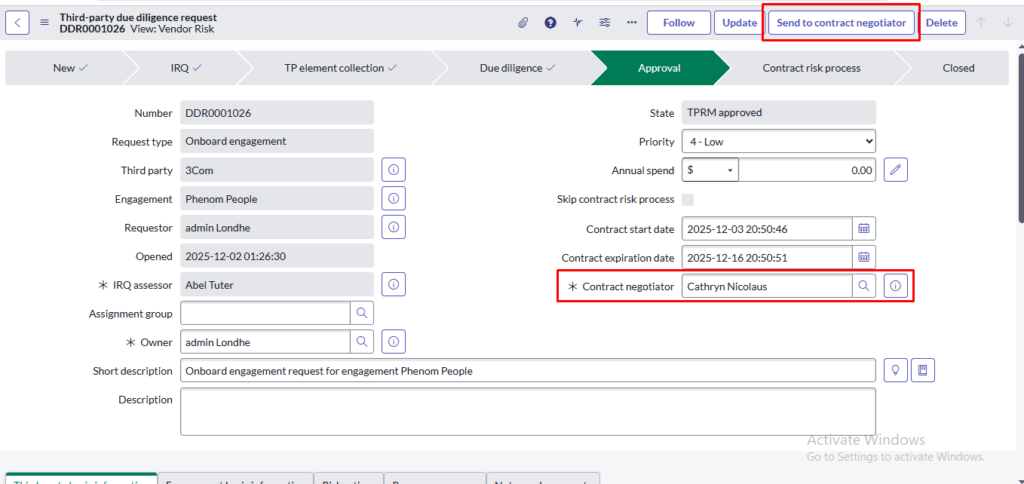
- System Sends the Request to Contract Negotiator
- The system automatically updates the workflow and moves the request into the Contract Review phase.
Click Send to Contract Negotiator to assign the task.
- The system automatically updates the workflow and moves the request into the Contract Review phase.
- Impersonate the Contract Negotiator
- Contract review can only be completed by a user with:
- Role: sn_vdr_risk_asmt.contract_negotiator
- Impersonate this user to proceed with the contract execution steps.
- Open Vendor Management Workspace
- After impersonation:
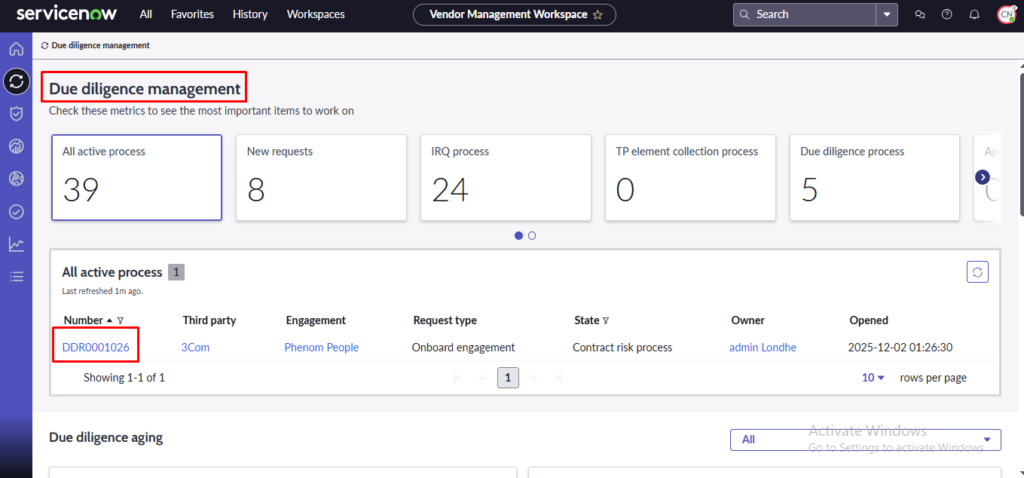
- Navigate to Workspace
- Open Vendor Management Workspace
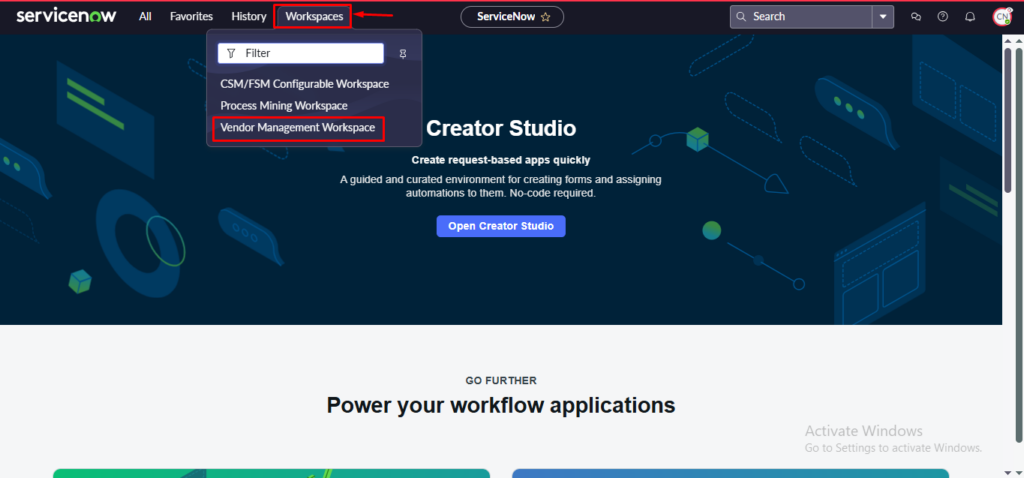
- Locate and open the assigned Due Diligence Request
- This will display the contract review section.
- Upload Contract & Execute
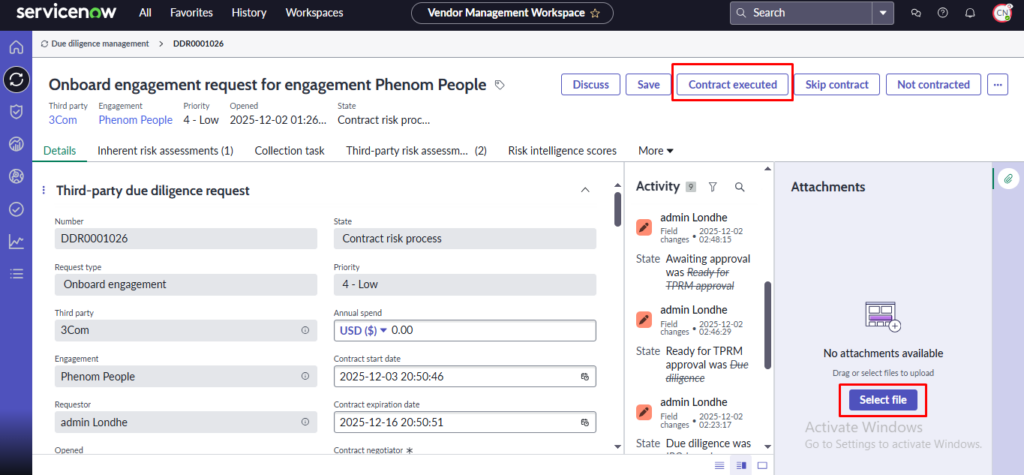
- Inside the request:
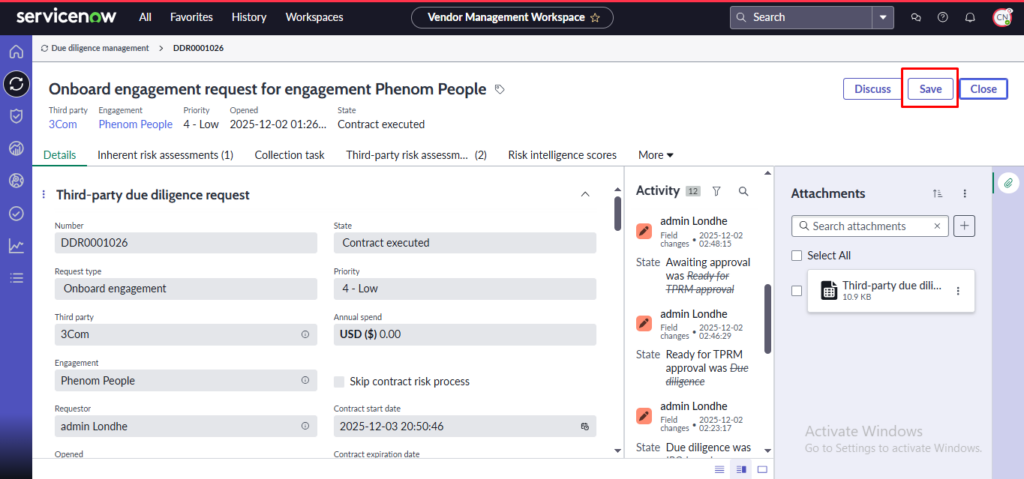
- Attach the executed contract document
- Click Contract Executed
- Click Save to confirm the action
- This confirms that the final contract has been reviewed and executed.
- Close the Contract Review
- Click on Close to complete the contract review process.
- End Impersonation
- Return to your user profile and end impersonation.
- State Updates to Closed
- Once completed, the request moves to the Closed state, indicating that contract review is finished and the TPRM lifecycle is complete.
5.8. Closed
- After all approvals and contract steps are completed, the engagement becomes officially active.
- The organization can now begin working with the vendor under approved risk conditions.
- If the engagement is rejected at any stage (IRQ, Due Diligence, Approval, or Contract), the lifecycle ends and the vendor is not onboarded.
- If the contract is not executed or fails legal review, the engagement does not proceed further.
- This stage confirms that every vendor relationship starts only after completing and validating risk assessment.
- The records are closed but remain available for audit, reporting, and future reassessments.
6.Conclusion
ServiceNow TPRM provides a clear, end-to-end process to evaluate and manage vendor risks before any engagement begins. By validating security, compliance, operational stability, and financial health at every stage, organizations prevent potential threats and ensure only trusted vendors are onboarded. In short, TPRM helps businesses stay protected, compliant, and confident in every third-party relationship.