
View Rule
This rule determines how a record is presented to the user by dynamically selecting the appropriate view based on defined conditions. Instead of showing the same layout to everyone, it intelligently adapts the form view according to factors such as user role, record state, or field values.
By doing so, it ensures that:
- Users see only the most relevant fields
- The interface remains clean, focused, and role-specific
- Data entry becomes faster and less error-prone
- Overall user experience is more intuitive and efficient
In short, this rule acts as a smart filter for the UI, displaying the right view at the right time to the right user—enhancing clarity, productivity, and usability.
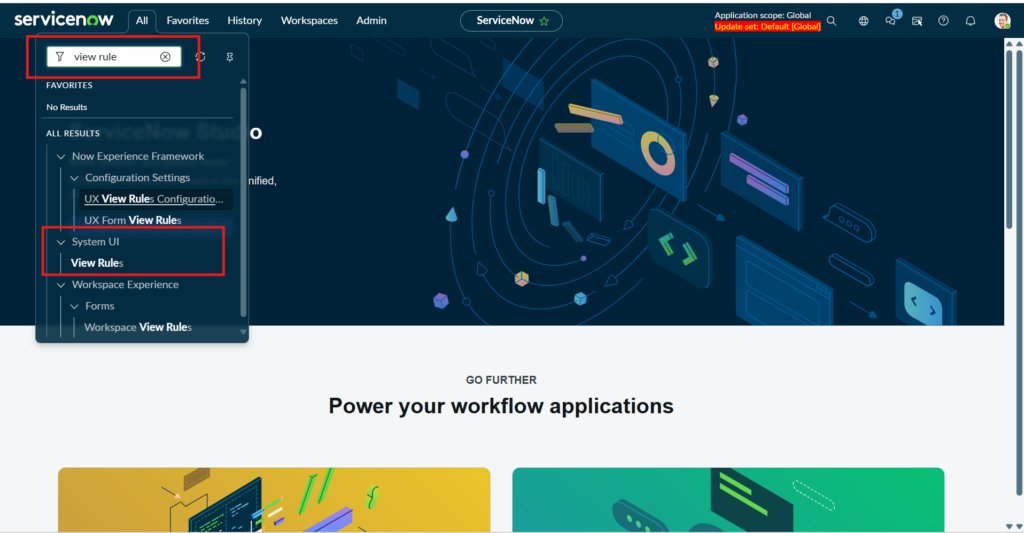
- To create a view, go to Configure → All → View Rules and click New.
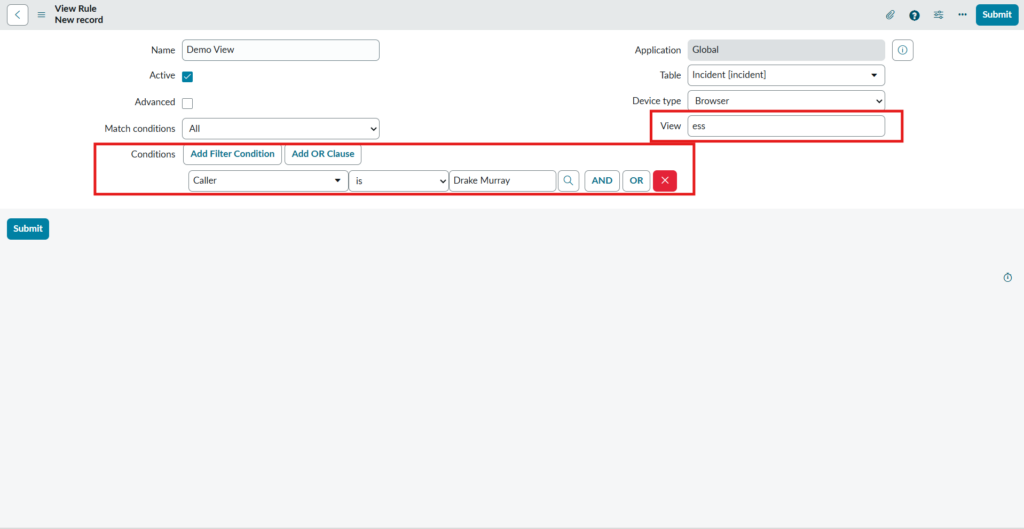
- A form will open where you define conditions to control which view is shown. Based on these conditions, the system automatically displays the most relevant view, ensuring a clean and user-friendly interface.
- Save the form to apply the configuration.
- Once saved, the View Rule is created and stored as shown below, ready to dynamically control which view is displayed based on the defined conditions.

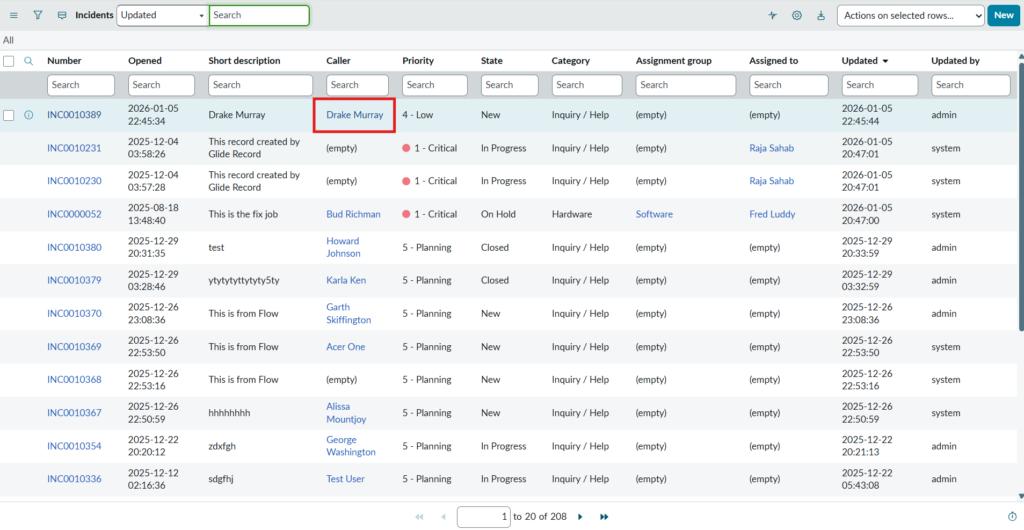
- Now, based on the conditions defined in the View Rule, open any Incident record where the Caller is Mac Marksberry.
- When you open this record, the system will automatically apply the rule and display the configured view for that condition.
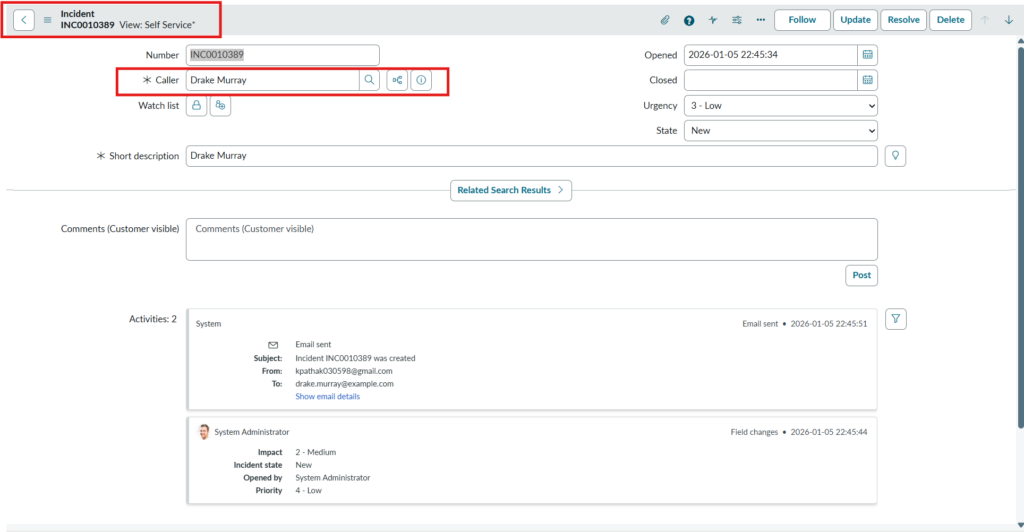
- As per the configured View Rule, the record will now be displayed in the ESS (Self-Service) View.
- This means the Incident opens in the Self-Service View, showing only the relevant fields intended for end users, as illustrated below.
- We can also create a View Rule using a script by enabling the Advanced checkbox.
- This allows you to apply custom scripted logic to determine the view dynamically, offering greater flexibility for complex conditions beyond the standard configuration.
View Rule