Import Set & Transform Map (Category & Subcategory)
Problem Statement: – While importing a data from excel into ServiceNow if you have choice fields, like (category) & (subcategory) then it should get imported.
- Steps:
- First step is we need to load data in our case its incident data I have exported and download it.
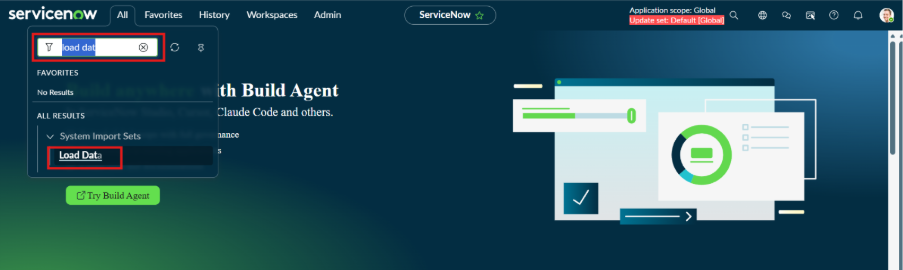
- Then navigate to Load Data. Under system import set you will see the Load Data Module.
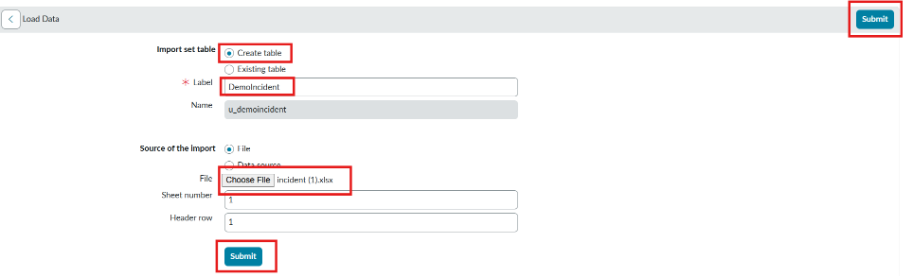
- Then, we need to create import set table which is nothing but our staging table which will store the data temporary.
- You can select staging table if it has already created by click on ‘Existing Table’ or you can create new staging table by selecting the ‘Create Table’.
- Also, you need to select the source of the import, which is nothing, but you excel file e.g. Incident1.xlsx.
- Create Table-> Provide Label Name->Source of the import-> choose your excel file-> Click on Submit
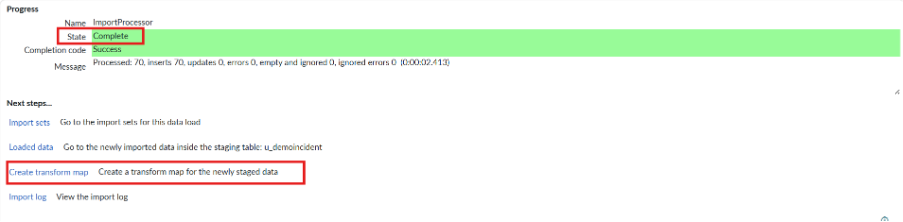
Now you will see the status as complete. Next, we need create a transform map. Click on ‘Create Transform Map’.
Provide name, your target table. If you want to auto map the fields, select ‘Auto Map matching fields’ by using mapping assist you can manually map the fields. Click on save.
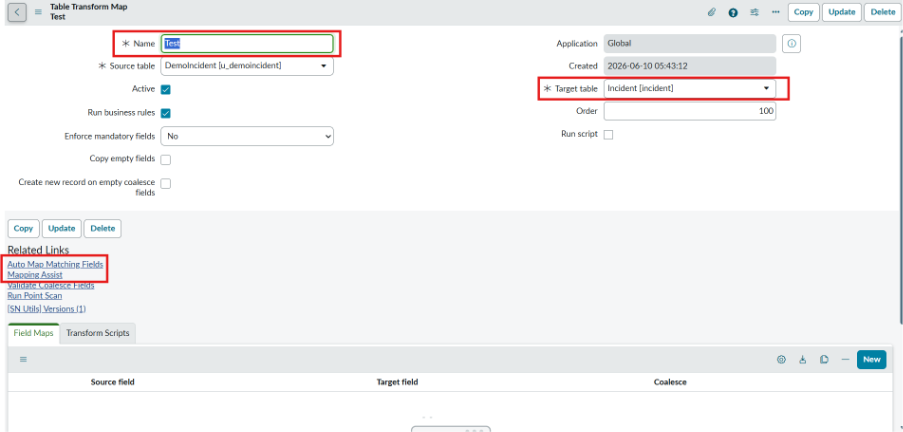
We will select the auto map matching fields related link. Our fields are maps successfully.
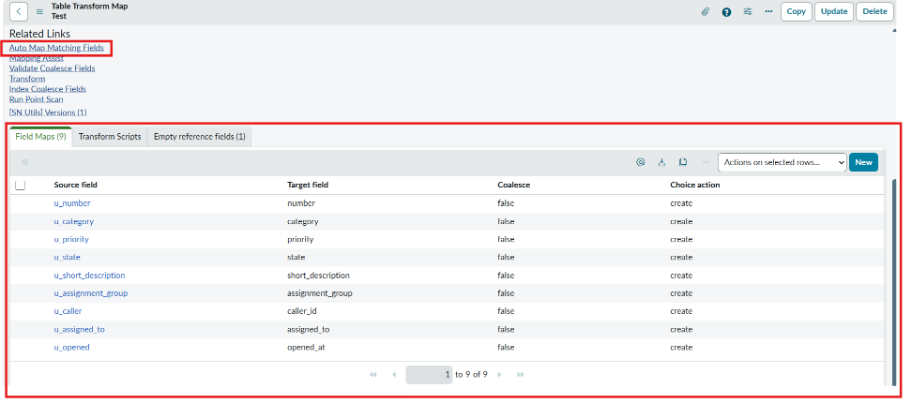
Now we need to set the coalesce field to avoid the duplicate record. Here we will provide the coalesce field to our number field.

Also, we need to create the choice action for our category file. Based on the requirement.
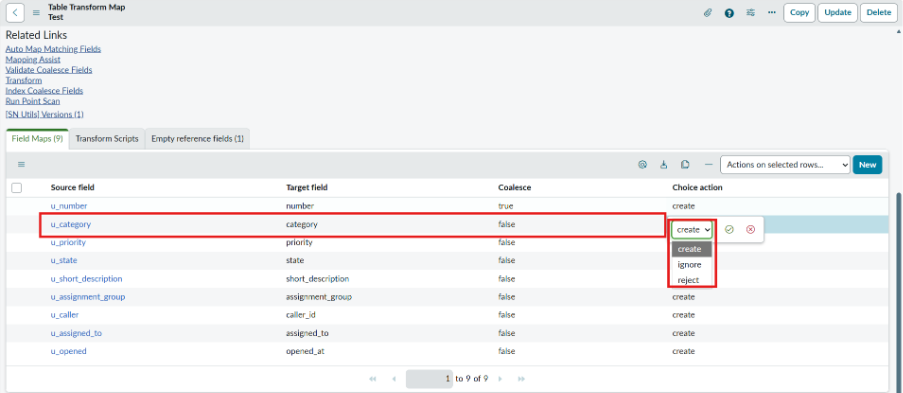
Choice Action: – This field specify what to do if the import set contains reference field or choice value.
- Create: – Create a new choice or record in the reference table.
- Ignore: – Ignore the new value from the source table
- Reject: – The entire row(record) containing the new value and continue to the next row.
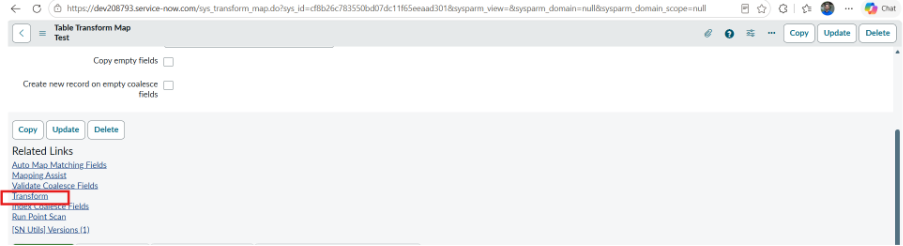
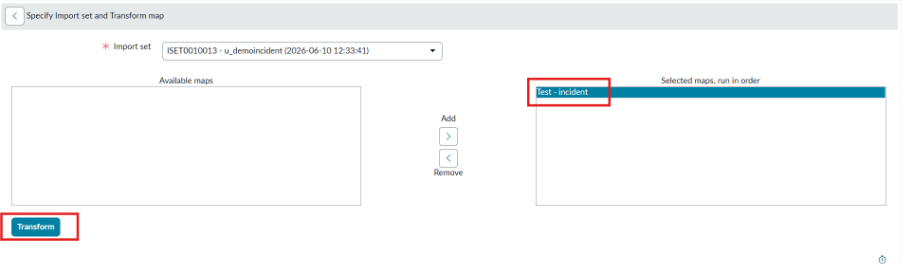
- Click on transform related link to transform the data from excel to servicenow.
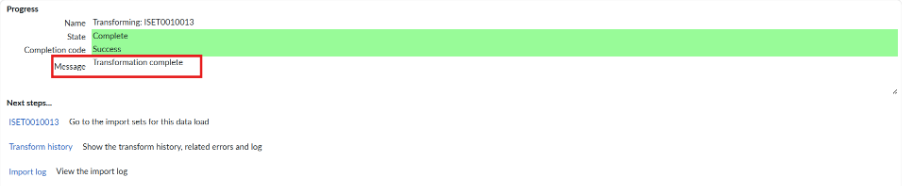
You will see the status and the message of your transform map.
- Creation of new choices in the category table you need to select the choice action as create.
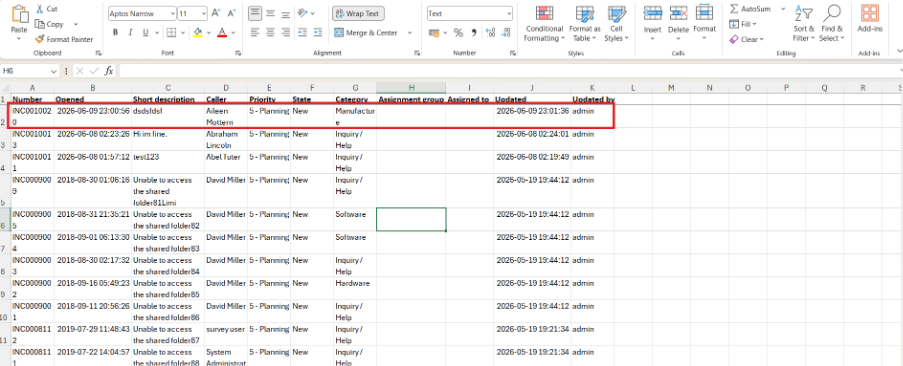
- Next step we need to add the new choice in our excel sheet.As, you can see in the excel file we have added the new choice field called ‘Manufacture’
Now we need to select ‘Choice Action’ as ‘Create’ To create a new choice.

Click on transform related link to create ‘transform’. Your date will be loaded into service now and new choice will be added successfully.
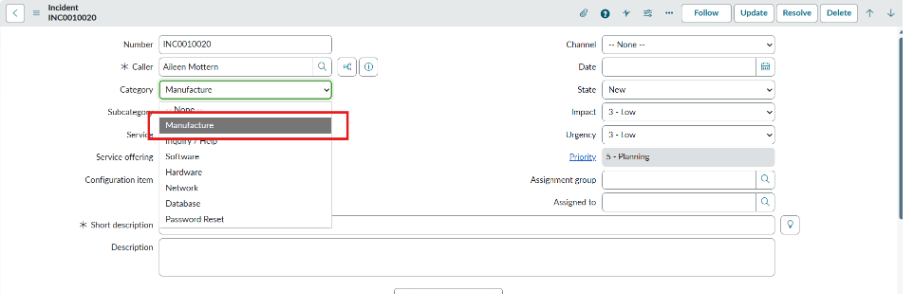
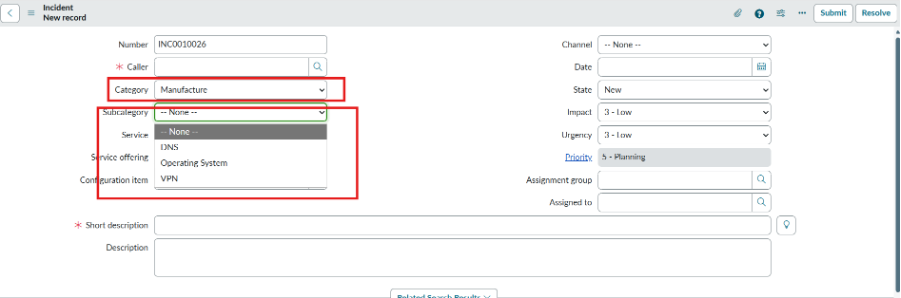
- Whenever we select category as ‘Manufacture’ then automatically subcategory should get populated.
- For this navigate to ‘incident’ table. Right click on the subcategory and select ‘Show choice list’.
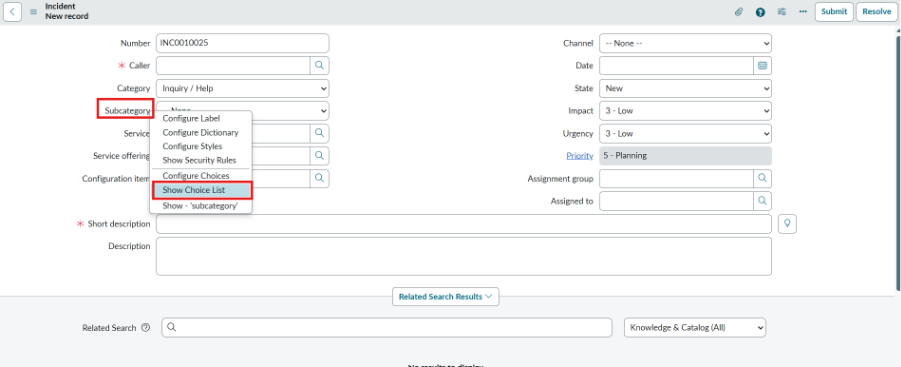
We need to add the dependant value for the subcategory as you know subcategory is dependent on the category.

After that we need to load data in our ‘sys_choice’ table’ Follow the previous steps to perform import set and transform map. Load the data and create transform map.
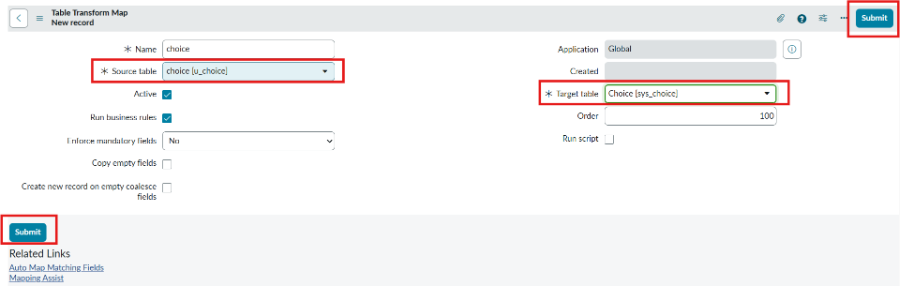
Click on auto map matching field to map the fields. Click on transform.
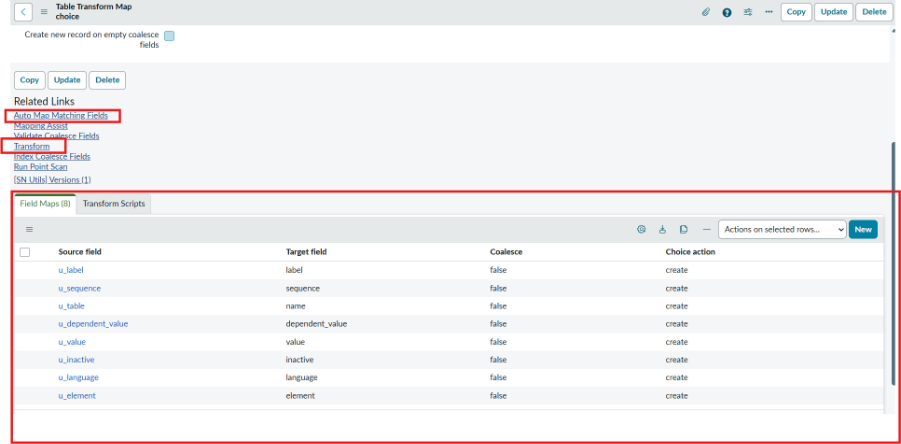
After transforming open the incident record select category as Manufacture you will see the ‘DNS, Operating System and VPN.