Flow Designer Using Catalog Item
Use Case:
Create a catalog item with requested for(auto populate),Group(reference),Group Manager(reference-sys_user)=Read only and (auto populate).We need to add the current logged in user in the group before adding in the group it should ask for approval if it is approved then that user should be added in the group. If approval is rejected, then a catalog task should be created. If the catalog task is closed complete, then work notes, state and stage should be updated of the RITM. If it is rejected, then work notes and state should be updated on the RITM.
Solution:
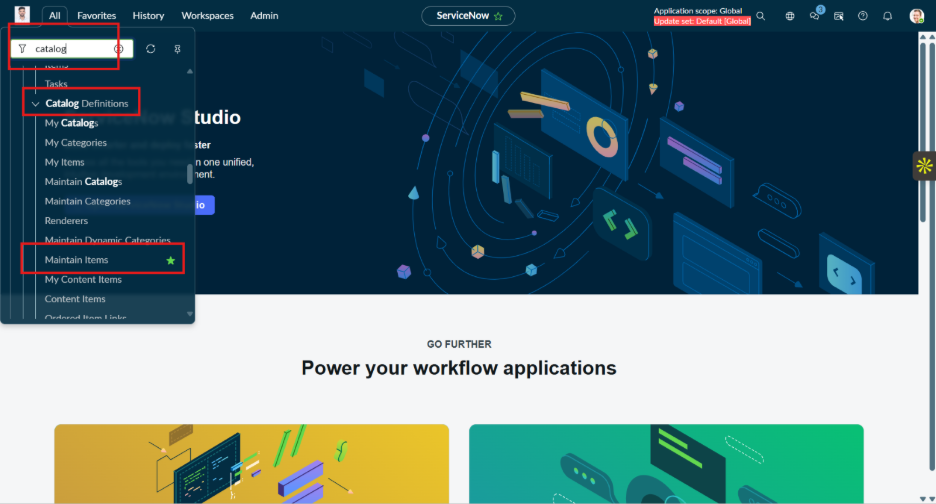
To solve this use case first we must create Catalog Item, with given variables, for that search catalog and in catalog definitions there is Maintain Item present go to it and click new.
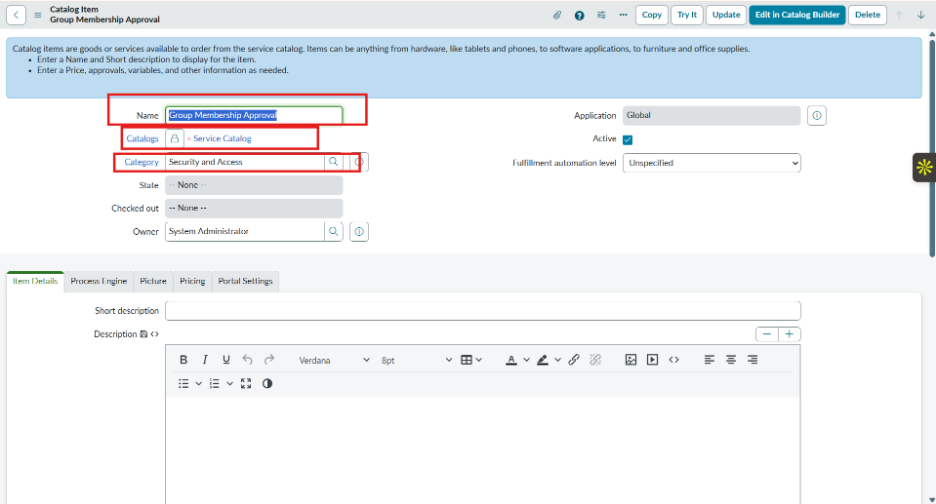
Then fill the details like:
- Name – Group Approval
- Which category – Service Catalog; using this we can show our catalog on the Service Portal
- Category – Security and Access
And save the form
After saving the form some section gets visible, in that go to variable section and click on new and create 4 variables
- Requested For – Reference
- Group – Reference
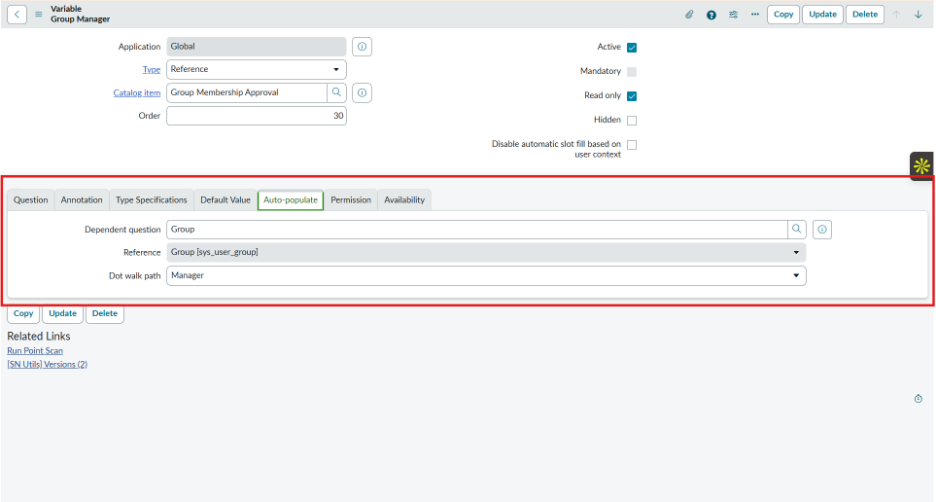
- Group Manager – Reference but need to auto populate;
For that while creating go to auto – populate section and fill the fields as given in snapshot
Reason – Multiline text
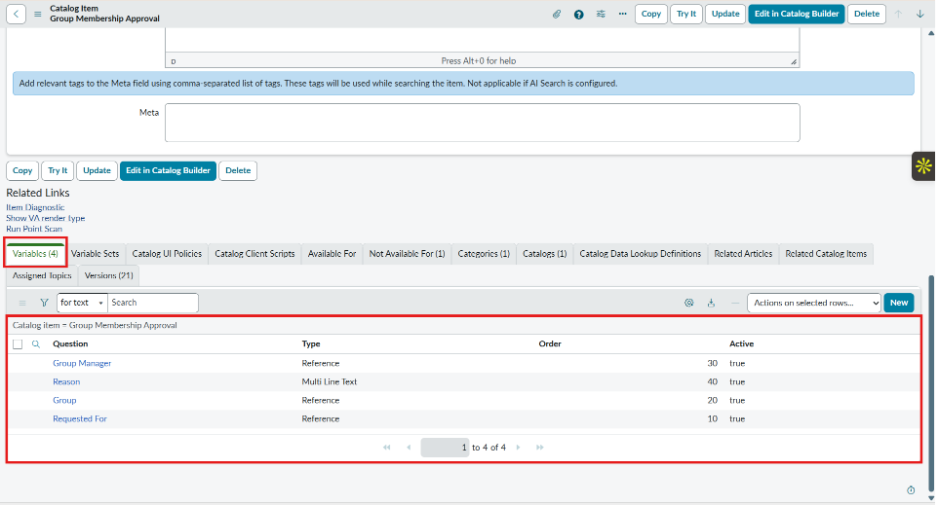
And they save the form. Then next step is to create Flow designer
- So, for that flow to flow and create new then add trigger condition – Service Catalog
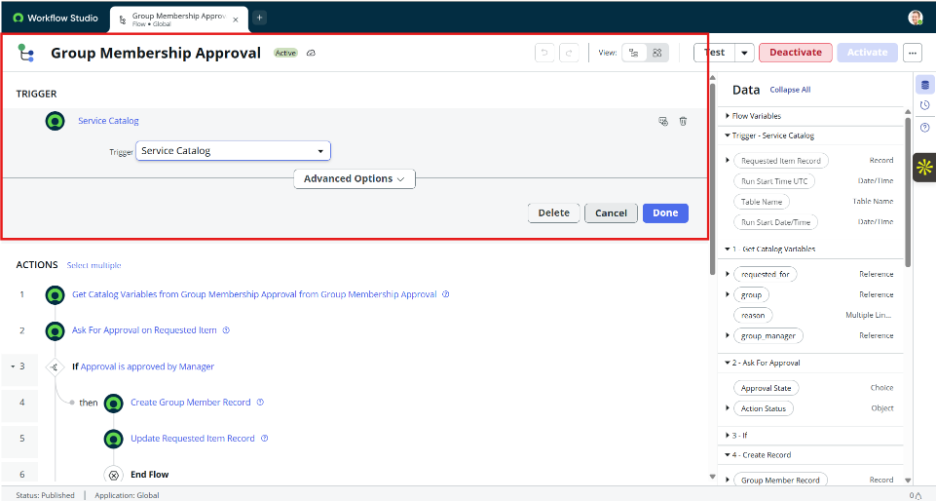
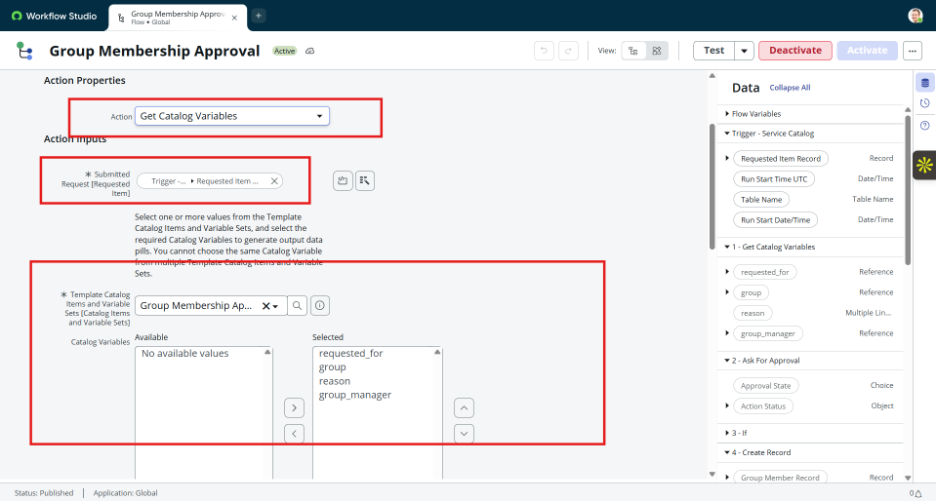
- Then use Action Get Catalog Variables and perform following steps given in snapshot
- a Action – Get catalog variables
- b Submit request – Requested Item record
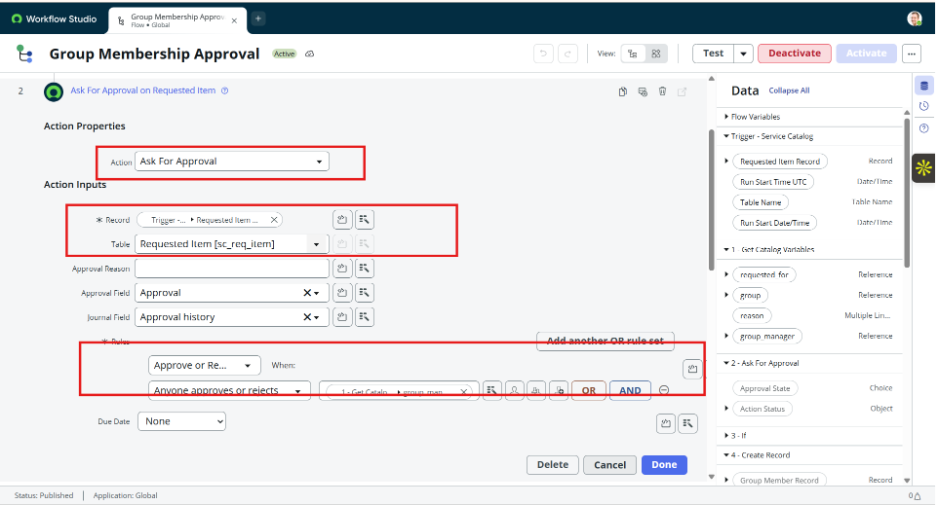
- Then Use action and perform following step
- a Action – Ask for Approval
- b Record – Requested Item Record table will be populated automatically
- c Then give rules – Approve or Rejects when Anyone approves or reject
Then for condition use flow logic “if”
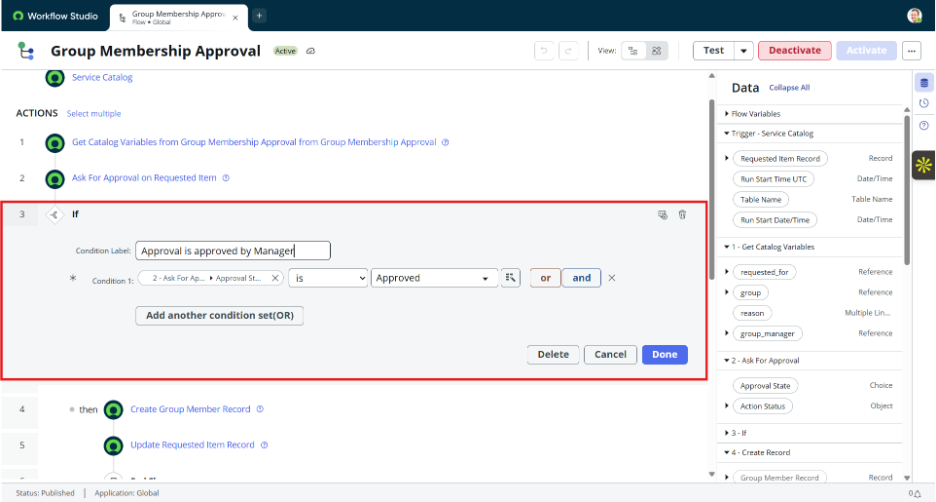
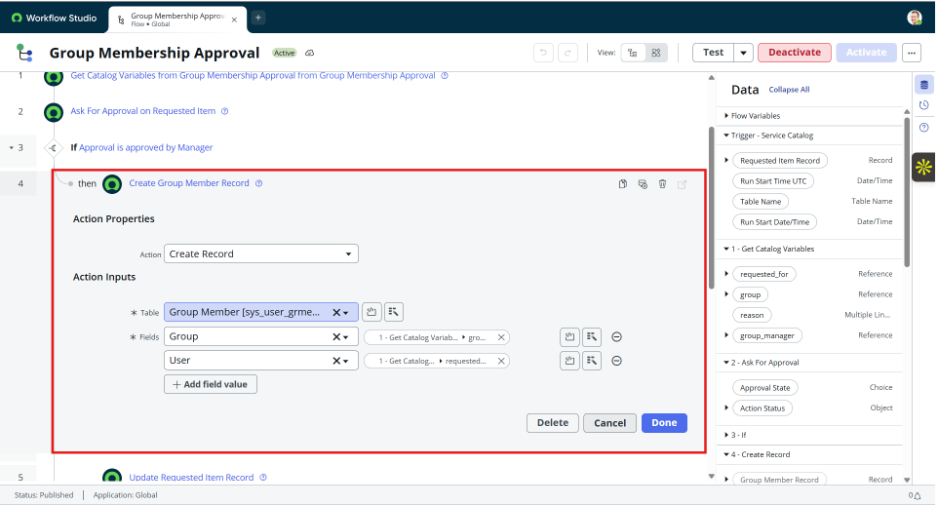
Then automatically you will see “then” click on + sign of it and create record action and fill details in highlighted part
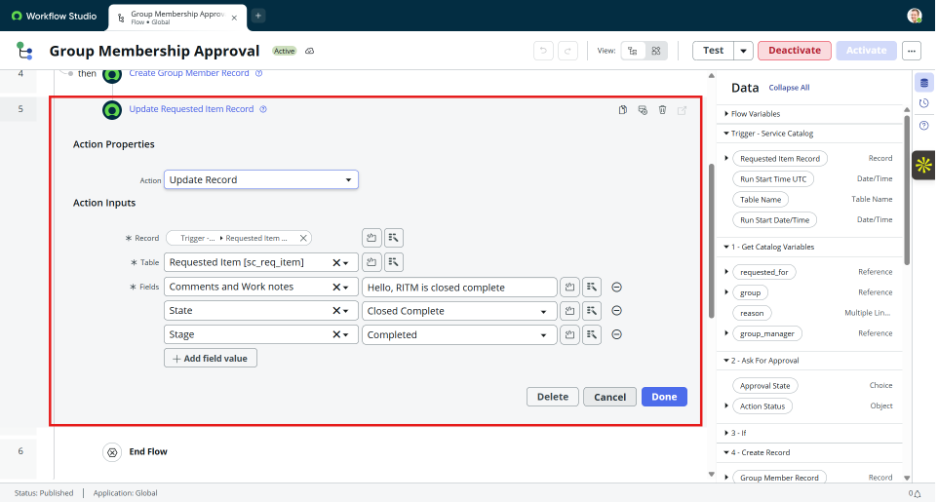
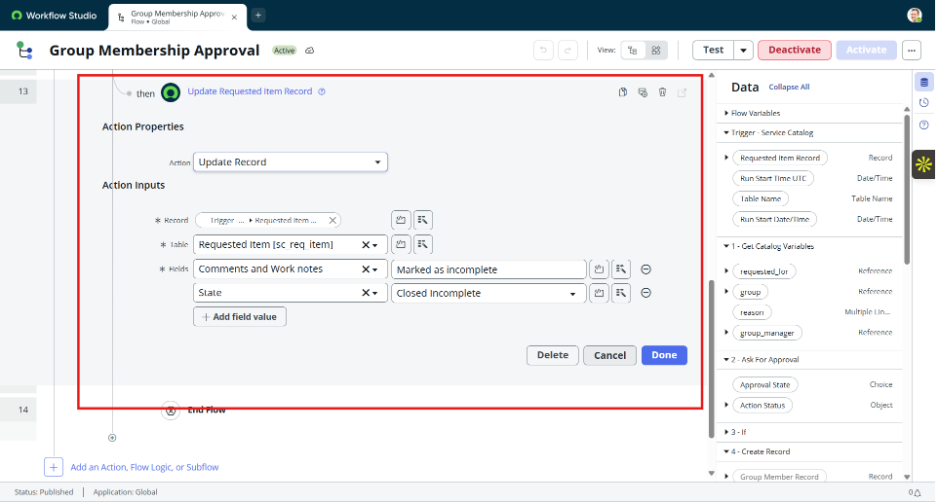
Then go to next step and use update record action
And then use flow logic End Flow
- Now use flow action “Else if” and fill the below details
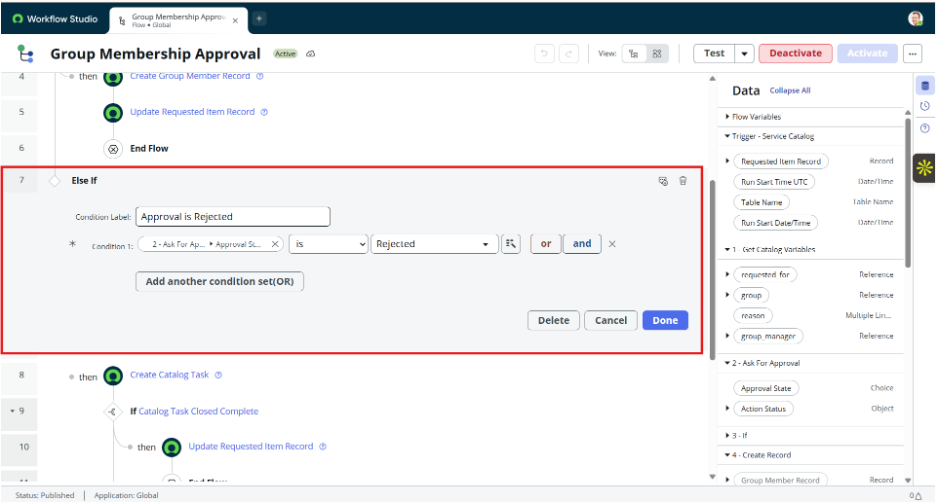
- Then use “then +” and Action
- a Action – Create Catalog Task
- b Table Name – Catalog Task
- c Requested Item – our table
- d Give short description
- e And add assignment group
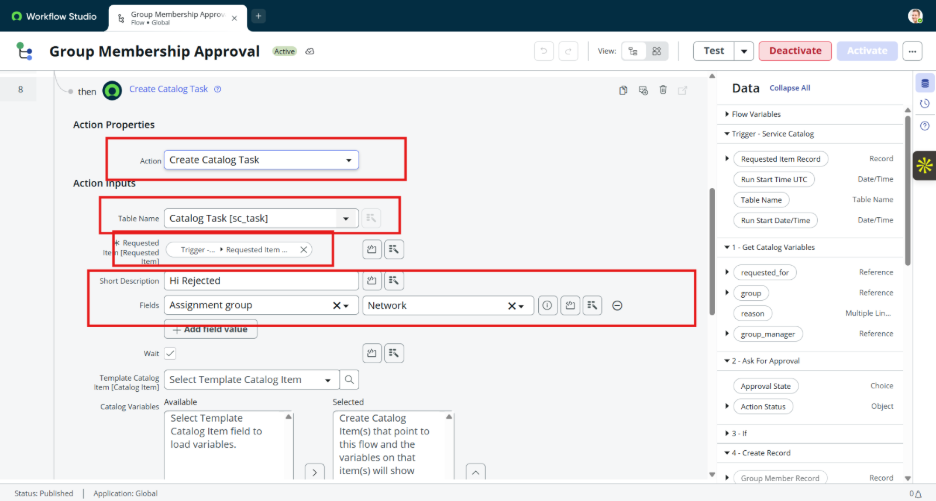
xi. Now use if condition and perform step
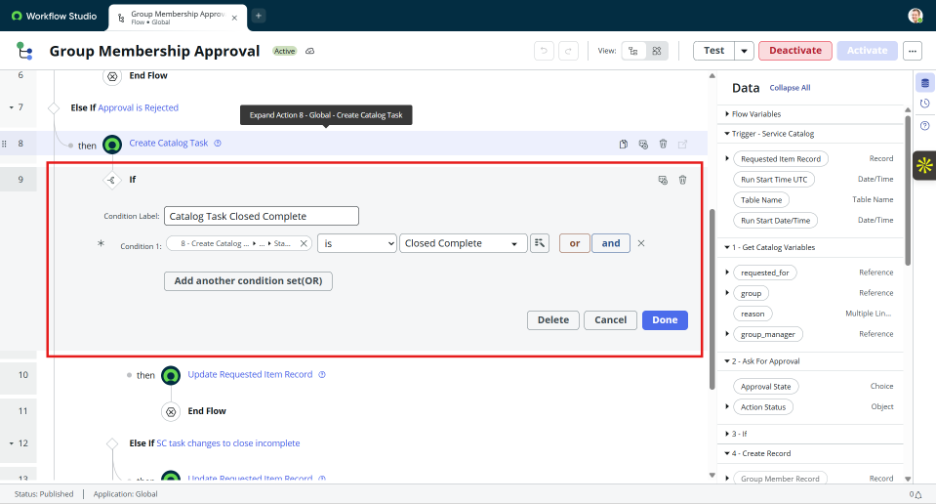
Now use then and follow below steps
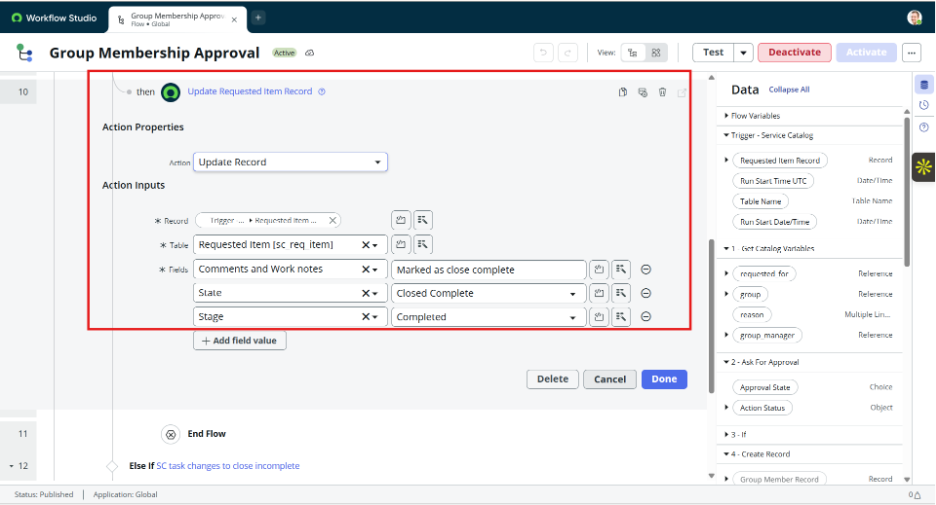
End the flow
Next step is use else if and follow next step
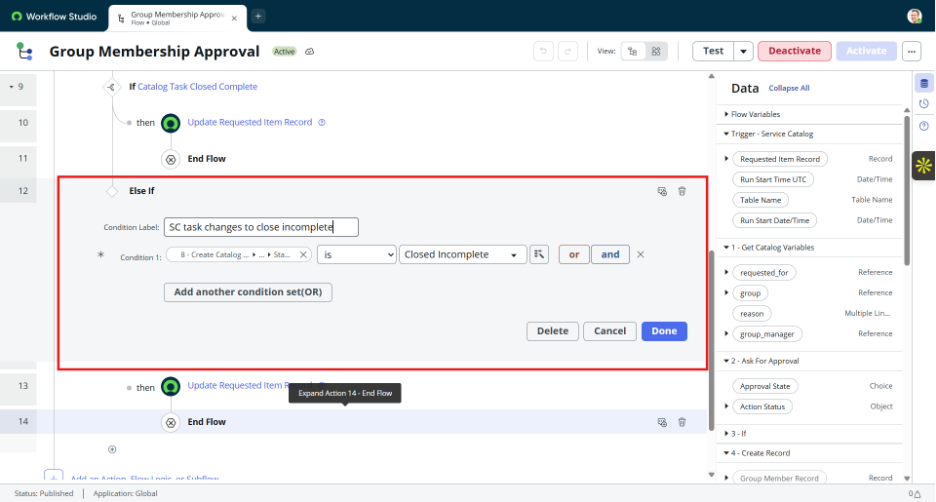
At last use update record action and follow steps and end flow
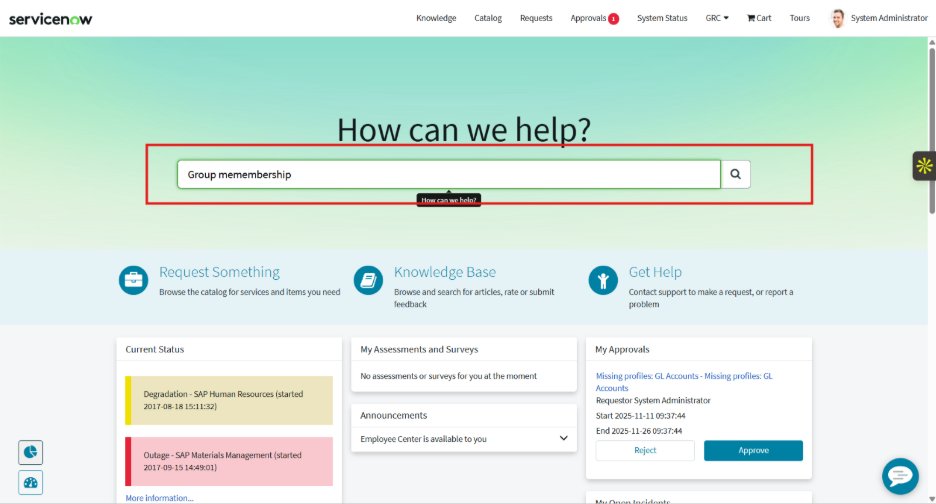
Now let’s see how it works, go to Service Portal and search our created catalog item and click enter or Magnifying glass
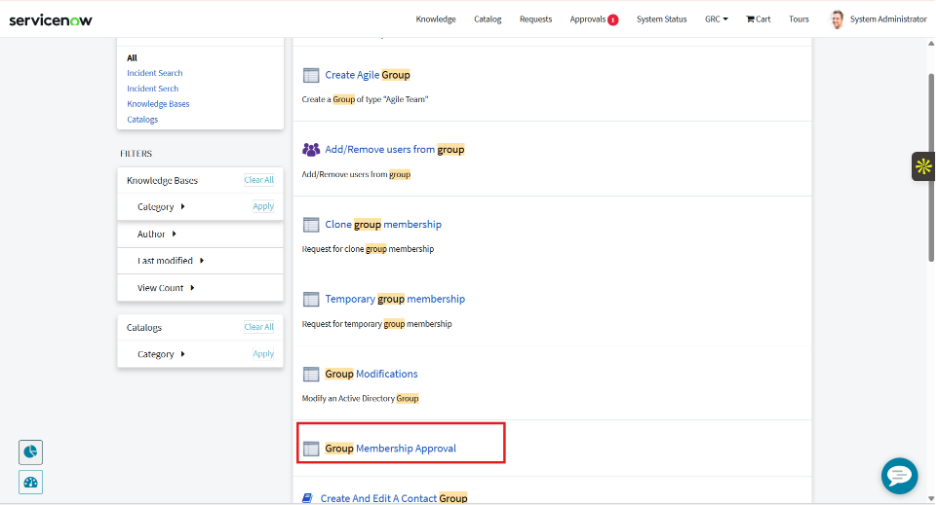
Then you see our item
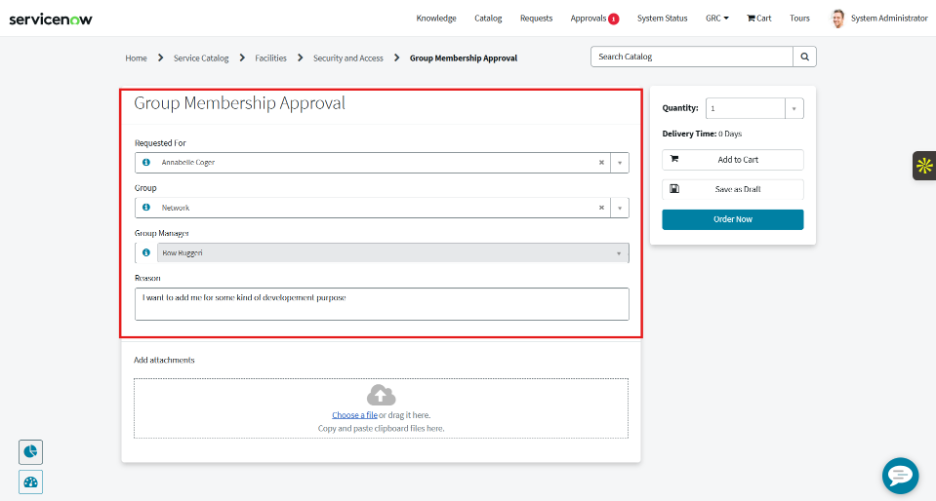
Fill the details and click on Order now button
Then copy the REQ number and search in globle search
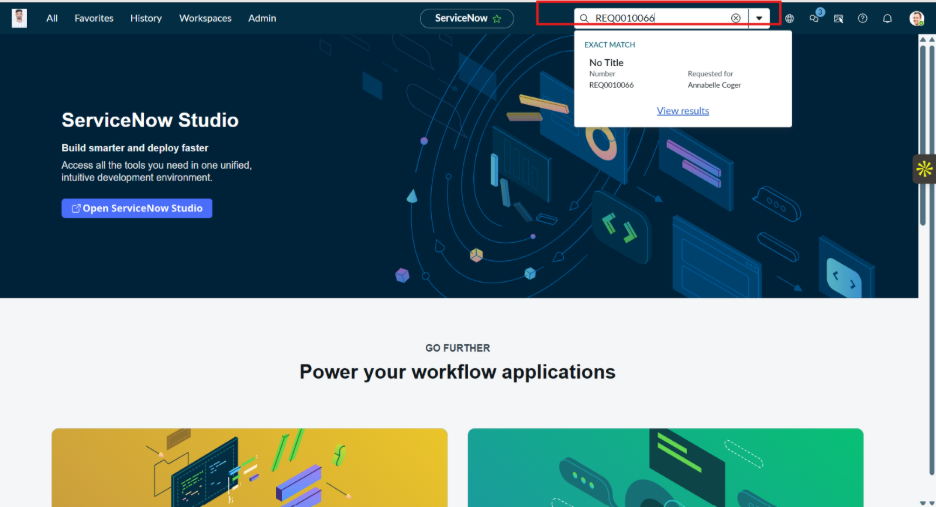
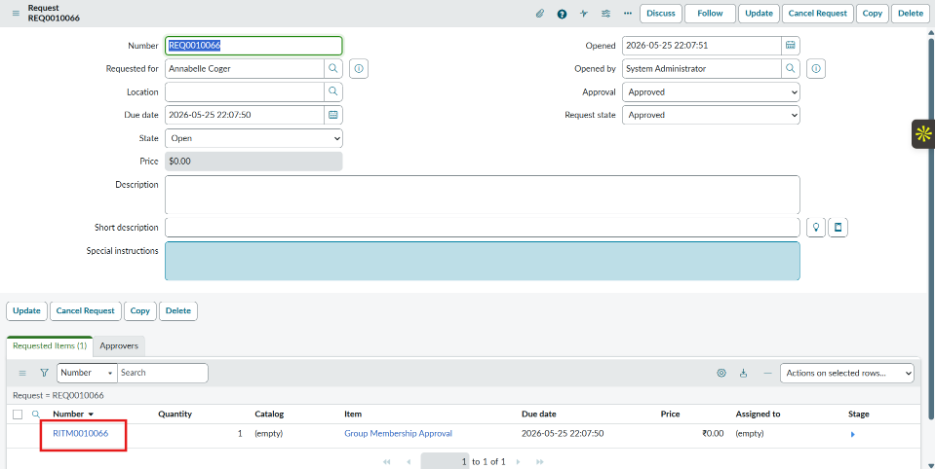
Then go to that form and click to generated RITM on another tab
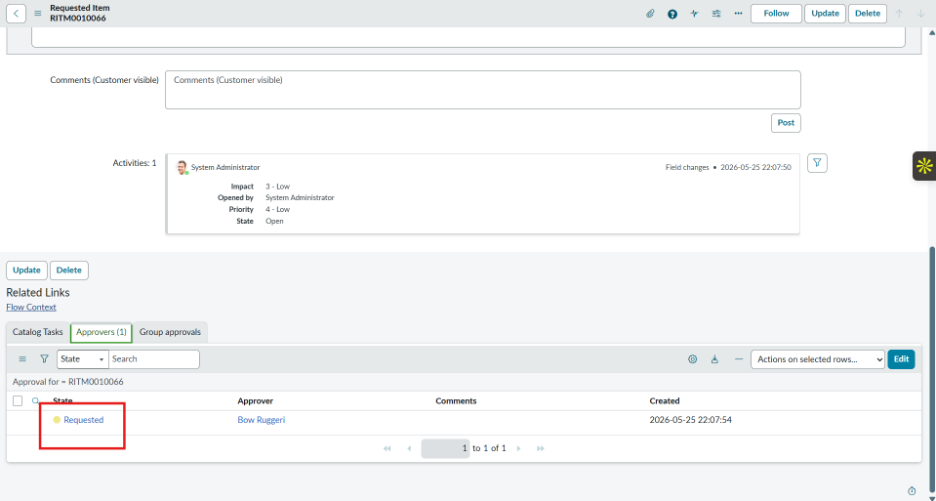
Then see in below Related Links the approval is generated
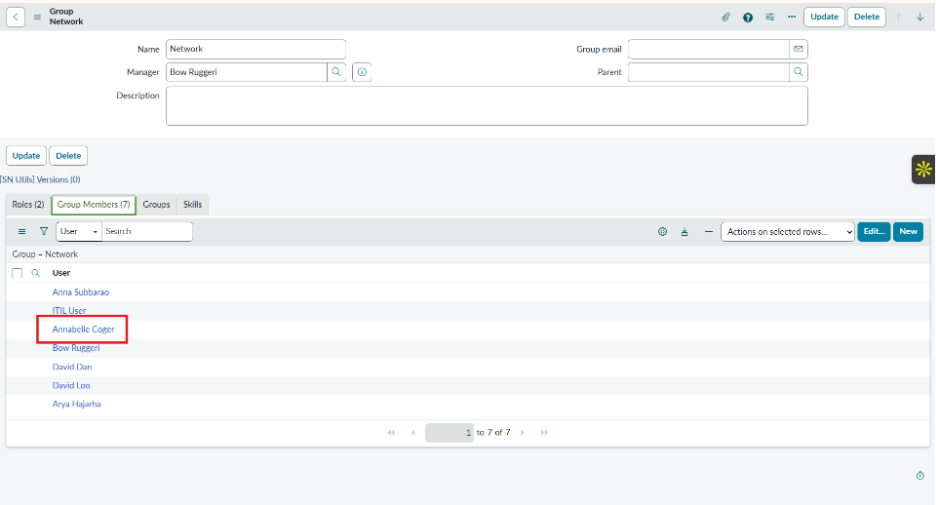
Now the next step is going to Network group and see the requested user is added in that group