UI Action
A UI Action is a feature used to provide buttons, links or context menu items on forms and lists. The actions enable users to update records, call workflows, run scripts, or navigate to another page.
Some Examples of UI Actions:
- Submit
- Approve / Reject
- Close Incident
- Assign to Me
- Create Change Request
Example-:
Add a “Mark as VIP” button on the User form to set up a custom VIP flag.
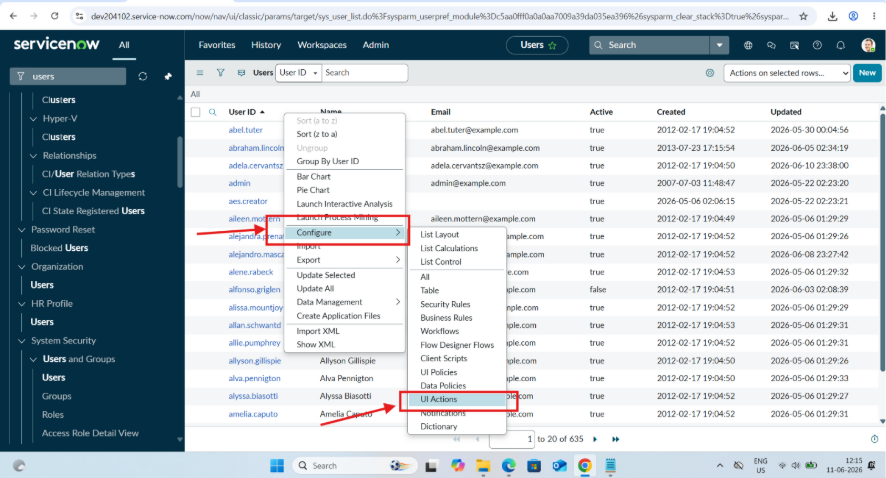
Step 1: Navigate on Sys_User table and right click on Navigation Bar –> Configure–> UI Action
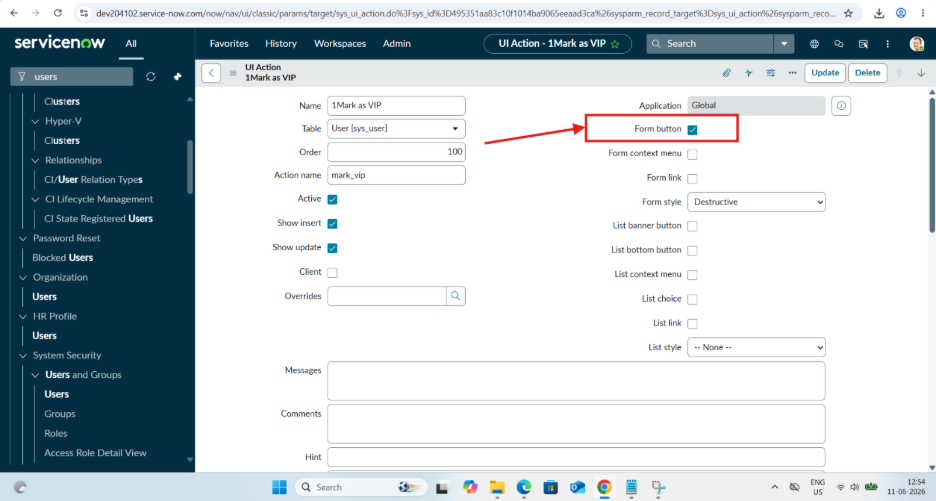
Step 2: Click on New then Add Name for New Action (Mark as VIP) –>Add table on Which we have to add UI Action (Sys_users) –> Action Name (mark_vip)
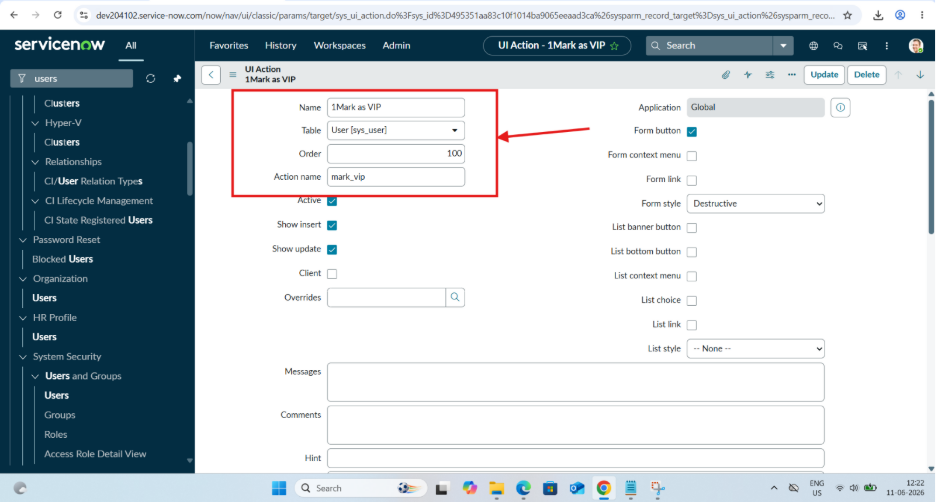
Step 3: Click on Checkbox where you have to add a Button on form or List.
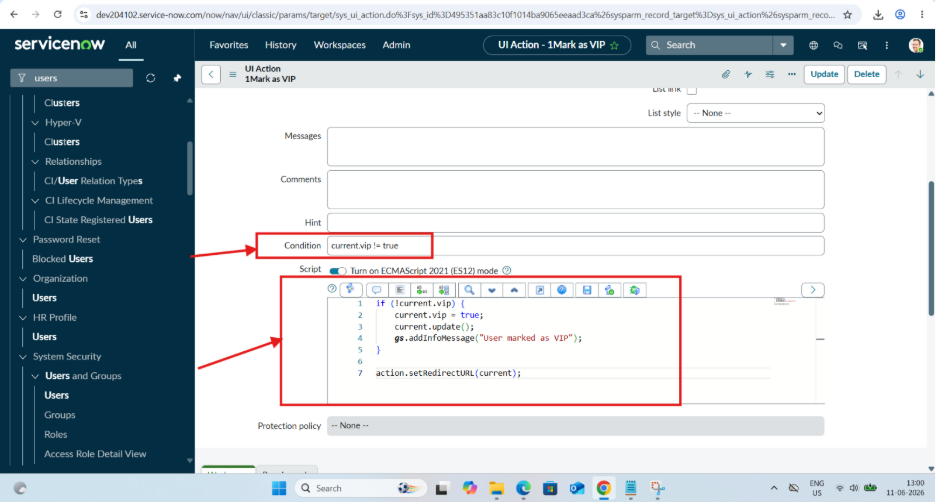
Step 4: Add Script for Button, add Condition and Write a Script.
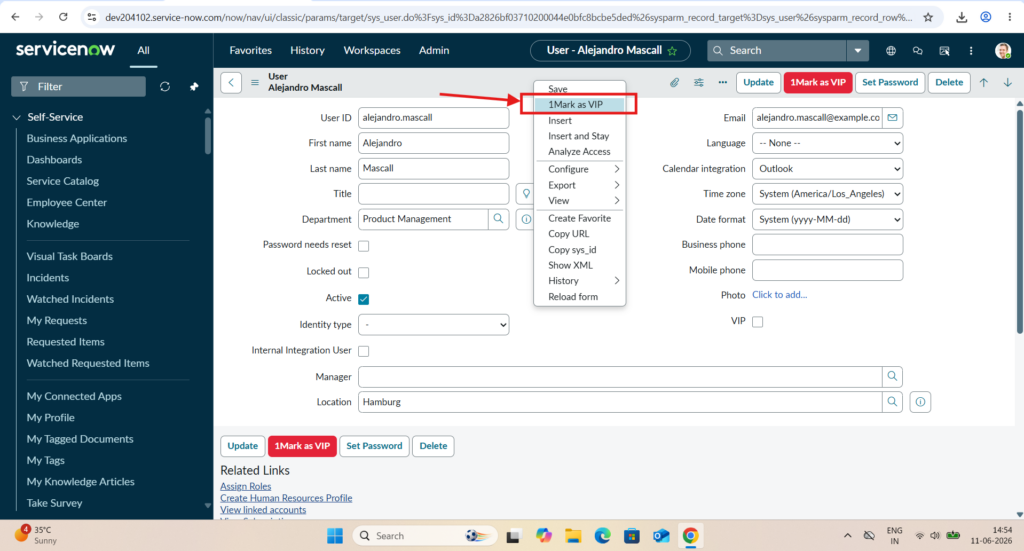
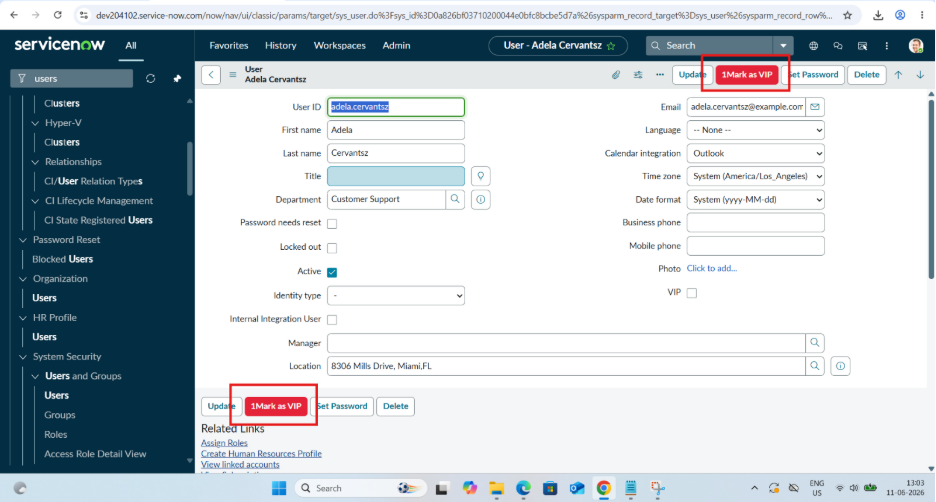
Step 5: Go on Users Form, open one User in Navigation bar there “Mark as VIP”
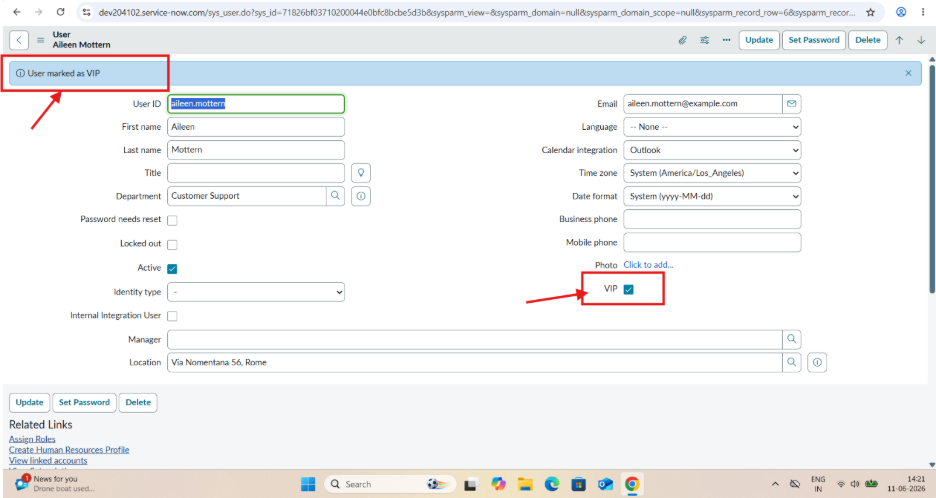
Step 6: Click on “Mark as VIP” Then That user will be mark as VIP, Automatic VIP Checkbox will fill.
Context Menu in UI Action
The Context Menu in a UI Action is the menu that appears when you right-click on a record in ServiceNow. Instead of showing a button on the screen, the action stays hidden until the user right-clicks.
Why use the Context Menu?
- Keeps the screen clean
- Hides less-used actions
- Provides quick access when needed
Creating Context Menu in Form & List -:
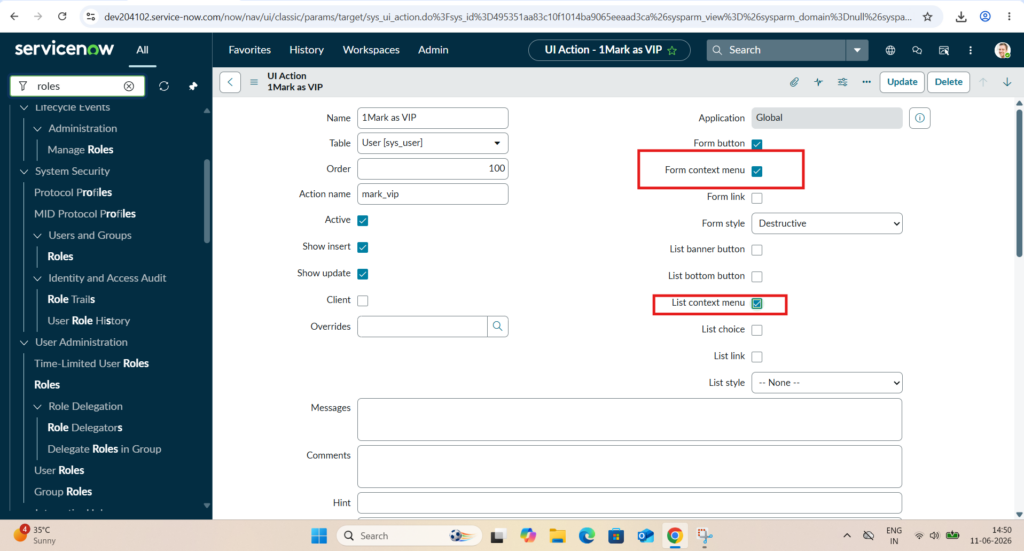
- Add Name & Click on Form & List Context Menu Check box.